
Notice: This blog post has been updated in June, 2026 to reflect the current migrations options as of VCF 9.1.
VMware offers several ways to migrate both physical and virtual workloads to vSAN. The vSAN Migration Guide covers a variety of scenarios that can help ensure workloads can be migrated in a speedy and predictable manner.
The vSAN Express Storage Architecture (ESA) introduced in vSAN 8 delivers all-new capabilities and performance not possible with the Original Storage Architecture (OSA). vSAN ESA processes and stores data in a new way, using an approach designed specifically for high-performing NVMe-based storage devices, fast processors, and high-throughput networks.
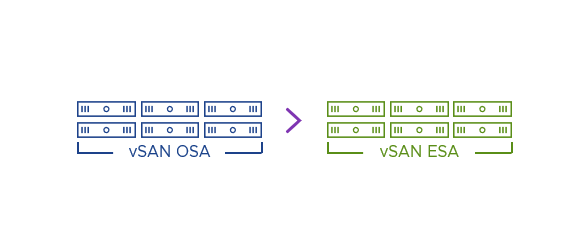
As a result of this new data path, underlying data structure, and a higher threshold of hardware requirements, an in-place migration of a vSAN cluster using the OSA to the ESA is not available. Let’s look at the supported migration options that allow for a seamless transition of a data center from clusters running the vSAN OSA to the vSAN ESA.
Common Migration Options
Migrations in the data center often stem from the introduction of new hardware, upgrades in software powering the platform, or perhaps a combination of both. Phasing in new versions of vSphere and vSAN into an environment typically involves one of two methods:
- In-place cluster upgrades of the hypervisor on existing hardware. This is the most common method to keep the hypervisor on existing hardware up to date. The vSphere Lifecycle Manager (vLCM) provides a comprehensive way to manage the lifecycle of the hypervisor while ensuring the workloads remain available.
- New cluster installations using the latest hypervisor on new hardware. This approach minimizes unnecessary upgrade activities by deploying the latest version of the hypervisor on a new cluster using new hardware. vSphere and vSAN clusters have a level of autonomy from each other, making a hardware refresh a time-tested method to introduce a new major version of vSphere or vSAN. This approach is often preferred by administrators and consultants alike.
Since vSAN ESA has a few different hardware requirements than vSAN OSA, most customers will be transitioning to vSAN ESA on a per-cluster basis through a new installation of vSAN running on new vSAN ReadyNodes certified for use with the ESA. A transition from OSA to ESA is a one-time migration occurring on a per-cluster basis, and as shown below, subsequent upgrades can occur in place through vLCM.
| Old Cluster Version | New Cluster Version | Supported Migration Path |
| vSAN 7.x OSA | vSAN 8 OSA | In-place upgrade using vLCM |
| vSAN 8 OSA | vSAN x.next OSA | In-place upgrade using vLCM |
| vSAN 7.x or 8 OSA | vSAN 8 or later ESA | New cluster build followed by migration using vMotion & Storage vMotion |
| vSAN 8 ESA | vSAN x.next ESA | In-place upgrade using vLCM |
As shown in Figure 1, when using vSAN 8, the decision to use the OSA or ESA is determined at the time the cluster is created, not at the time of the installation of ESXi on the host.
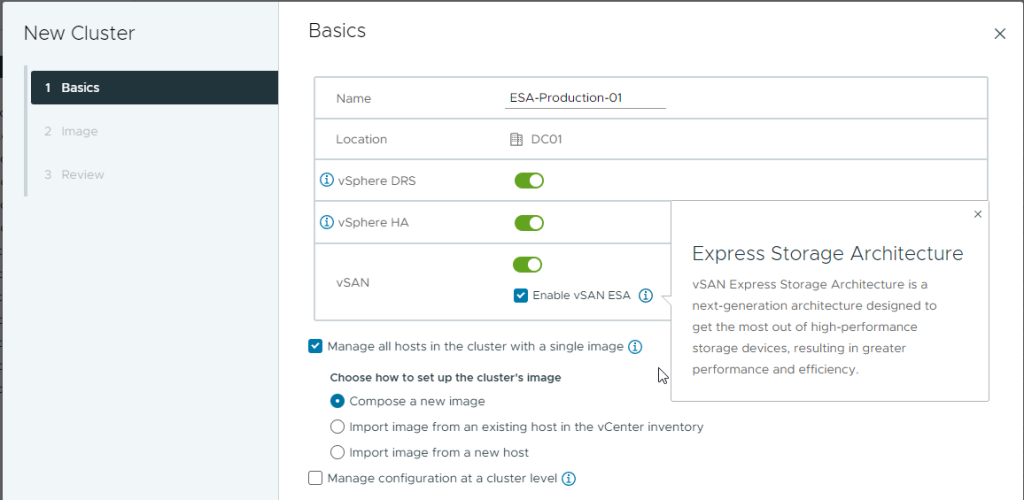
Figure 1. Selecting the ESA option when creating a cluster in vSAN 8.
Let’s look at some common scenarios and supported workload migration options for transitioning to the vSAN Express Storage Architecture. The steps listed are simplified for clarity.
Scenario 1: ESA Cluster through Hardware Refresh Cycle or Planned Growth
This scenario is for customers interested in refreshing hardware in one or more vSAN clusters or purchasing new servers to increase resources. For many of our vSAN customers, this scenario will be the most common migration path to the ESA.
Migration Option #1: Deploy new cluster and migrate workloads via vMotion and Storage vMotion.
This type of migration consists of building up the new servers with the vSAN ESA, then migrating workloads from other clusters to this new cluster.
- Verify that the environment’s vCenter Server is running the very latest version of vSAN.
- Install the very latest version of vSphere on the new hosts that will form the new ESA cluster.
- Create a new cluster in vCenter Server, selecting “Enable vSAN ESA” in the wizard.
- Add hosts using the “Cluster Quickstart” wizard found by highlighting the cluster, and clicking on Configure > Cluster Quickstart.
- Perform a vMotion and Storage vMotion on the selected workloads, migrating them from the existing OSA clusters to the new ESA cluster.
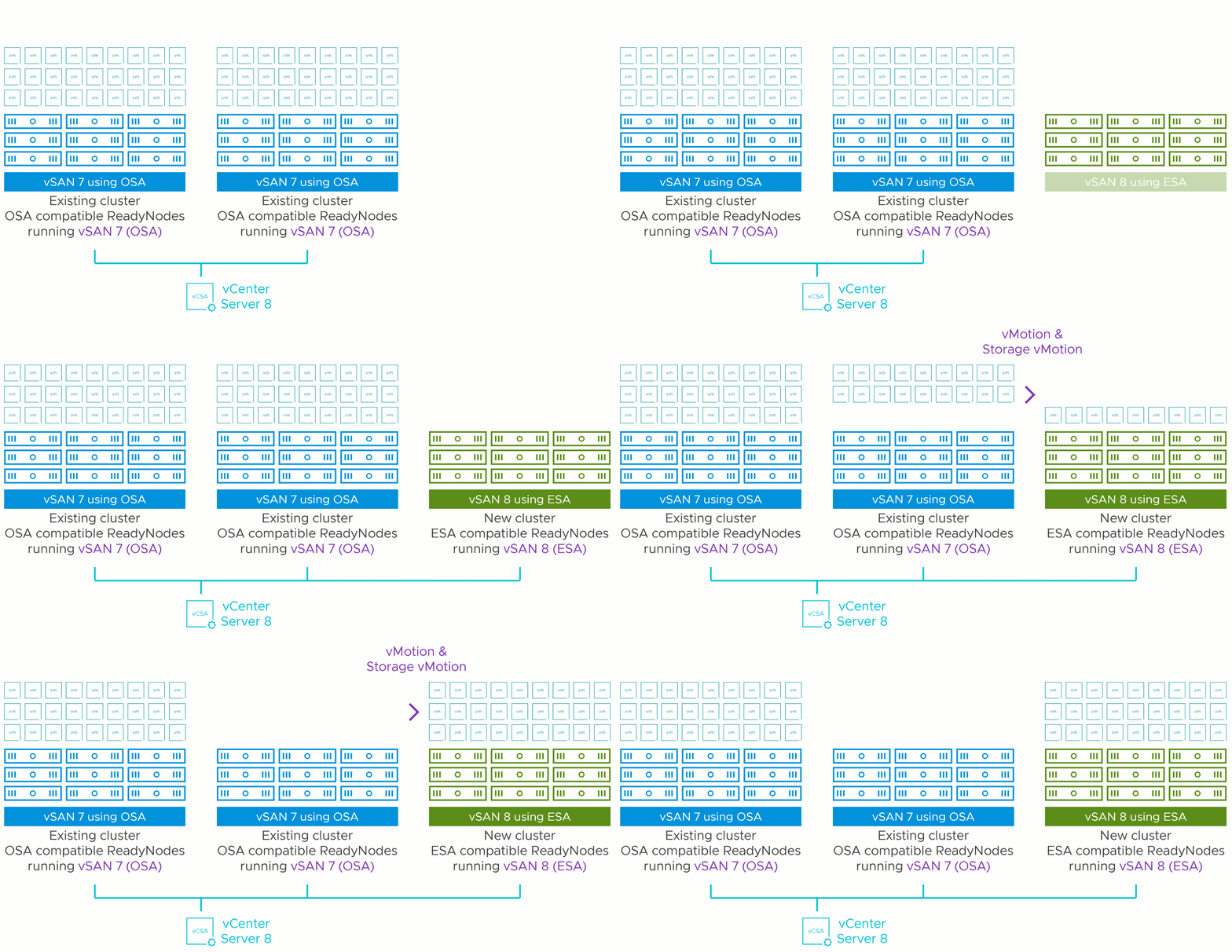
Figure 2. Migration to a new ESA cluster through a hardware refresh cycle or planned growth.
Before a workload migration, it is recommended to review the recommendations listed later in this article. While migration of workloads in this manner has been a core competency of vSphere and vSAN for many years, the recommendations given will help ensure that the cluster is configured correctly, and improve the likelihood of a trouble-free migration.
In VCF 9.1, vSAN introduced the capability of mounting a remote datastore of a vSAN OSA cluster to a vSAN ESA cluster (or vice versa). This opens up new options in migrations, including:
- Migrate from vSAN HCI clusters running OSA to vSAN HCI clusters running ESA. This allows for direct mounting of datastores regardless of the architecture used.
- Use vSAN storage clusters as a part of your strategy to extend life of existing hardware. You may have workloads on OSA clusters that may need higher levels of performance or capacity. A vSAN storage cluster (powered by vSAN ESA) can be introduced to an environment, and vSAN OSA clusters can easily mount this storage cluster to augment their performance and capacity requirements.
For more information, see the post: “Greater Flexibility and Security with VMware vSAN Storage Clusters in VCF 9.1“
Scenario 2: ESA Cluster through ReadyNodes running vSAN OSA but Compatible with ESA
A scenario may exist where customers purchased vSAN ReadyNodes that were certified for ESA but needed to run the vSAN OSA for some time. While less common, there may be reasons such as feature compatibility or organizational readiness that prevented new hardware certified for the ESA to be initially installed with vSAN ESA.
Migration Option #1: Evacuate the entire OSA cluster and redeploy vSAN using vSAN ESA
This type of migration consists of a full evacuation of an OSA cluster using servers certified for the ESA, a rebuild, then a migration of workloads back to a new cluster running the ESA.
- Verify that the environment’s vCenter Server is running the very latest version of vSAN.
- Perform a vMotion and Storage vMotion of all workloads on the existing cluster to other clusters managed by the vCenter Server.
- Decommission disk groups, and remove the hosts from the old cluster.
- Install the very latest version of vSphere on the previously used hosts that will form the new ESA cluster.
- Create a new cluster in vCenter Server, selecting “Enable vSAN ESA” in the wizard.
- Add hosts using the “Cluster Quickstart” wizard found by highlighting the cluster, and clicking on Configure > Cluster Quickstart.
- Perform a vMotion and Storage vMotion on the selected workloads, migrating them from the existing OSA clusters to the new ESA cluster.
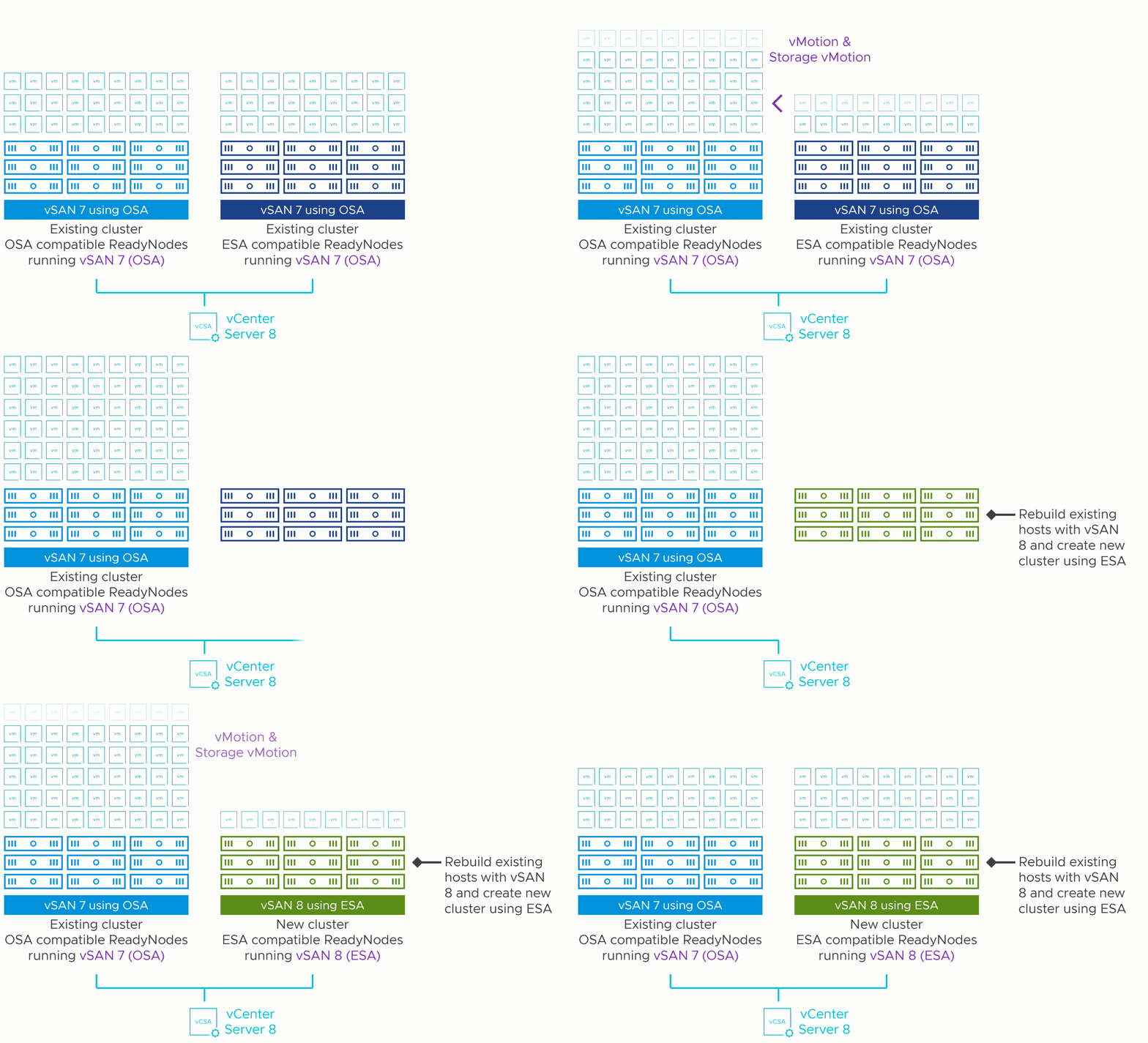
Figure 3. Cluster migration from OSA over to new cluster running ESA using Certified ReadyNodes for ESA.
Depending on the size of the cluster and/or the number of workloads migrated, one may need to determine if the other clusters used during the evacuation process can temporarily handle the additional workloads. The migration option below presents an alternative method of approaching this scenario.
Migration Option #2: Perform rolling cluster migration from OSA over to a new cluster
This type of migration consists of a partial evacuation of some hosts in the OSA cluster so that they could be rebuilt with the ESA in a new cluster, followed by incremental migrations of workloads. This method helps reduce the amount of temporary free space needed when workloads are vMotioned.
- Verify that the environment’s vCenter Server is running the very latest version of vSAN.
- Perform a vMotion and Storage vMotion of enough workloads on the existing cluster to be able to decommission three of the hosts in the existing cluster.
- Decommission disk groups the desired hosts, and remove the hosts from the old cluster.
- Install the very latest version of vSphere on the previously used hosts that will form the new ESA cluster.
- Create a new cluster in vCenter Server, selecting “Enable vSAN ESA” in the wizard.
- Add hosts using the “Cluster Quickstart” wizard found by highlighting the cluster, and clicking on Configure > Cluster Quickstart.
- Perform a vMotion and Storage vMotion on the selected workloads, migrating enough of them from the existing OSA cluster to the new ESA cluster so that one can decommission an additional host or more.
- Repeat steps 2 through 7 until only three hosts remain in the old cluster, and all the other hosts have been decommissioned and rebuilt for the ESA cluster. You may need to temporarily assign new storage policies to the remaining VMs on the old cluster so that they can fit on just three hosts.
- Migrate the remaining workloads on the old OSA cluster to the ESA cluster, and decommission the remaining hosts in the old cluster so that they can be rebuilt for the new ESA cluster.
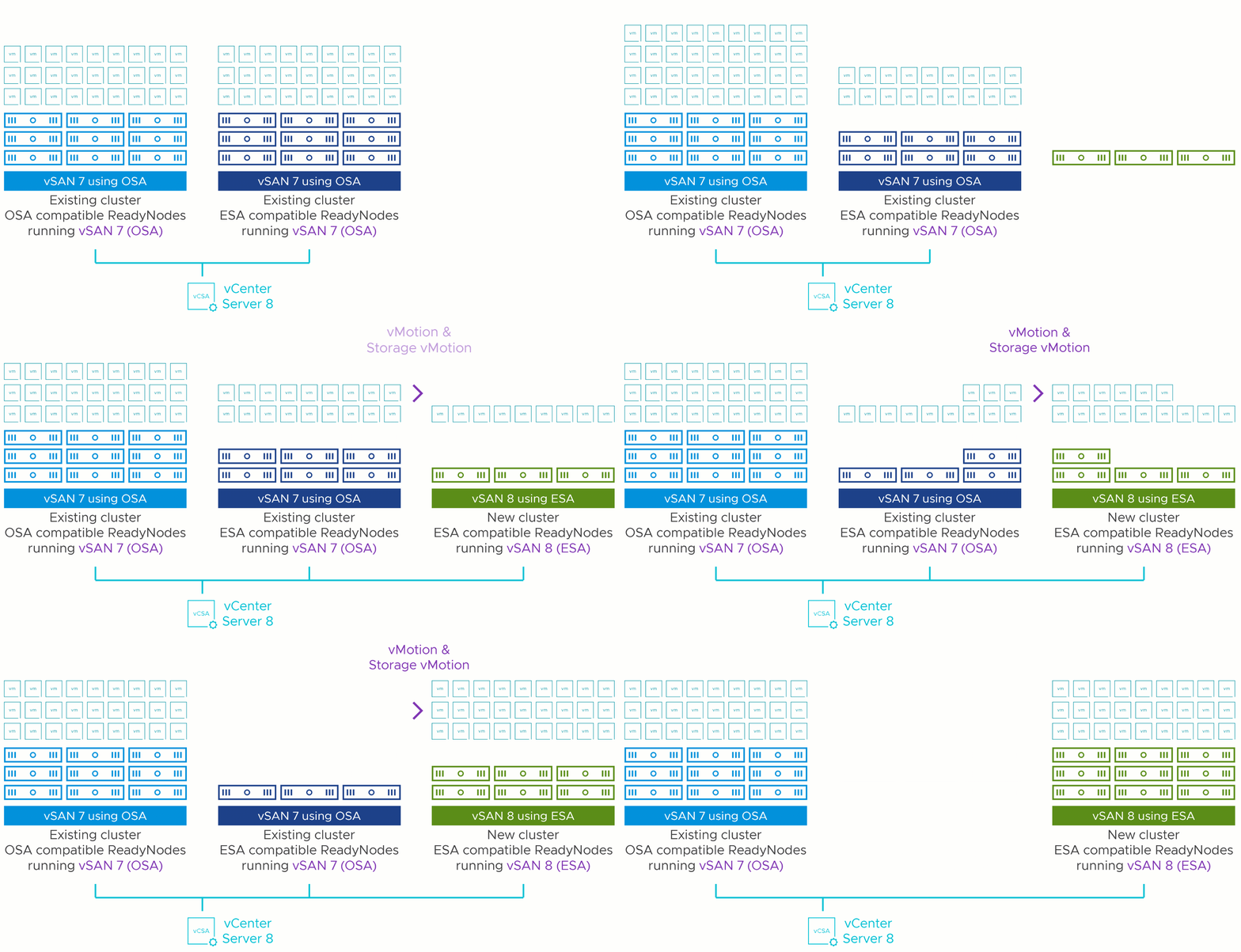
Figure 4. Rolling cluster migration from OSA over to new cluster running ESA using Certified ReadyNodes for ESA.
Scenario 3: OSA Cluster using Hardware Insufficient for ESA
Note that these two migration options in the scenario above will ONLY work with hosts that have been certified to run with vSAN ESA. However, many of the hardware requirements for vSAN ESA have been relaxed since its debut in 2022. Many of the requirements for CPU, memory, and networking have been lowered on several occasions, with the latest minimums noted on the post: “Driving Down Storage Costs with Lower Hardware Requirements for vSAN.”
With these lowered requirements, you may find your servers running vSAN OSA could potentially be retrofitted with as little as new NVMe storage devices, and rebuilt with vSAN ESA. This is a great way to extend the life of existing hardware. For more information, see the post: “The 2026 Structural Supply Crisis: Why VMware Cloud Foundation Is The Answer to the 2026 Hardware Crunch” and an FAQ document on “Repurposing ESXi Servers for
VMware vSAN.”
OSA to ESA Migration Recommendations
The following recommendations will help customers large and small make the transition to the vSAN ESA.
- Ensure that all hardware used in a vSAN cluster is on the HCL. The Broadcom Compatibility Guides for vSAN ESA and OSA are the source of truth for all combability questions. VMware also provides vSAN ESA ReadyNode hardware guidance that describes host and network requirements, as well as what you can (and cannot) change in a vSAN ESA ReadyNode that describes what can and cannot be modified within a ReadyNode host.
- Revisit your network topology and switchgear. For vSAN ESA to exploit the full performance capabilities of high-performing NVMe storage devices, ensure that network requirements are met and that the network switch configurations are configured optimally. For more information, see the posts: vSAN Networking – Network Topologies, vSAN Networking – Network Oversubscription, vSAN Networking – Optimal Placement of Hosts in Racks, vSAN Networking – Teaming for Performance, vSAN Networking – Teaming for Redundancy, vSAN Networking – Is RDMA Right for You? and What to Look for in Network Switches for VMware vSAN
- Run the very latest version of vCenter Server. A vCenter Server running the most recent version will be able to easily manage clusters running previous versions of vSAN, as well as clusters running OSA or ESA. This makes for easier management and migration.
- Phase in new versions of vSphere and vSAN cluster by cluster. Whether a cluster is running vSAN OSA or ESA, introduce new versions of vSphere and vSAN in phases, initially cluster-by-cluster. This will allow your organization to introduce new versions of vSphere and vSAN in a predictable and fully supported way, and allow you to examine it before wide-scale deployment. See the “Multi-Cluster Upgrading Strategies” section in the vSAN Operations Guide for more information.
- Gather your capacity requirements accurately during a cluster refresh. When replacing a cluster using vSAN OSA with one using the ESA, ensure that you are gathering the capacity requirements of VMs in an OSA cluster the correct way. For more information, see the post: Calculating Capacity Needs when Refreshing Existing vSAN Clusters.
- Revisit how many hosts you may need during a cluster refresh. When replacing a cluster using vSAN OSA with one using vSAN ESA, revisit the sizing requirements. vSAN ESA can run more workloads using fewer resources than vSAN OSA, which may result in a vSAN cluster running fewer hosts than compared to a cluster running vSAN OSA.
- Check the vSAN Health (previously known as “Skyline Health for vSAN”) after all new deployments or upgrades. Whether it is a new deployment or an in-place upgrade, immediately go to vSAN Health to ensure that all health findings are green, or healthy. This will help ensure that identified health alert findings are not hampering the performance or availability of data residing on vSAN.
- Run HCI Bench for all new deployments. For all new clusters, before placing an ESA cluster in production, run a series of HCI Bench tests to make sure your cluster is running properly before deployment and establish a baseline for future reference.
- Know where to go for additional information on the ESA. Be sure to visit our latest vSAN-related blog posts and white papers for the latest information and guidance on vSAN.
Summary
Migrating vSAN clusters from vSAN OSA to vSAN vSAN ESA will require different strategies than traditional upgrade procedures through vLCM. The guidance above details how the transition to the ESA in your environment can be predictable and repeatable regardless of your organization’s size or complexity.
Discover more from VMware Cloud Foundation (VCF) Blog
Subscribe to get the latest posts sent to your email.