

A step-by-step guide to calculating your security score, generating your first report, and turning it into a plan.
Modern intrusions hit their target immediately after breaking in. These attacks are prevalent since up to 80% of data center traffic moves east-west, server to server, out of sight of a perimeter firewall. They land on one low-value machine and move laterally until they reach something that matters.
The question most teams can’t answer quickly is: if one workload were compromised right now, how far could an attacker get?
The VMware vDefend Security Journey answers that question in a few clicks. It scores your real security posture based on observed traffic, then produces a report that tells you what to fix first. You don’t need agents, flow exports, or a spreadsheet.
The following is a practical walkthrough. You’ll get your first score, generate your first Security Assessment Report, learn to read it, and see how to use it to choose your next step.
Why Start with an Assessment
Most teams know they need segmentation and threat prevention. Three problems keep them from starting:
- No baseline. Without a current-state score, “are we more secure than last quarter?” is a guess.
- No prioritization. Firewall and IDS/IPS policy can go anywhere. Which workloads would create the biggest blast radius if they were compromised?
- No proof of progress. Stakeholders want to see security posture improve, not just a list of completed tickets.
The assessment gives you a baseline, a ranked list of projects, and a number you can re-measure later.
What You’ll Need
- A Security Services Platform (SSP) for vDefend instance with Security Intelligence enabled. A medium-form-factor SSP deployment with a trial license is enough to complete the full Security Journey.
- Workloads already sending traffic. The assessment analyzes observed flows, so the more history you have (in this example, 31 days), the more meaningful the results. Workloads connected via overlay and/or Distributed Virtual Port Groups (DVPGs) are supported.
- About 15 minutes of hands-on time, plus wait time while the score and report are calculated.
Step 1: Open the Security Journey
Log in to SSP and open the Security Journey from the main menu. The home page is your starting point for everything that follows.
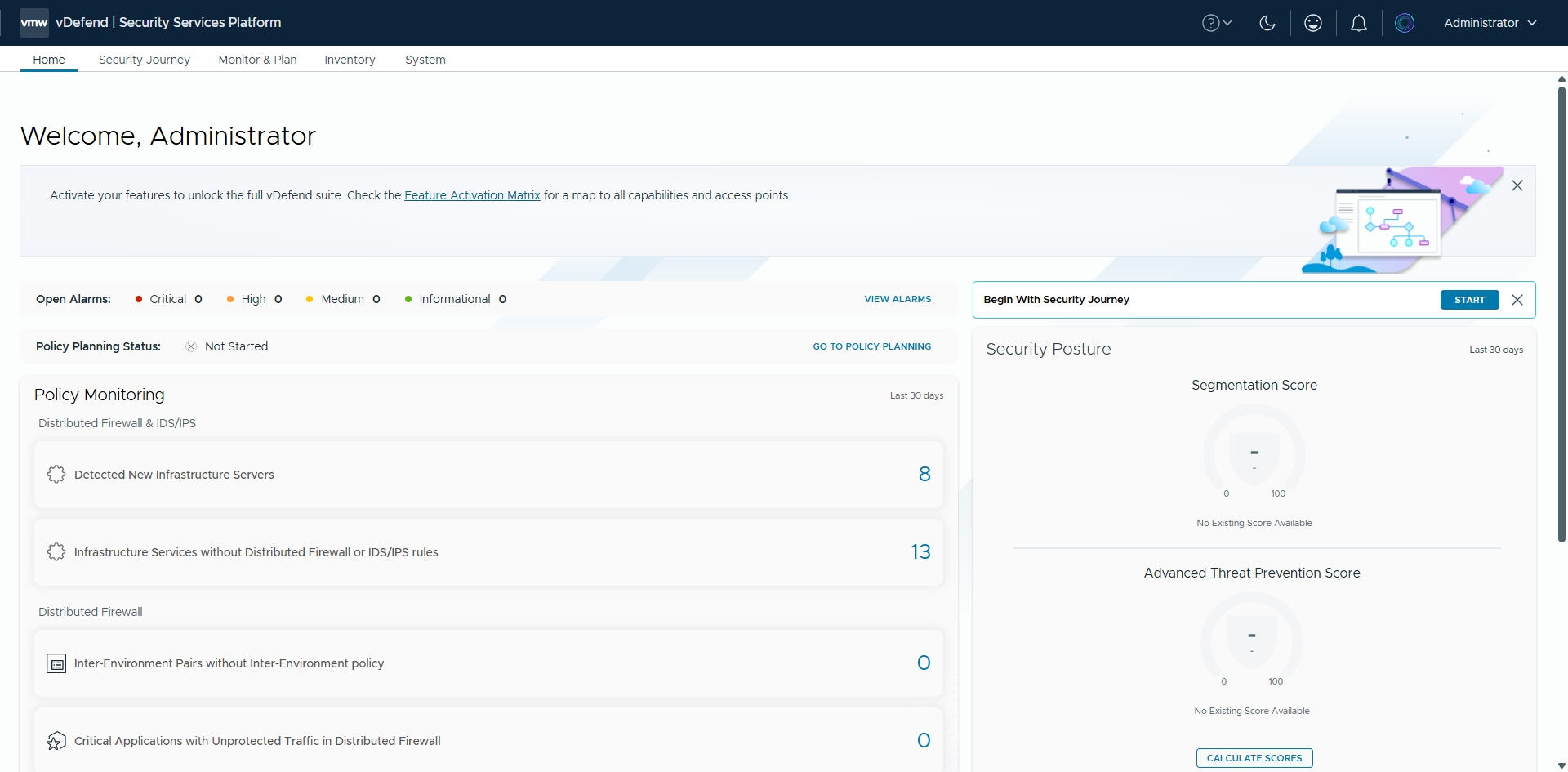
The Security Journey is available from the main SSP navigation.
Step 2: Start at Stage 1, Assess Your Security Posture
The Security Journey is organized into stages. Stage 1 is the assessment, and it’s where every journey starts. This page shows your current Segmentation Score and Advanced Threat Prevention (ATP) Score, and it’s where you launch a new calculation.
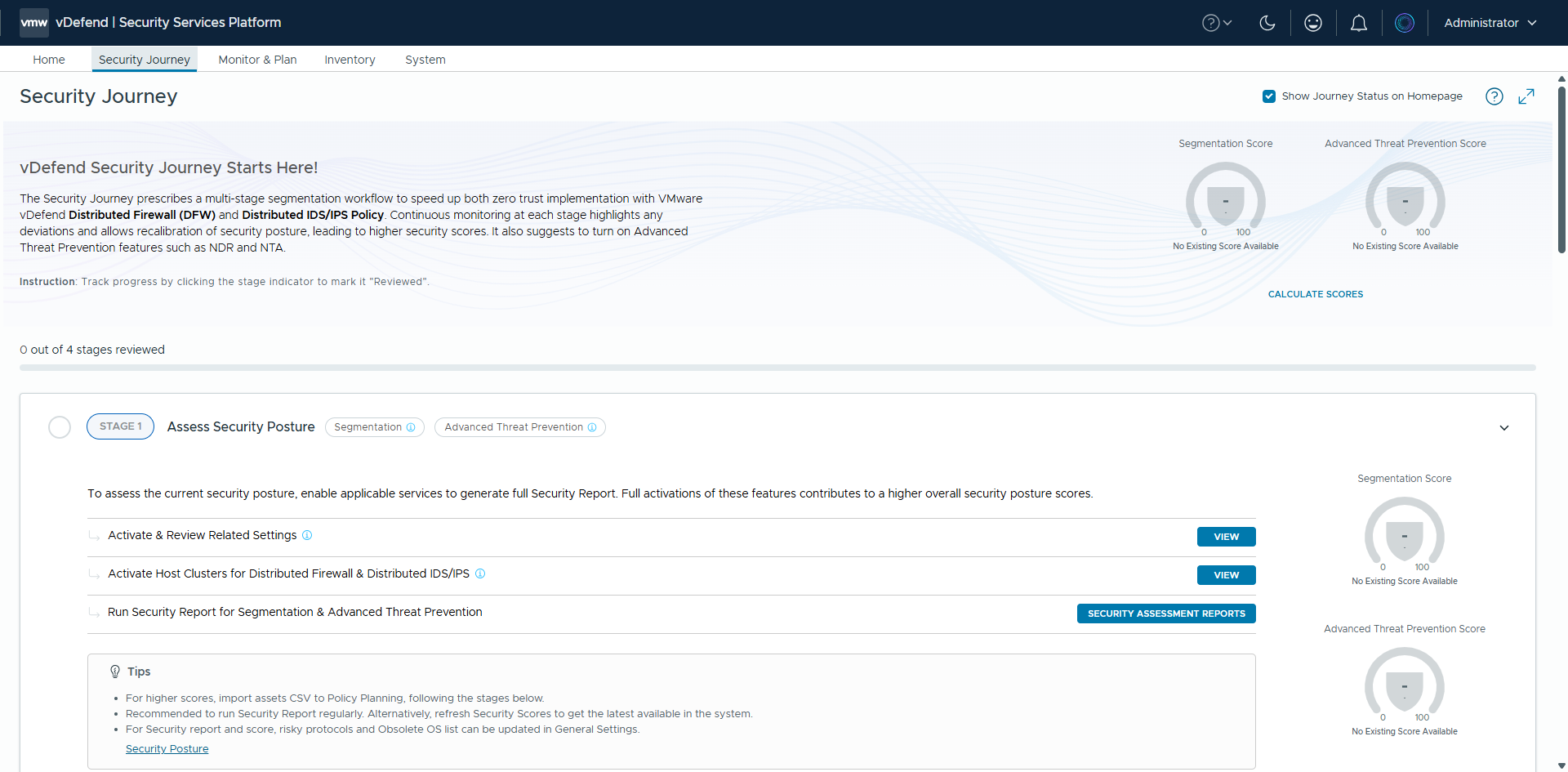
Stage 1 is the assessment. Calculate your scores here, then generate a report.
Step 3: Calculate Your Scores
Select Calculate Score. A dialog asks you to choose a scoring mode.
The mode controls how strictly the assessment judges your existing policy.
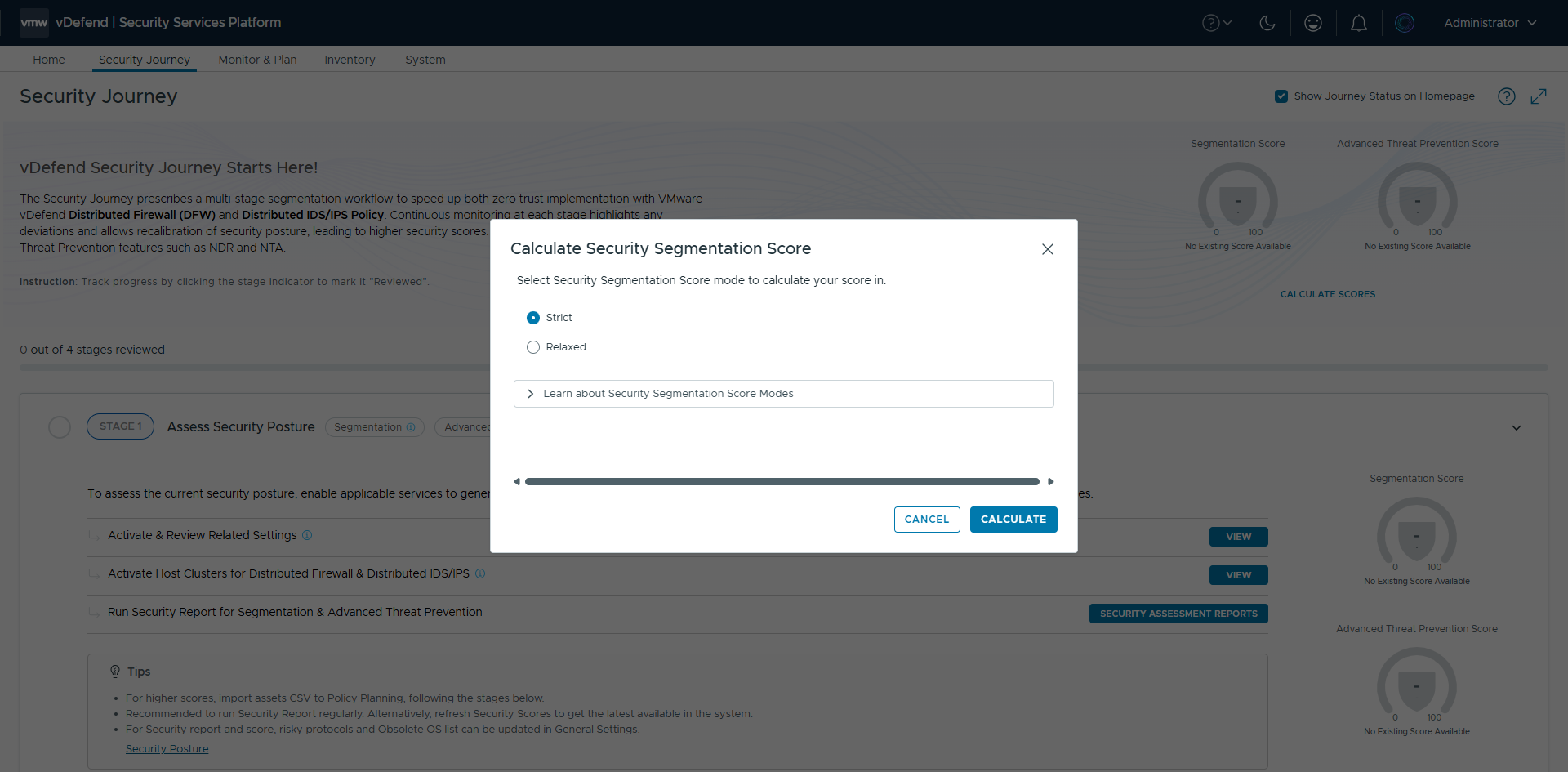
Confirm, and the calculation starts. Depending on the size of your environment and the amount of flow data, this can take a few minutes.
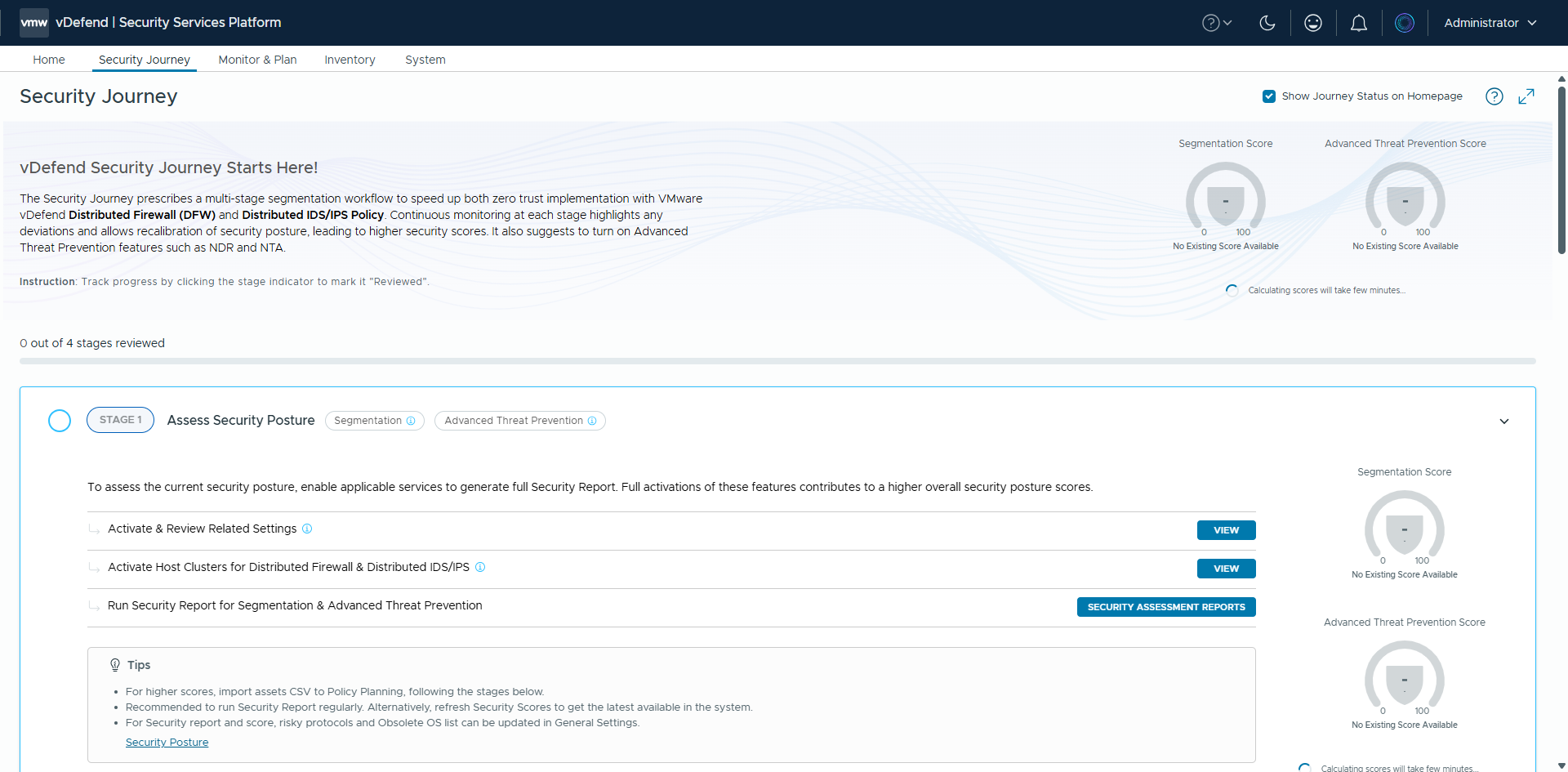
SSP analyzes your flow data in the background. You can leave the page and come back
Step 4: Read Your Two Scores
When the calculation finishes, Stage 1 shows your results.
You will see two independent scores, each from 0 to 100:
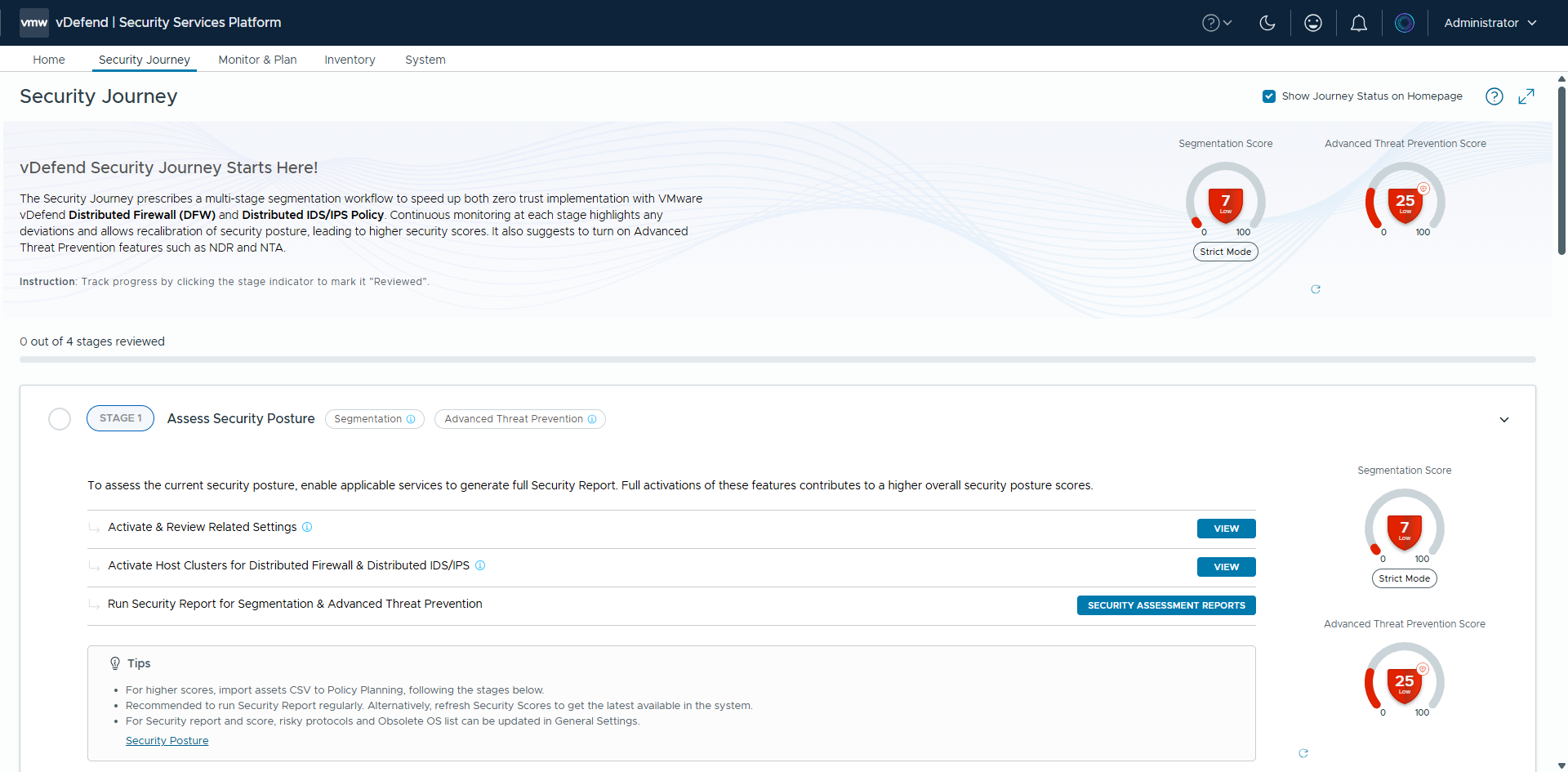
Your first baseline. Everything from here is measured against it.
- Segmentation Score: how well the Distributed Firewall (DFW) is actually stopping unauthorized lateral traffic. It reflects DFW activation, infrastructure protection, environment protection, application workload protection, and exposure to obsolete operating systems and risky protocols.
- Advanced Threat Prevention Score: how well IDS/IPS, Network Traffic Analysis (NTA), and Network Detection and Response (NDR) cover the same workloads.
A low first score is normal. In our example, a fresh environment scored 7 for Segmentation and 25 for ATP, both rated Low. That’s a starting point, not a verdict.
Step 5: Generate the Security Assessment Report
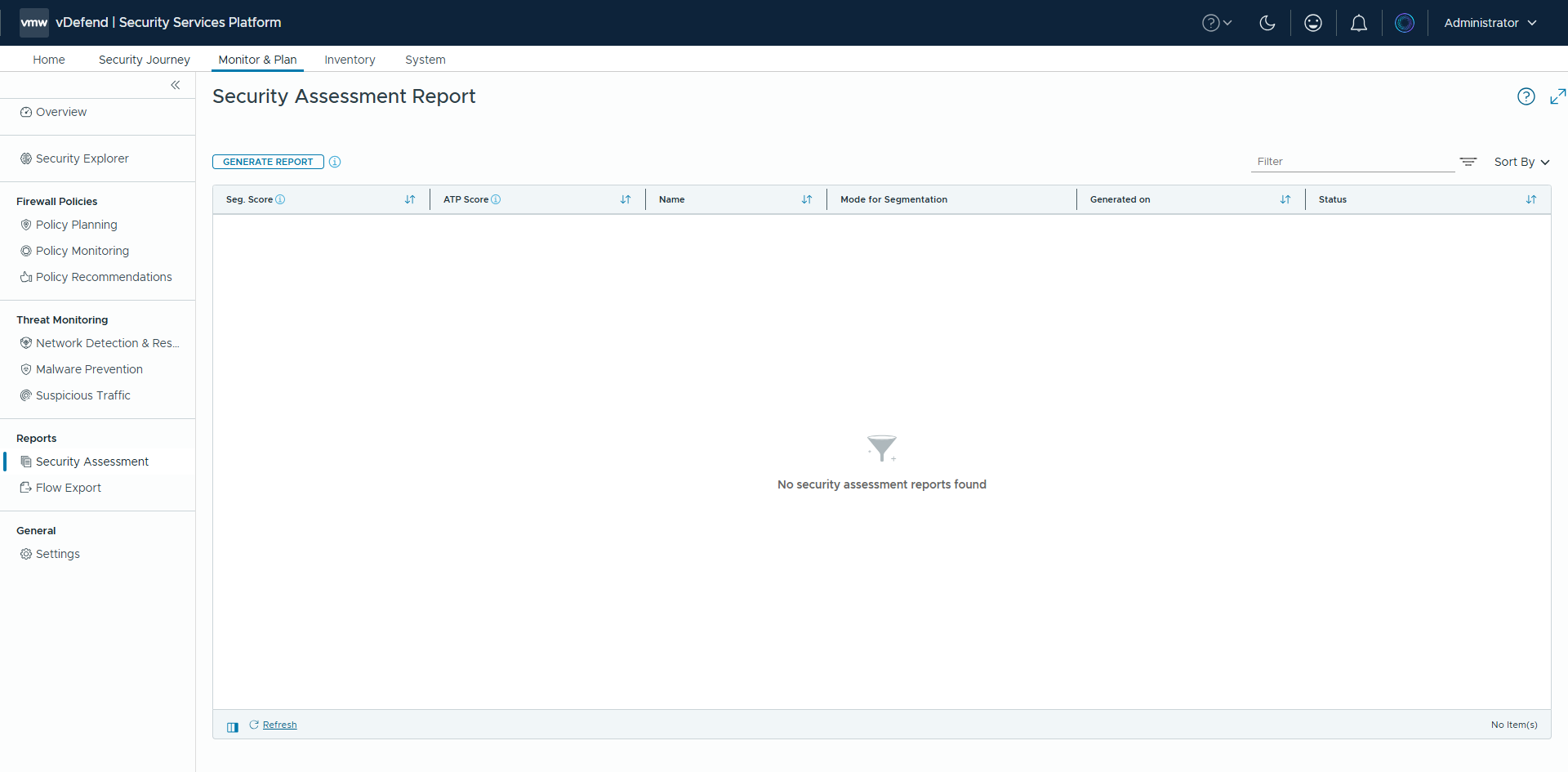
The scores tell you where you stand. The Security Assessment Report tells you why and what to do about it. From Stage 1, open Security Assessment Reports and choose to generate a new one.
The Generate Report dialog lets you name the report and confirm the analysis period.
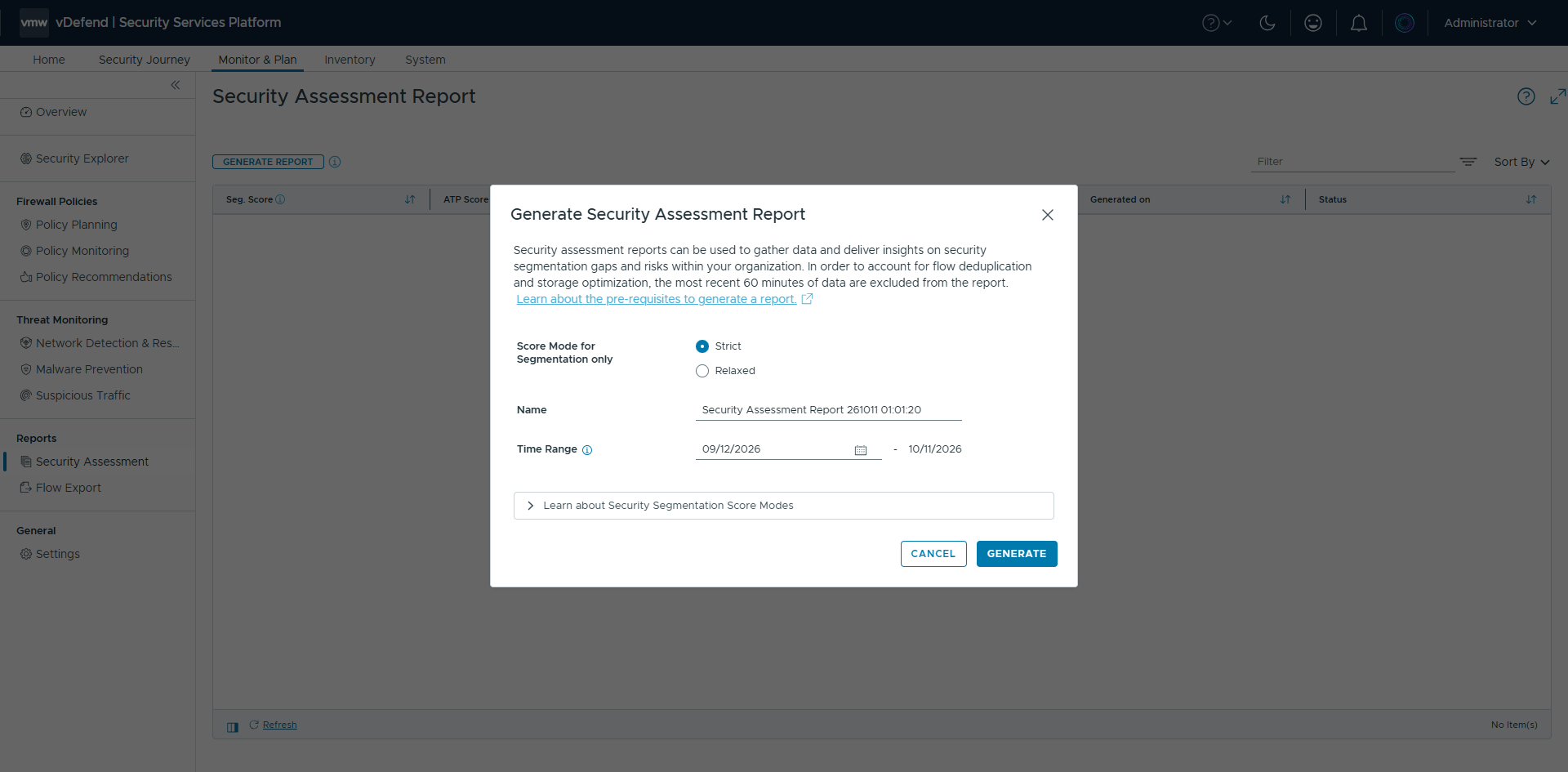
Give it a descriptive name, such as “Baseline – [Month Year]”, so you can recognize it when you compare reports later. Reports take a few minutes to build.
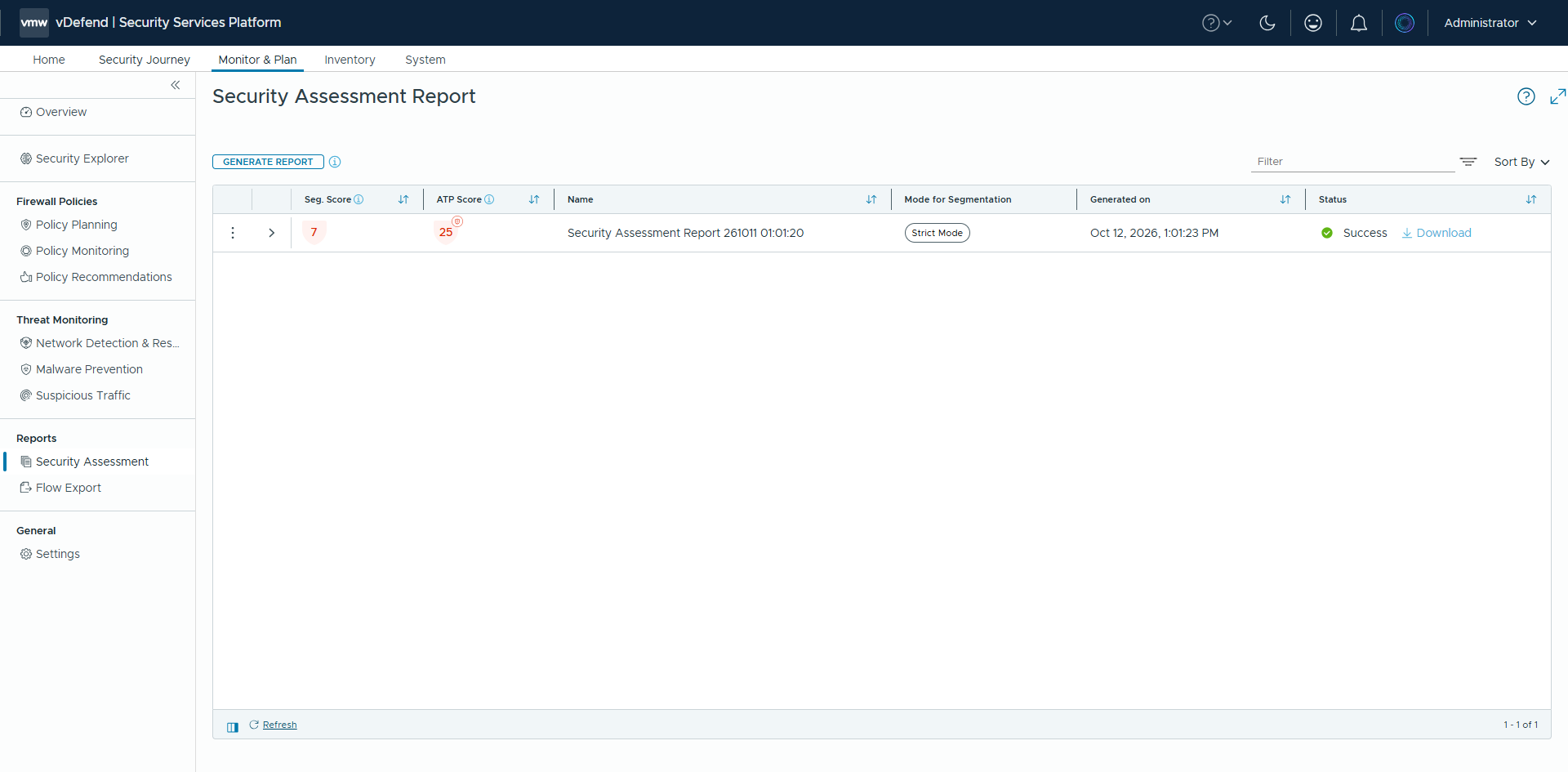
When the status shows Completed, download the PDF.
Step 6: Read the Report
The report is long, but you don’t need to read it front to back. This is the order that gets you to answers fastest.
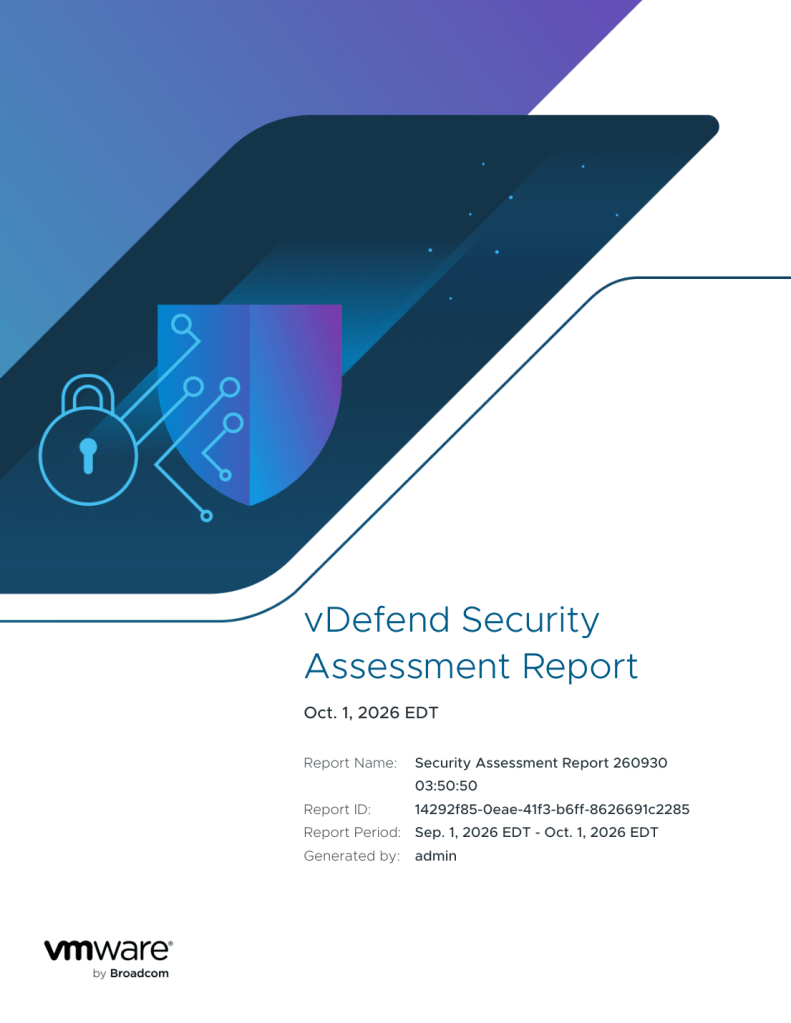
The cover. Check the report period
Note the Report Name, Report ID, and Report Period. Everything in the report is based on traffic seen in that window. When you compare reports later, make sure the periods are comparable.
The Executive Summary. Where the points are.
This one page is the report in miniature. It shows the environment facts (days analyzed, unique flows, VM count, software versions) and both scores, divided into weighted factors with points earned against the maximum.
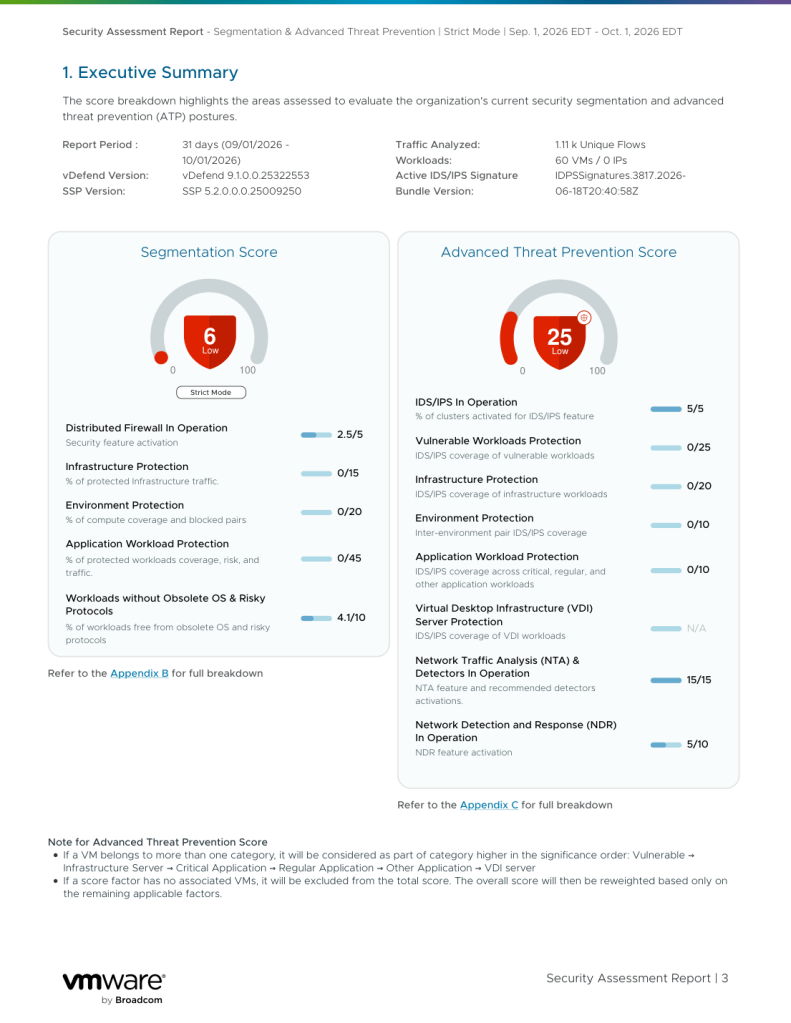
Turning features on earns a few points. Applying policy earns the rest.
The lesson in our example data: activating DFW and IDS/IPS earned the easy points, but the heavily weighted factors (infrastructure, environment, and application protection) were all zero, because no policy covered those workloads yet.
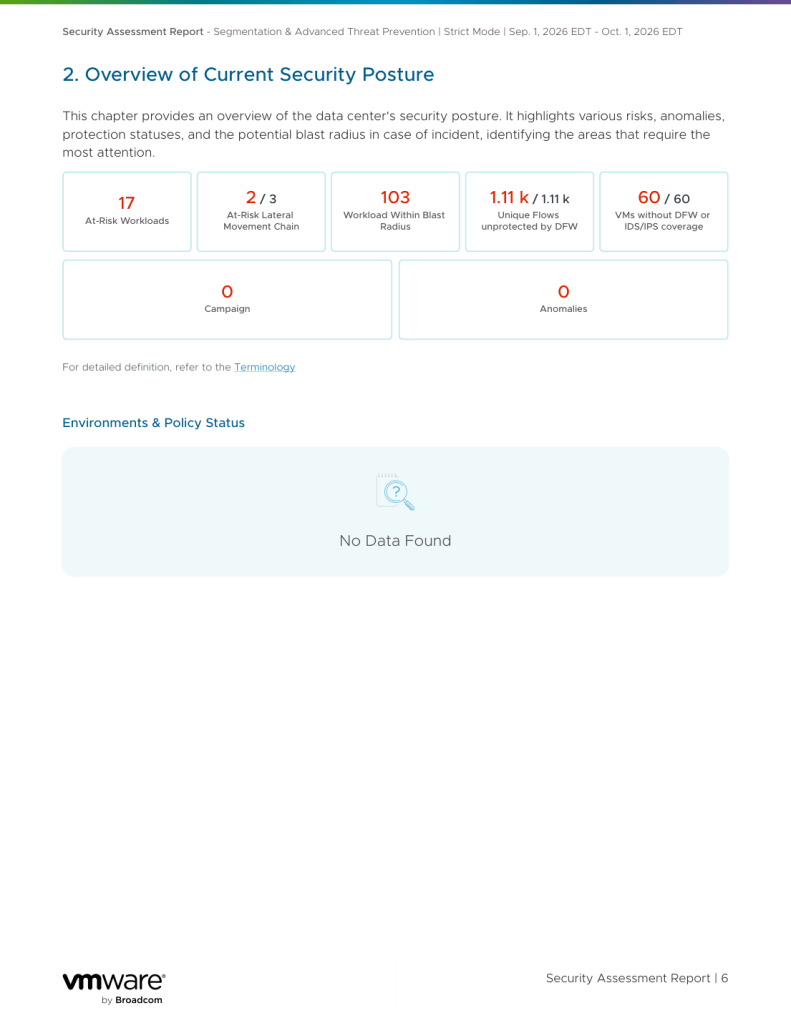
The Posture Overview. How bad could it get?
This page puts numbers on risk: at-risk workloads, at-risk lateral movement chains, and blast radius, which is how many other workloads an attacker could reach from a compromised one. The accompanying chart makes the point visually. In our example, just two VDI servers had a blast radius of 101 other workloads.
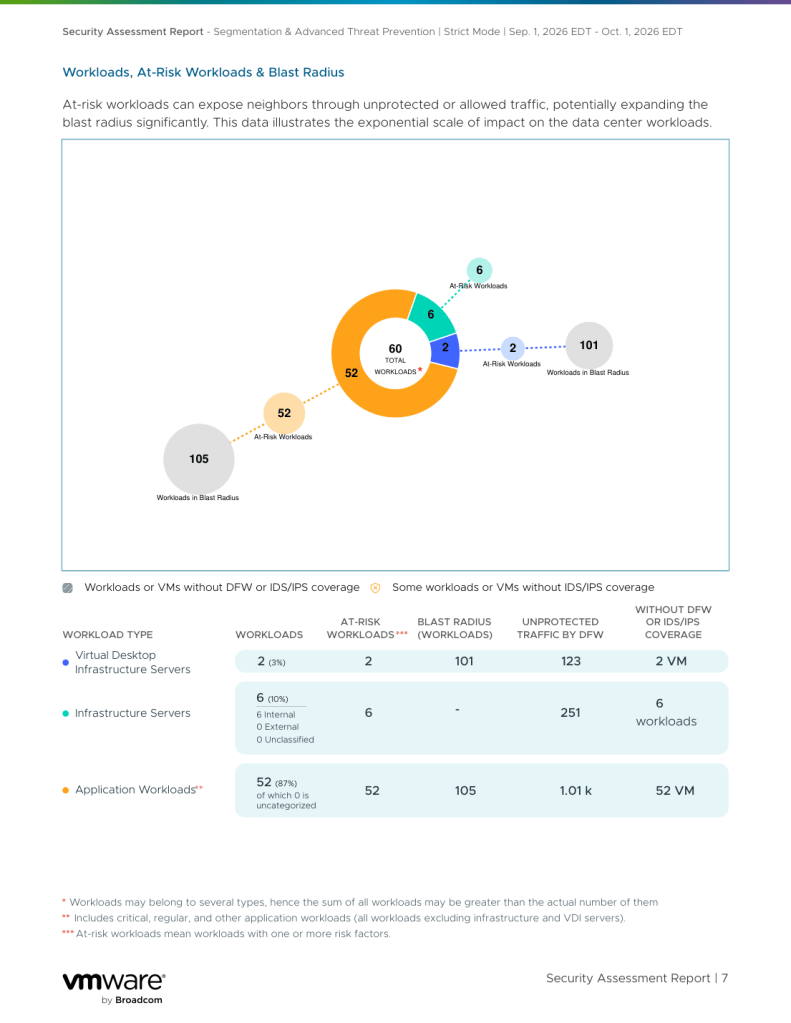 Blast radius shows why a few workloads deserve attention first.
Zero campaigns and zero anomalies mean NDR hasn’t seen active attacks. The exposure is potential, not confirmed compromise.
Recommended Projects. Your to-do list.
This is the most actionable page. The report turns the gaps into ranked projects scoped to your environment, with real workload and flow counts:
- Secure External Communications: workloads talking to the internet.
- Secure Infrastructure Services: DNS, NTP, AD and similar services everything depends on.
- Secure Application Workloads: critical and regular business applications.
- Isolate VDI Servers: high-value entry points.
- Secure Obsolete Operating Systems: unpatched legacy systems that can’t be fixed, only contained.
Each card has a Go to Security Explorer or Go to Policy Planning link, so you go straight from finding to fix.
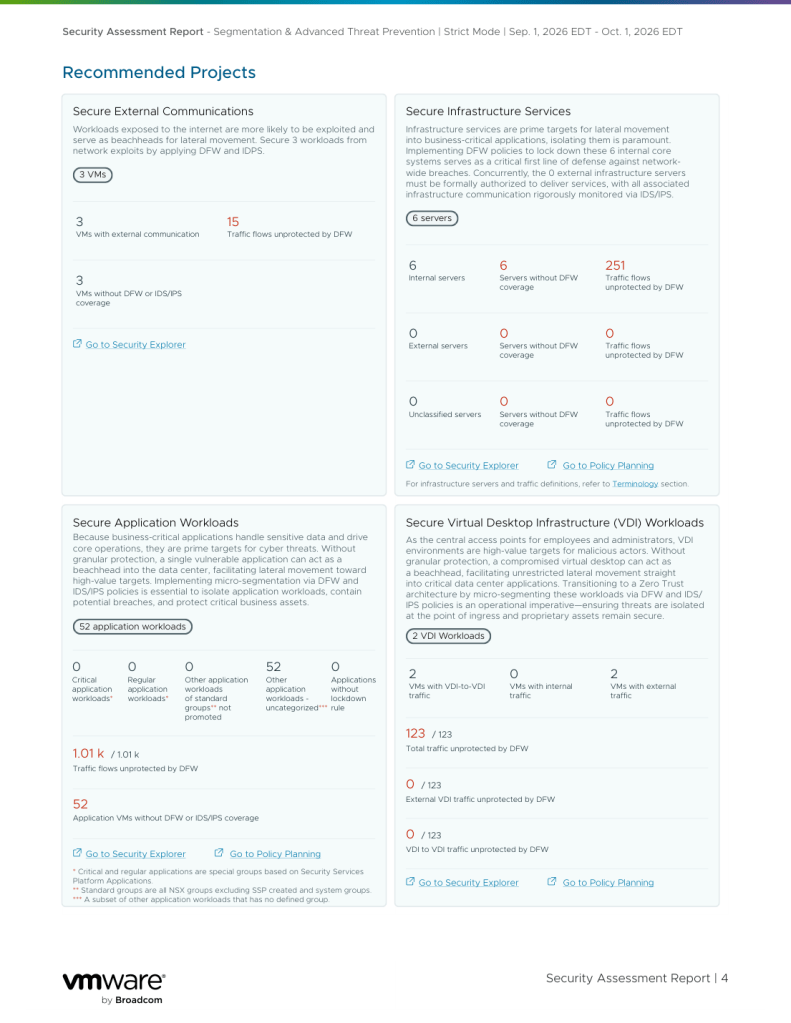
The report ranks your next projects by risk.
Each project also has a detail page. Two examples worth a screenshot:
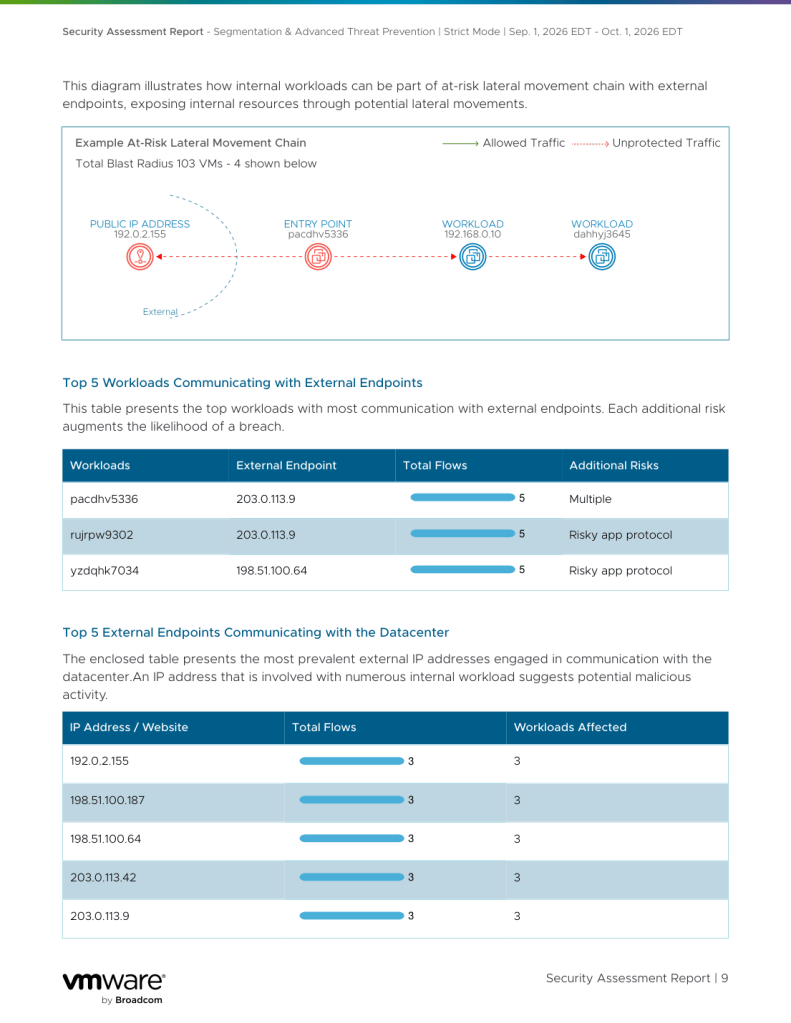
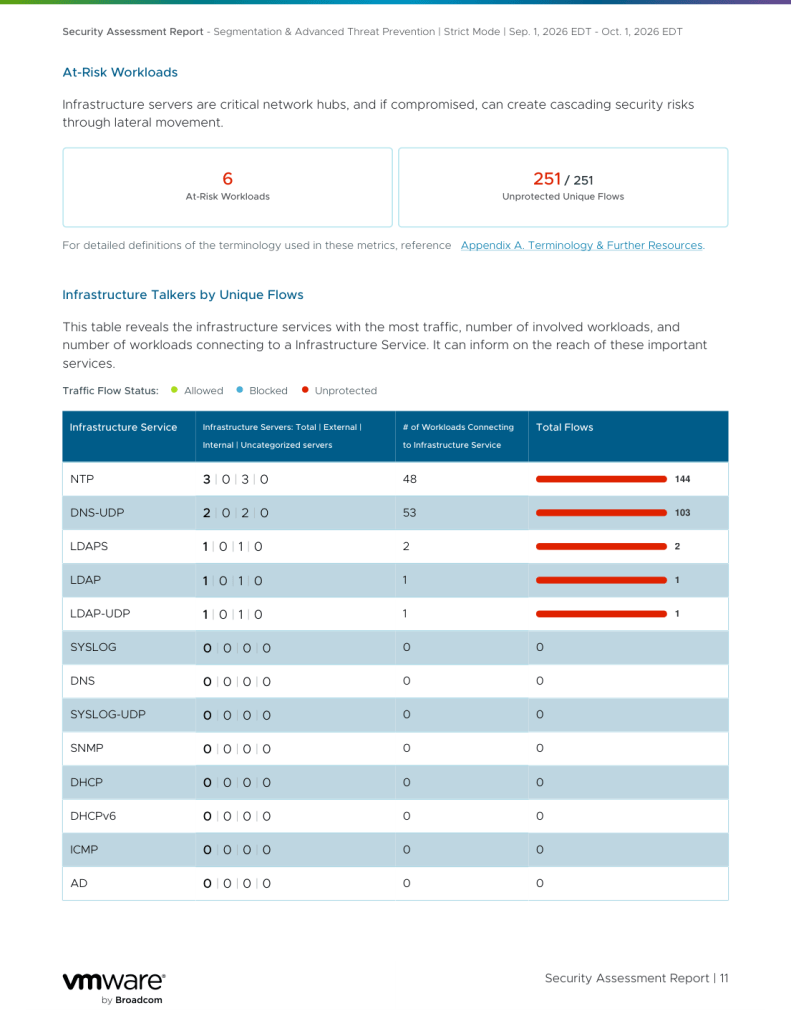
The Appendices. How to earn more points.
If you want to know exactly why you scored what you did, Appendix B (Segmentation) and Appendix C (ATP) break every factor into sub-checks with the exact configuration needed for full credit, such as a default Layer 3 deny rule or an IDS/IPS rule in Detect or Prevent mode. Treat them as your checklist.
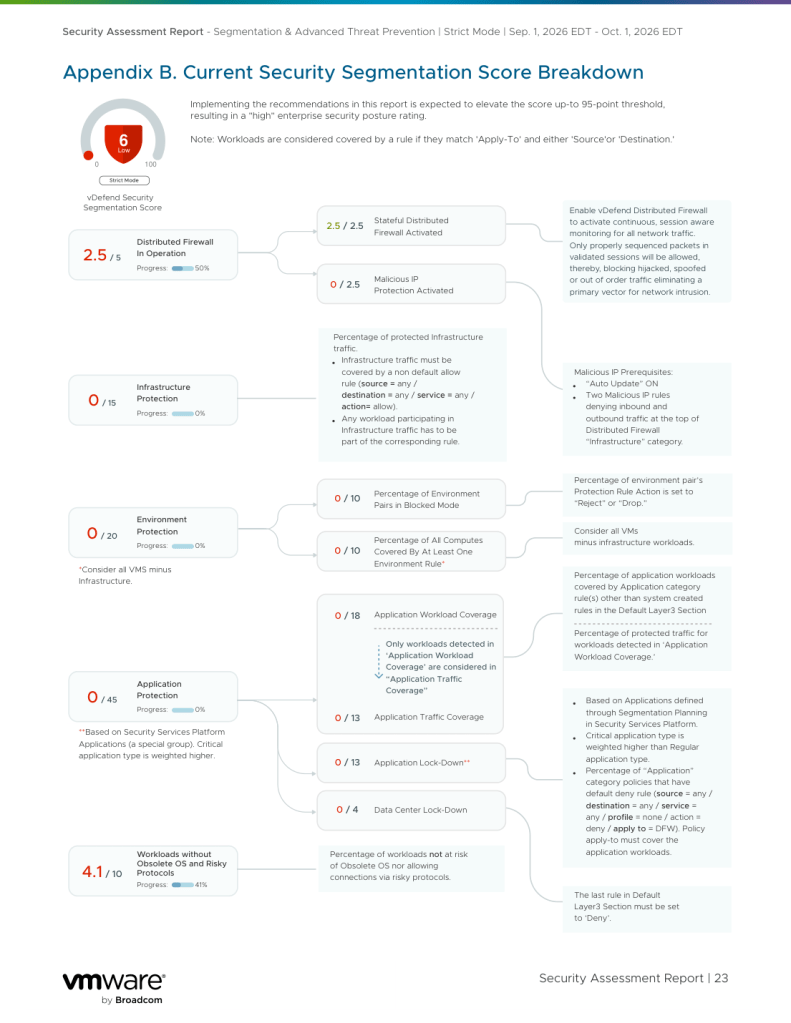
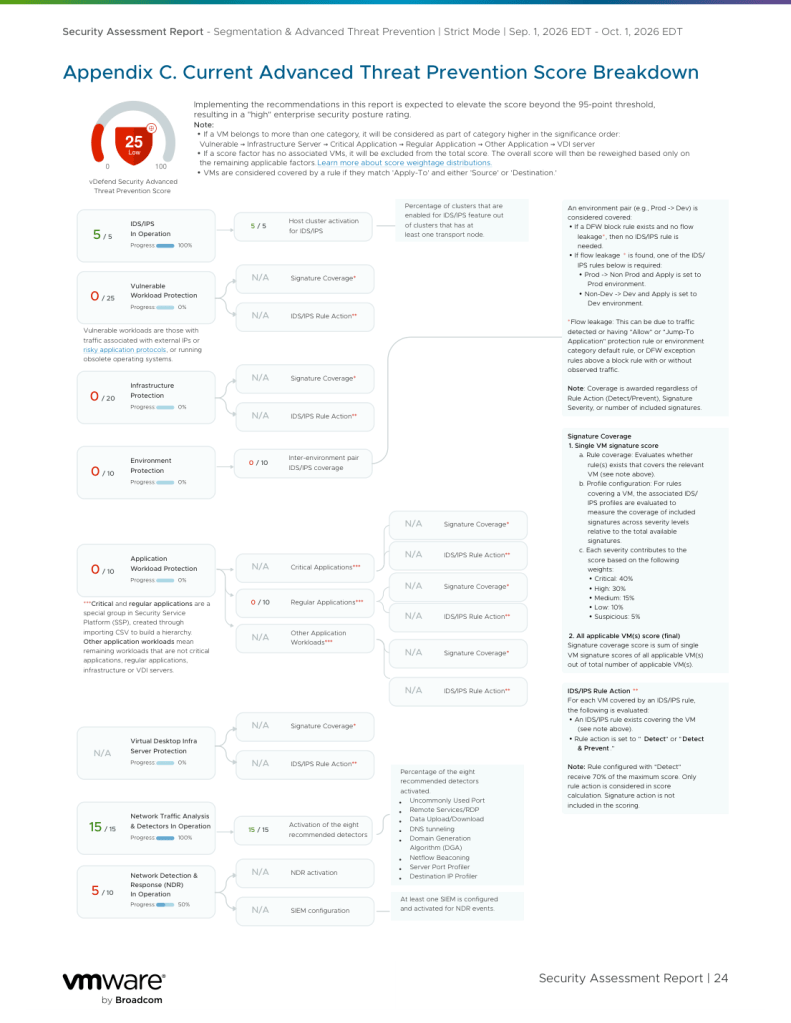
The appendices turn the score from a black box into a checklist.
Step 7: Pick Your Next Move
You now have a baseline and a ranked list. The Security Journey continues from Stage 1 with guided workflows, so you don’t have to design the plan yourself:
- Segmentation path (DFW 1-2-3-4): deploy Zero Trust microsegmentation in stages, starting with the infrastructure and environments the report flagged.
- Threat prevention path (ATP 1-2-3): apply IDS/IPS coverage to vulnerable workloads, infrastructure services, and application workloads. In our testing, completing this path alone raised the ATP score from 25 (Low) to 64 (Medium) with no DFW changes.
The two layers are independent and additive, so you can start with whichever matches your team’s priorities. Use the Recommended Projects to decide: start where the blast radius is largest.
Links to each guide are in Additional Resources below.
Step 8: Re-run the Report and Show Progress
After you’ve completed a project, calculate your scores again and generate a new report. Compare it with your baseline report: same environment, same method, a higher score, and a smaller blast radius. This is the evidence your security and compliance stakeholders want.
A good rhythm is to regenerate after each completed project, or monthly.
Summary
Getting started takes three actions: calculate your scores, generate the report, and work on the top-recommended project. The Security Assessment turns “we should improve our lateral security” into a scored, prioritized, repeatable plan, and it proves progress in your next export.
Try It Yourself
Deploy a medium form factor Security Services Platform (SSP) instance with Security Intelligence enabled. The full Security Journey, including the Security Assessment Report, DFW 1-2-3-4, and ATP 1-2-3, is available with a trial license.
1. Deploy the SSP in a medium form factor, featuring an integrated 90-day evaluation mode.
2. Connect SSP to NSX Manager (4.2.x or 9.x supported)
2. Enable Security Intelligence.
3. Open Security Journey, calculate your scores, and generate your first report.
4. Work on the top-recommended project, then rerun the report.
No licensing is required for the first 90 days in built-in evaluation mode; after that, it requires a License Hub for vDefend.
Additional Resources
- VMware vDefend Security Assessment
- VMware vDefend 1-2-3-4 for Advanced Threat Prevention
- vDefend DFW 1-2-3-4: Deploy Zero Trust Microsegmentation in a Few Weeks
- VMware vDefend IDPS: Securing Private Cloud Workloads in the Age of Frontier AI
- Product documentation: Security Segmentation Report
- On-demand webinar – Segmentation Assessment
- VMware vDefend Hands-on Labs