
If you live and breathe FinOps, you already know the drill. Infrastructure keeps growing, Kubernetes is everywhere, and someone — usually you — has to answer the question every finance leader loves to ask: “What is this actually costing us, and who should we charge for it?”
Until recently, answering that question for Kubernetes workloads running on VMware Cloud Foundation (VCF) wasn’t exactly straightforward. Containerized workloads, shared disks, and rigid cost allocation rules made accurate chargeback feel more like an art than a science. With the cost management and chargeback enhancements integrated into VCF, that’s changing. And it’s putting more control directly in your hands.
Let’s walk through VCF’s cost management capabilities and why they matter for your FinOps practice.
Kubernetes Costs, Finally in Focus
Kubernetes adoption has outpaced the tools available to cost it. VCF closes that gap with comprehensive cost allocation for Kubernetes workloads: specifically VMware vSphere Kubernetes Service (VKS) clusters.
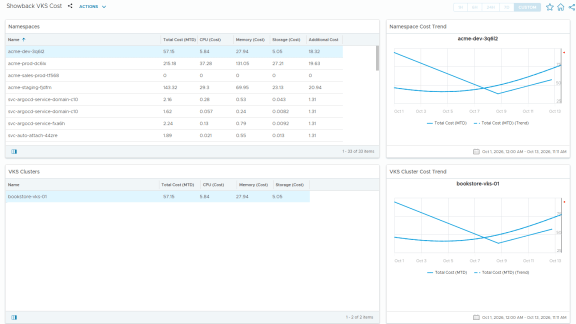
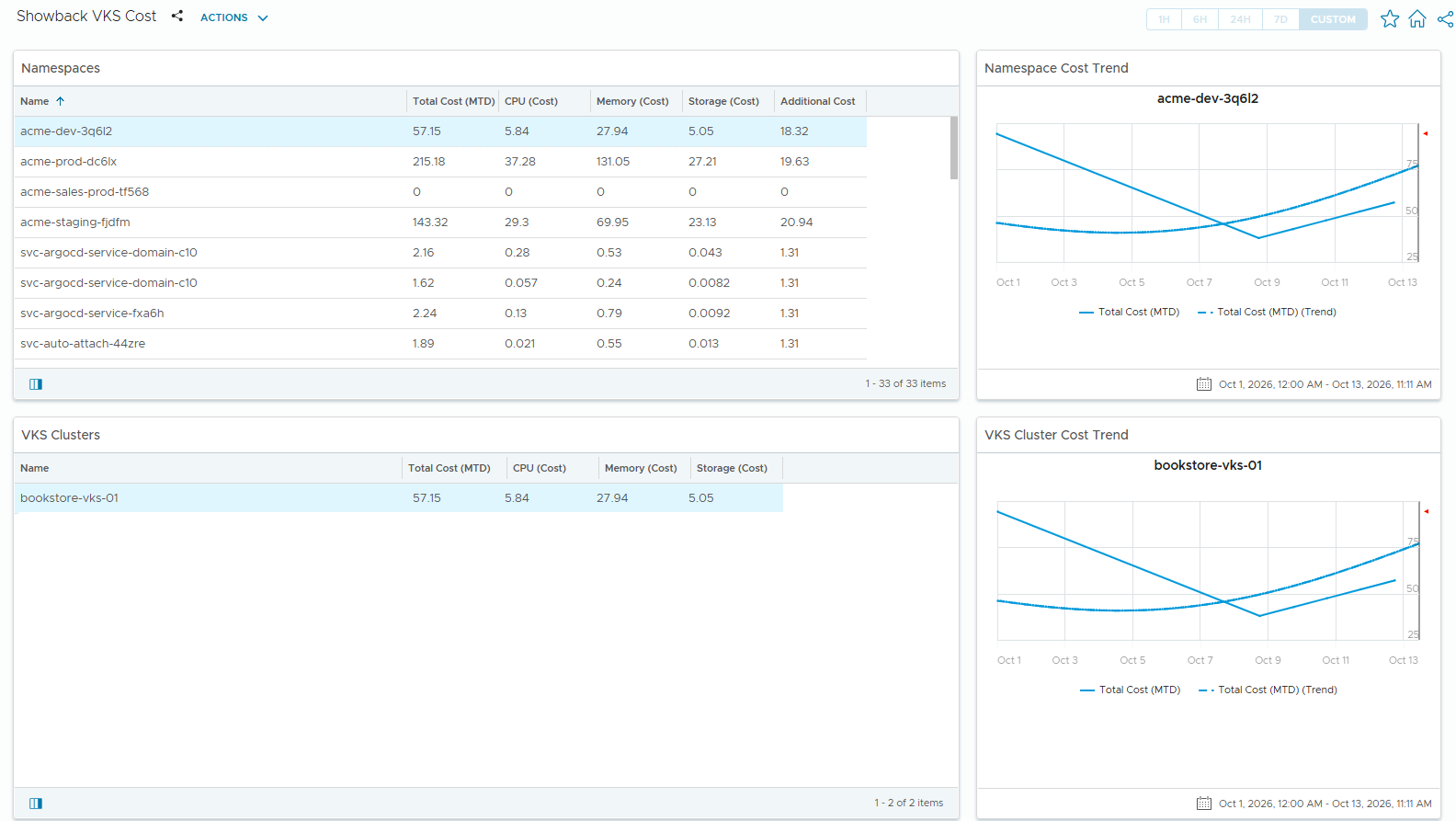
Here’s what that means in practice. Once your vSphere supervisor is added and your VKS clusters are up and running, VCF Operations automatically collects cost metrics at the node level — CPU, memory, and storage — on both a daily and month-to-date basis. Those node-level costs roll up to the supervisor cluster and the VKS cluster, giving you a clear, aggregated view of what your Kubernetes infrastructure is consuming. Namespaces are supported as well, so you can track resource consumption at the namespace level too.
For FinOps practitioners, this is the foundation you’ve been waiting for. You can finally show Kubernetes costs alongside your traditional VM and infrastructure costs in the same dashboards; no spreadsheets, no manual rollups, no guesswork. That means real accountability for the teams spinning up clusters and namespaces, and real visibility for the leaders funding them.
The cost dashboards have been updated to reflect all of this, with views for organizations, projects, vSphere namespaces, clusters, and nodes. Whether you’re doing showback to raise awareness or full chargeback to recover costs, the data is there.
Server Hardware Cost Driver: Built for Real-World Inventory
If you’ve ever tried to update server costs across hundreds or thousands of hosts, you know it could be painful. Servers were grouped by model and CPU description, which made it hard to find the specific machines you wanted to update, especially when you needed to filter by something like purchase date or serial number.
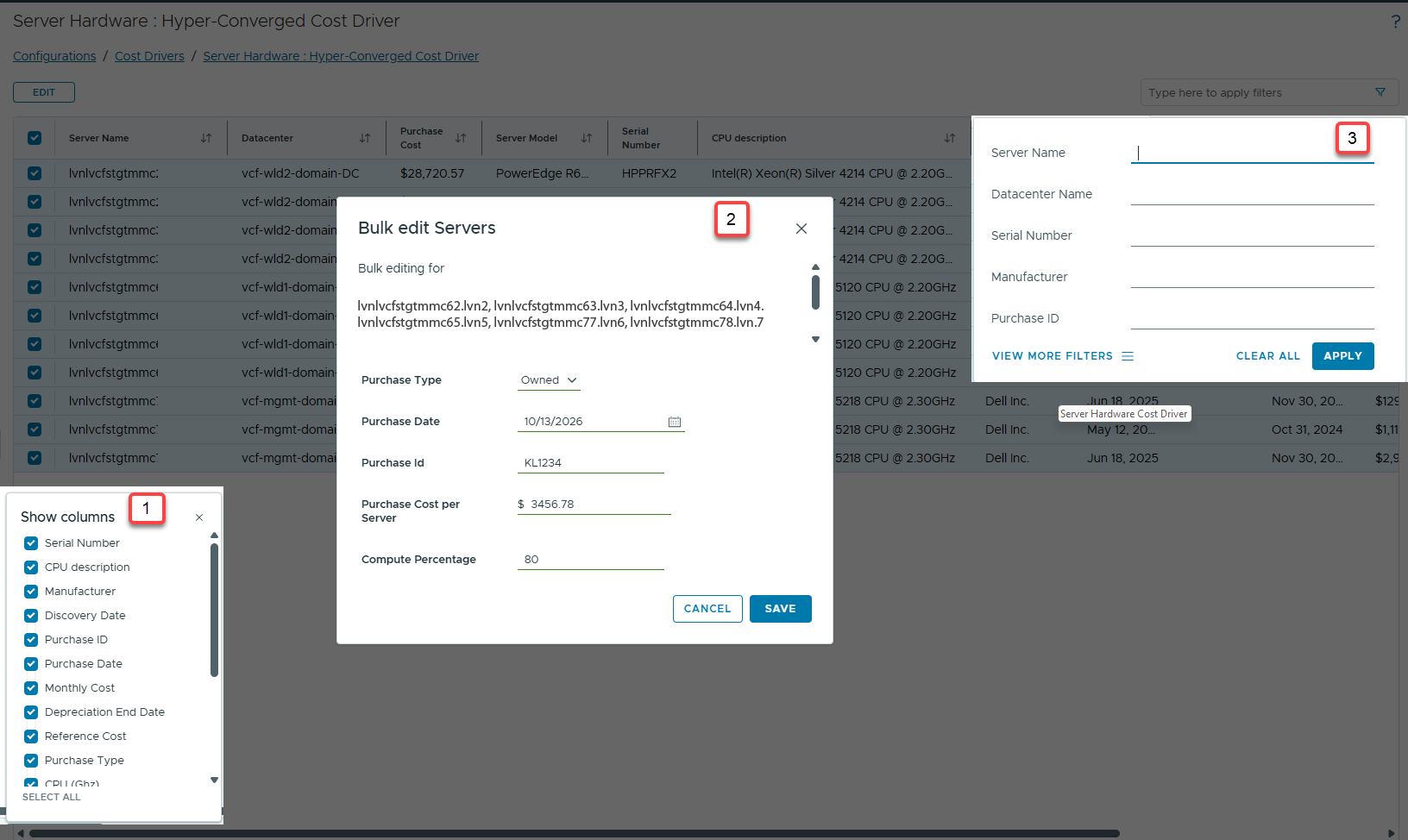
VCF also reimagines the server hardware cost driver with a clean, table-based UI.
- You can specify which columns you want to be shown in the table. [1]
- You can sort, use typeahead search, and select multiple servers at once for bulk edits. Updating purchase type, purchase date, and cost per server across a large inventory is now a few clicks instead of a tedious hunt. [2]
- You can even filter by data center, serial number, or manufacturer. There’s also an optional field, purchase ID, that lets you tag servers you acquired together so you can easily find and update them later. It’s a small addition, but it speaks to a bigger theme in this release: the tools are being shaped around how FinOps teams actually work. [3]
And if you’re upgrading from a previous release to the latest version of VCF, your existing cost driver data carries forward automatically. No reconfiguration required.
Additional Cost Driver: Charge What You Want, How You Want
The Additional Cost driver got a major upgrade in the VCF 9.1, and it’s one of the most flexible improvements in this release.
Previously, you could only assign a fixed monthly cost to a set of objects. That was fine for simple scenarios, but it didn’t reflect the way real-world costs actually work, where charges often depend on a specific property or metric.
Now you can define additional costs using metric-based conditions. Two approaches are supported:
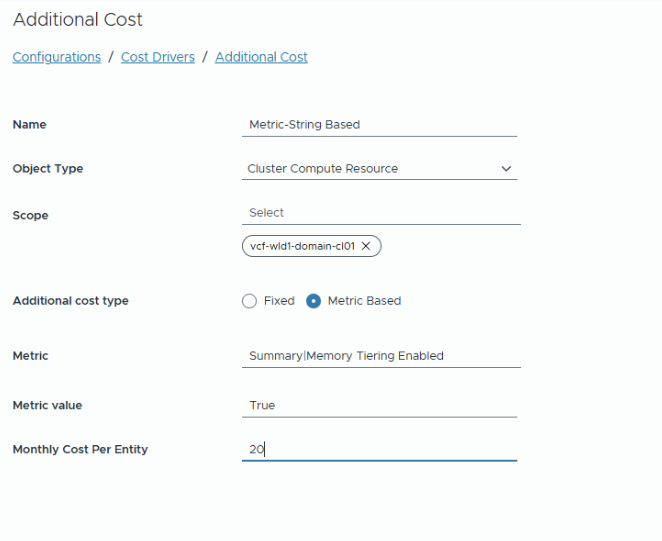
- Property-based matching: Select an object type, such as Clusters, and then choose a property, like “memory tiering enabled.” Then you can specify that you want to add a cost only to the objects where that property matches a specific value. For example, you can add $2,000 to any cluster that has memory tiering turned on, reflecting the extra NVMe hardware you purchased for it.
- Metric-based calculation: Choose a numeric metric (like number of CPU sockets on a host) and provide a per-unit cost. The system multiplies that rate by the metric value to determine the total additional cost. So, if you’re paying for a socket-based third-party license, you can charge $2.50 per socket across the relevant hosts and let the math manage itself.
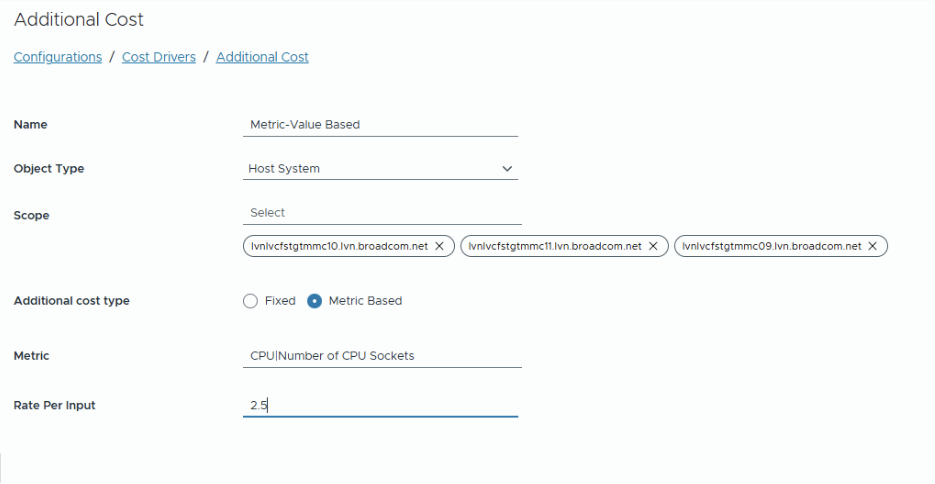
A built-in metric picker helps you find the right metric without typing, and the value match is exact (including case sensitivity for property-based conditions).
One important note: the metric value used is whatever is current at the time of cost calculation, so properties stay stable while dynamic metrics reflect the latest state.
The UI has also been performance-tuned to manage large numbers of additional cost items, with pagination, filtering, and sorting built in. If you previously hit limits with more than 30 items, that’s resolved.
Take Control of the CPU-to-Memory Cost Split
Here’s a scenario every FinOps practitioner will recognize: the system calculates a cluster’s cost and splits it between CPU and memory using an internal algorithm. You look at the result and think, “That split doesn’t reflect our actual cost structure.”
Until now, you didn’t have much recourse.
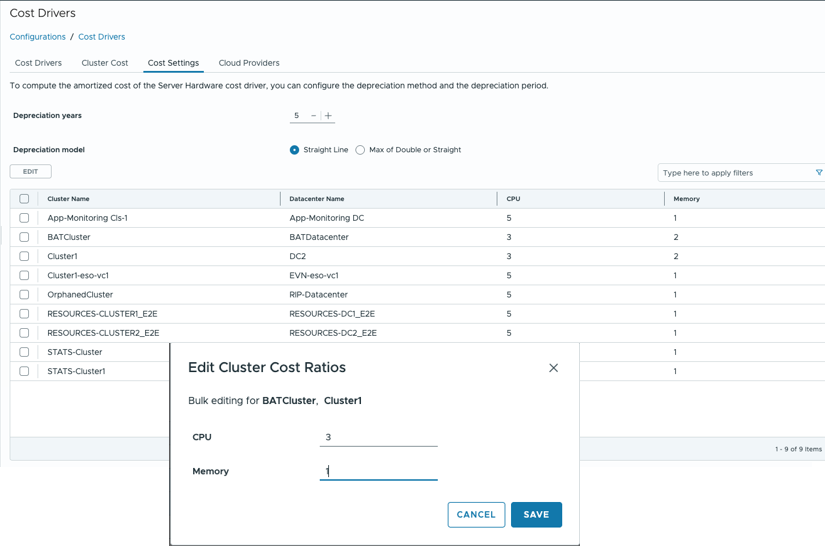
VCF 9.1 introduces an editable cost ratio configuration for private cloud clusters. After at least one cost calculation run, the system populates the CPU-to-memory ratio it used for each cluster. You can then select single or multiple clusters and override that ratio with values that better reflect your reality.
It’s a paginated, filterable table, so even with a large environment, finding and updating the right clusters is straightforward. This is about more than just accuracy. It’s about trust. When the cost model reflects how you actually think about your infrastructure spend, showback and chargeback conversations get a lot easier.
Dashboards That Tell the Full Story
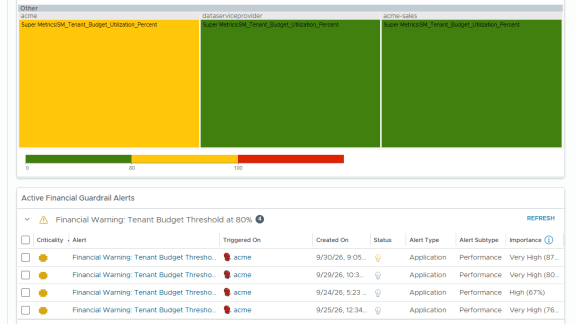
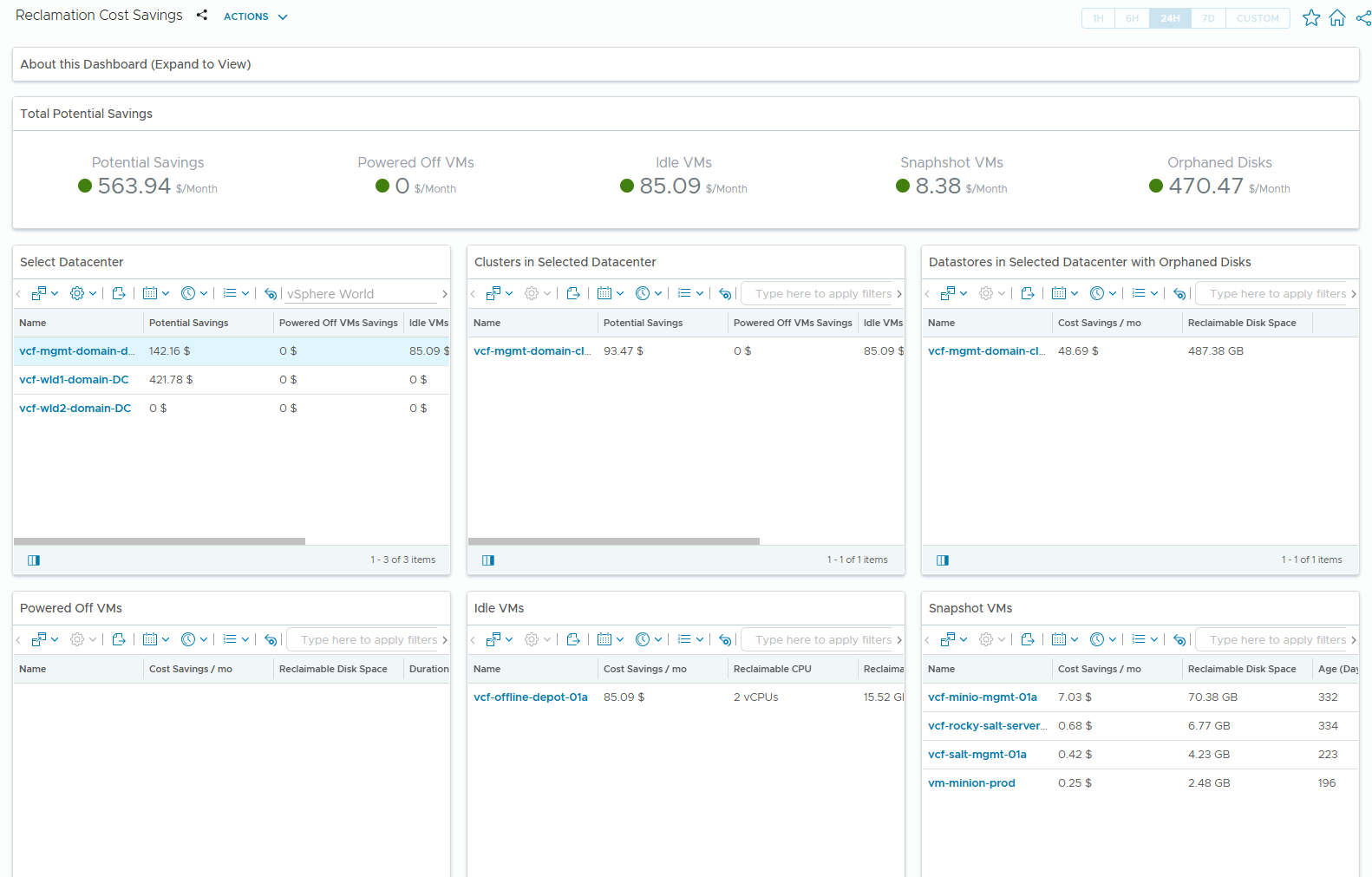
The financial dashboards in VCF Operations have been enhanced to surface all of these capabilities. You can now filter showback views by Kubernetes resources like VKS clusters and supervisor clusters. Reclamation dashboards let you drill into potential savings by data center and cluster, with a list of VMs driving those savings — so you can act on waste, not just report on it.
Additional showback views, including business-application and VM-level service distribution, give you more angles for communicating cost to stakeholders.
But Wait: There’s More
VCF also lays the groundwork for a richer chargeback experience, with several capabilities:
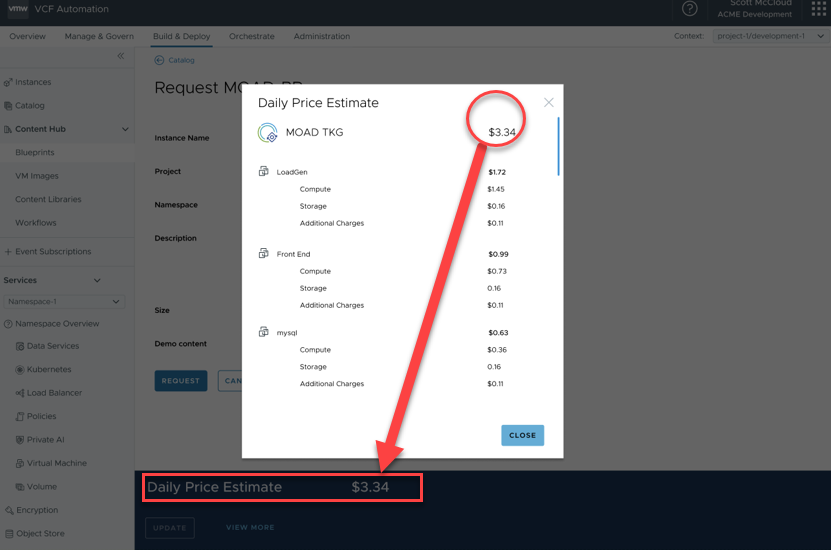
- Upfront pricing — Get a pricing estimate during deployment from VCF Automation, so both providers and developers see resource costs before they commit.
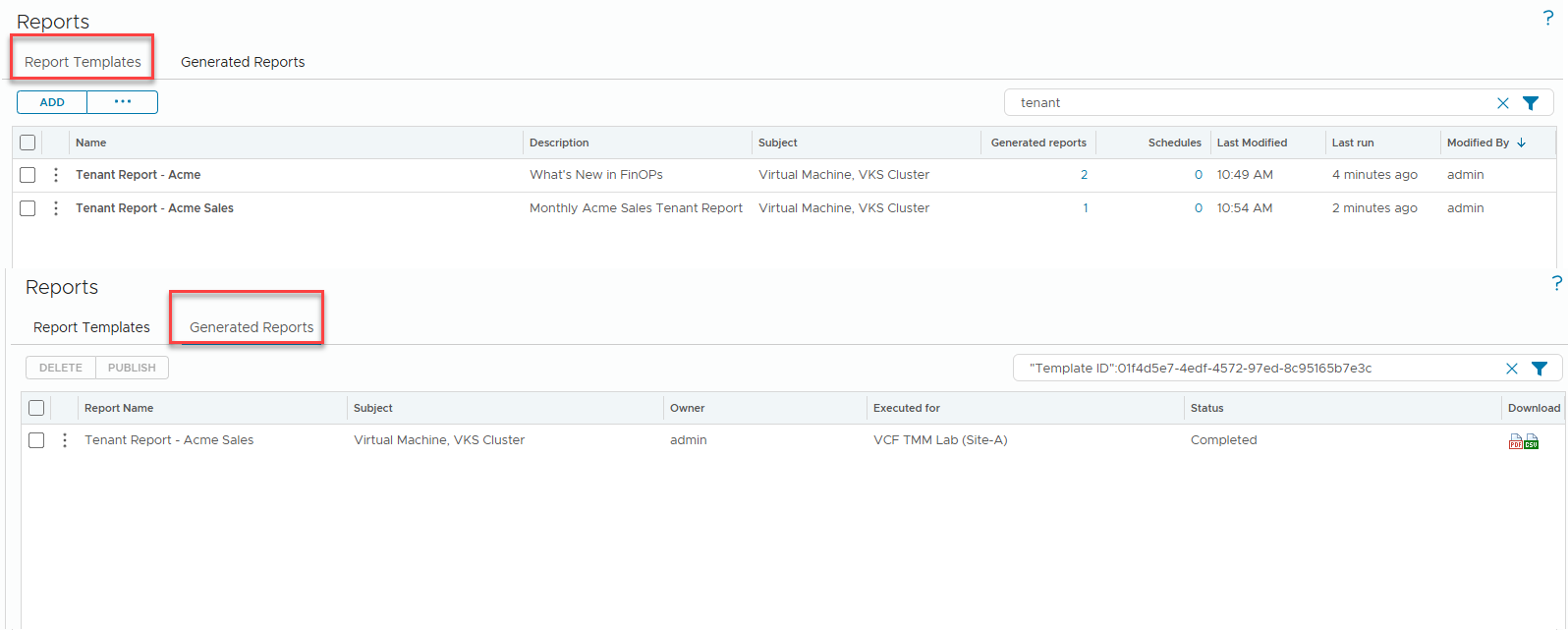
- Tenant reports and alerts — Providers will be able to send critical alerts and scheduled reports directly to tenants via email.
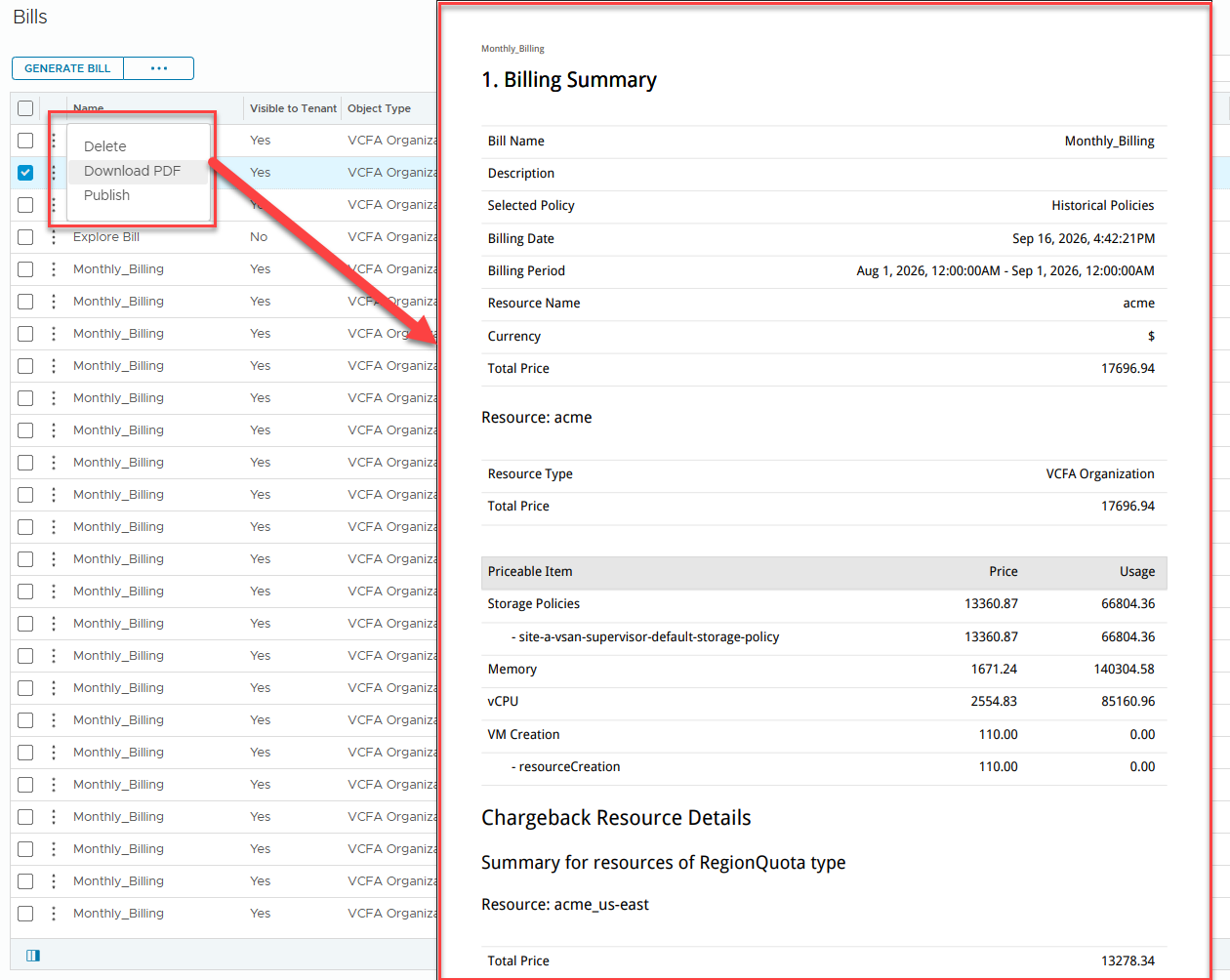
- Bill PDF export — Bills will be exportable to PDF with email notification to tenants, making consumption and billing easier to share.
- Additional VKS charges — Support for both recurring and one-time additional charges for VKS resources, enabling differential pricing for Kubernetes services.
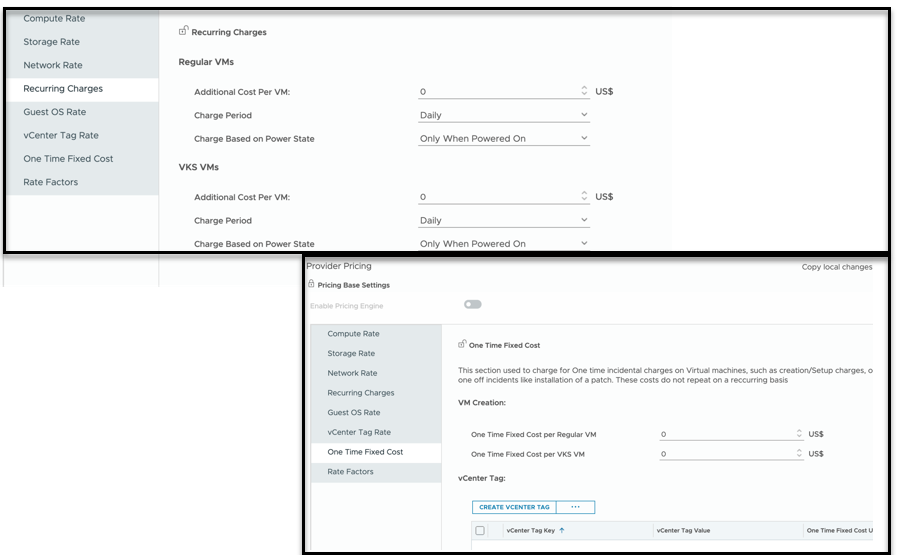
These enhancements are designed to deepen transparency and give providers and consumers a shared, data-driven view of cost.
The Bottom Line
For FinOps practitioners, VCF’s cost management enhancements remove the friction that has made Kubernetes and infrastructure chargeback so difficult. You get real cost visibility into Kubernetes workloads, flexible cost drivers that reflect how you actually spend money, an editable cost ratio so the math matches your reality, and accurate shared-disk costing that stops silently inflating your bills.
Combined with richer dashboards and a clear roadmap for tenant-facing chargeback, VCF 9.1 gives you the tools to turn cost data into decisions — and into conversations your finance partners will actually trust.
Check out these capabilities today in VMware Cloud Foundation.
Discover more from VMware Cloud Foundation (VCF) Blog
Subscribe to get the latest posts sent to your email.