

In an enterprise architecture with private AI services running on VMware Cloud Foundation (VCF), the application layer is heavily dependent on the underlying Kubernetes runtime and hardware infrastructure.
In production environments with VCF Private AI Services deployed, the majority of the reported bugs can be traced back to platform resource limits, missing infrastructure dependencies, or network misconfigurations.
Before sinking hours into model-level debugging, use this initial triage guide to rapidly isolate whether the issue belongs to the infrastructure or VCF Private AI Services.
Requirements for Triage
1. Workstation Access: A machine with access to the VCF environment (vCenter, NSX, Supervisor Cluster) and Command Line Interface (CLI) tooling installed (kubectl and VCF CLI).
2. VMware vSphere Client Access: Administrator privileges (or Supervisor / Namespace Edit permissions) to inspect ESXi host alarms, vSAN Skyline Health, Supervisor Services, and GPU allocation.
3. Cluster Access: Live kubectl access to both the Supervisor context and VMware vSphere Kubernetes Service (VKS) Guest Cluster.
Step 0: Find the Supervisor Control Plane IP in vSphere Client
In vSphere Client, navigate to Supervisor Management > Supervisors. Locate the Supervisor Control Plane Node Address.
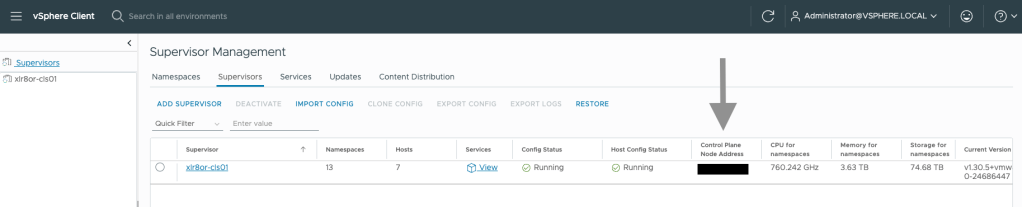
Step 1: Authenticate to the Supervisor Cluster
Create a login context targeting your Supervisor Control Plane endpoint. Refer to the VCF CLI Quick Start Guide for detailed instructions on how to set up the context.
Below is an example of creating a vSphere Supervisor context:
vcf context create <desired-context-name> \
  --endpoint <supervisor VIP or FQDN> \
  --type k8s
Step 2: Switch to the Target Supervisor Namespace Context
Set your active context to the namespace hosting your VCF Private AI Services deployment:
# To view the contexts and their namespaces
vcf context list

# To switch to the target namespace
vcf context use <context-name>:<namespace-name>
Note: You can view all the namespaces in vSphere Client by going to Supervisor Management > Namespaces.
Step 3: Obtain the VKS Guest Cluster kubeconfig
VCF Private AI Services deploys models onto a dedicated VKS guest cluster. Its kubeconfig is stored as a Kubernetes secret in your Supervisor namespace, named <vks-cluster-name>-kubeconfig. Extract it to a local file:
kubectl get secret $(kubectl get secret | grep kubeconfig | awk '{print $1}') -o jsonpath='{.data.value}' | base64 -d > vks-kubeconfig.yml
The command above writes the VKS cluster’s kubeconfig to vks-kubeconfig.yml.
Step 4: Point kubectl at the VKS Guest Cluster
Set the KUBECONFIG environment variable to use the extracted file for the remaining triage commands:
export KUBECONFIG=./vks-kubeconfig.yml
4. VCF Private AI Services Version
Confirm the deployed release version. Troubleshooting steps and custom resource APIs differ across releases.
Option 1: Using vSphere Client
In vSphere Client, navigate to Supervisor Management > Services. Locate “Private AI Services” tile. Under Actions, click Manage Service.
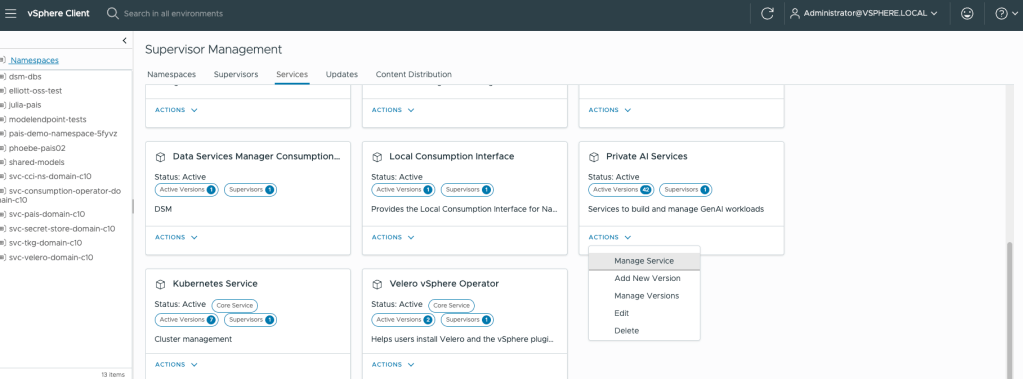
Note the installed version.
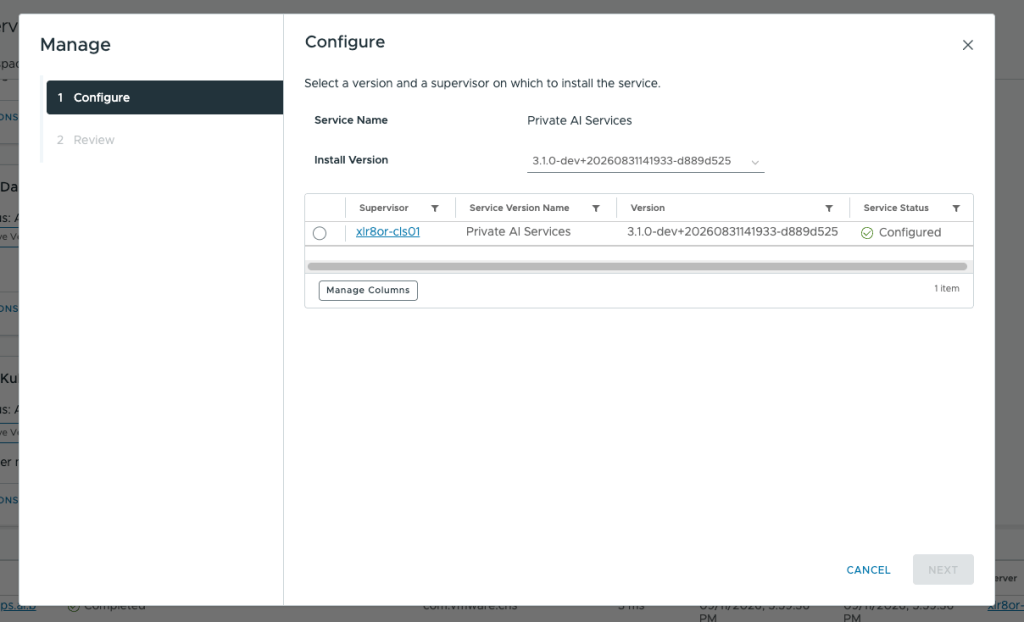
Option 2: Using kubectl
You can extract the controller version via JSONPath:
kubectl get paisconfiguration default -n <namespace> -o jsonpath='{.status.controllerVersion}{"\n"}'
Part 1: Rule Out Infrastructure
If any item in this section fails, the issue is in the underlying VCF or the vSphere Kubernetes Service (VKS) platform layer, and ownership belongs to the infrastructure team.
1. Blast Radius Check
Determine if the problem is isolated to one model endpoint, one namespace, or affecting the broader platform:
- Supervisor Context: Run
kubectl get clusters -Ato verify if other VKS guest clusters are not showing healthy. - vSphere Client: Navigate to Supervisor Management > Supervisor > Namespaces and verify the status of other tenant namespaces.
- Supervisor Services: Check Supervisor Management > Supervisor > Configure > Supervisor Services to confirm core system services are active. Confirm that VCF Private AI Services is configured and active.
Rule of Thumb: If multiple namespaces or independent VKS clusters display degraded states simultaneously, this is an infrastructure incident.
2. Host and GPU Driver Health Check
- ESX Host Status: In the vSphere Client, confirm all ESXi nodes state Connected and check for active hardware alarms (CPU, RAM, or PCIe passthrough alerts).
- If using NVIDIA, check NVIDIA vGPU / Host Driver Status: Run
nvidia-smidirectly on the underlying ESXi host CLI to confirm:- GPU devices are bound and operating normally.
- The host-level NVIDIA vGPU manager/driver is loaded (
vmkload_mod -l | grep nvidia). - No host-level GPU ECC memory errors or thermal throttling events are logged (
nvidia-smi -q | grep -i ecc).
- If using NVIDIA, check vGPU license status on the GPU node by following this KB (https://knowledge.broadcom.com/external/article?articleNumber=454469).
3. Storage and Database Health Check
- vSAN skyline Health: If using vSAN storage, check Cluster > Monitor > vSAN Skyline Health to ensure object availability, disk group health, and PVC binding readiness.
- VCF Private AI Services Database Health: If using a backing database (e.g., PostgreSQL instance), confirm the database service is online, accepting connections on port 5432, and the database secret credentials/SSL certificates are valid.
4. Network and NSX Health Check
- NSX Infrastructure: Verify NSX Manager, Edge Nodes, and Edge Clusters are operational with no DVS/vSwitch packet drop or link status alarms.
- NSX VPC / Overlay Health:
- If using NSX VPCs, confirm the VPC state is Realized with no routing or NAT table allocation errors.
- Verify IP blocks usage (ensure no IP address exhaustion or overlapping ranges).
- Confirm local DNS resolution and egress gateway reachability from the VKS node subnet.
5. Certificate Integrity Check
Expired internal CA certificates frequently present as silent API connection timeouts in higher-level operators. Confirm certificate validity across vCenter, Supervisor, and SSO.
- VCF Environment Certificates:
- You can use VCF Operations UI to view the VCF environment certificates by navigating to Manage > Certificates.
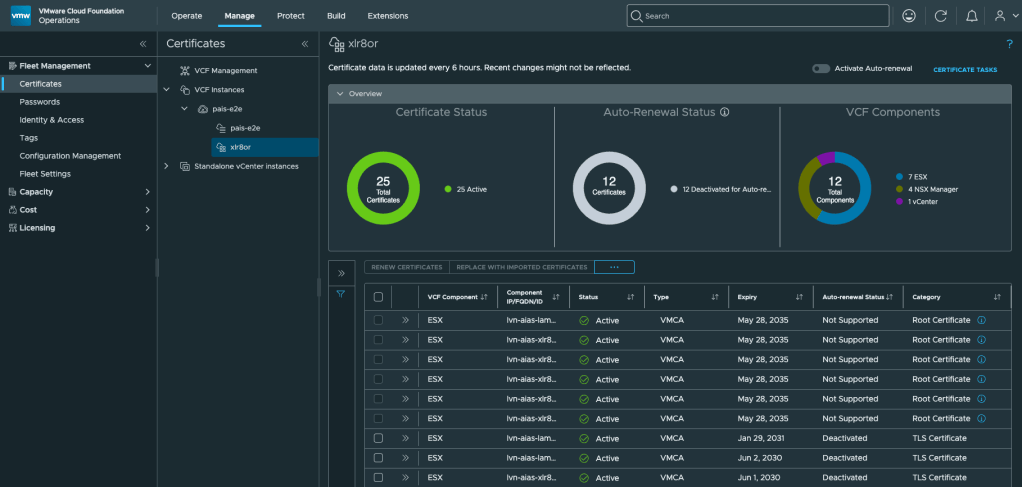
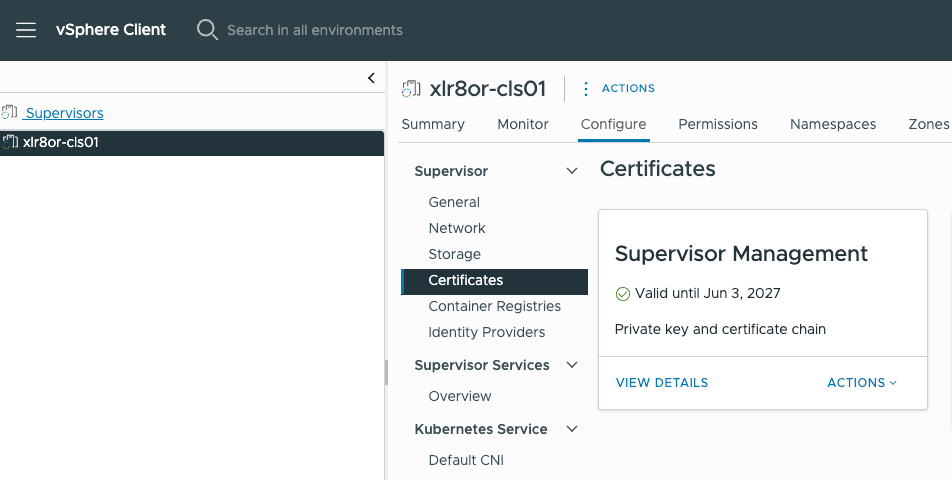
- Supervisor Certificates:
- In vSphere Client, navigate to Supervisor Management > Supervisors.
- Click on the specific Supervisor that has namespaces with VCF Private AI Services deployed.
- Navigate to Configure > Certificates and confirm certificate validity.
Part 2: Run Boundary Checks
If infrastructure seems to be healthy based on part 1 checks, inspect VCF Private AI Services to determine where the boundary breaks.
1. PAISConfiguration Status Check
Most issues in this guide will show up as a condition on the PAISConfiguration resource. Start every investigation here:
kubectl get paisconfiguration default -n <pais-namespace> \
  -o jsonpath='{range .status.conditions[*]}{.type}{"\t"}{.status}{"\t"}{.reason}{"\t"}{.message}{"\n"}{end}'
Expected healthy output (all conditions True):
Ready                  True   paisAvailable     all components are available
ModelEndpointPrerequisitesMet True  modelEndpointPrerequisitesMet
PrometheusReady         True   deploymentAvailable  prometheus-server: available
If any is false, describe the PAISConfiguration resource and look for unhealthy objects or services:
kubectl describe paisconfiguration <name> -n <pais-namespace>
2. VKS Cluster / Machines Check
If you see any unhealthy cluster object from the PAISConfiguration resource, check the VKS clusters and machines:
kubectl get clusters
kubectl get machines
All the objects should be Ready/Available. If any component is not Ready/Available, use the following command to get more detail on that object:
kubectl describe cluster|machine <name>
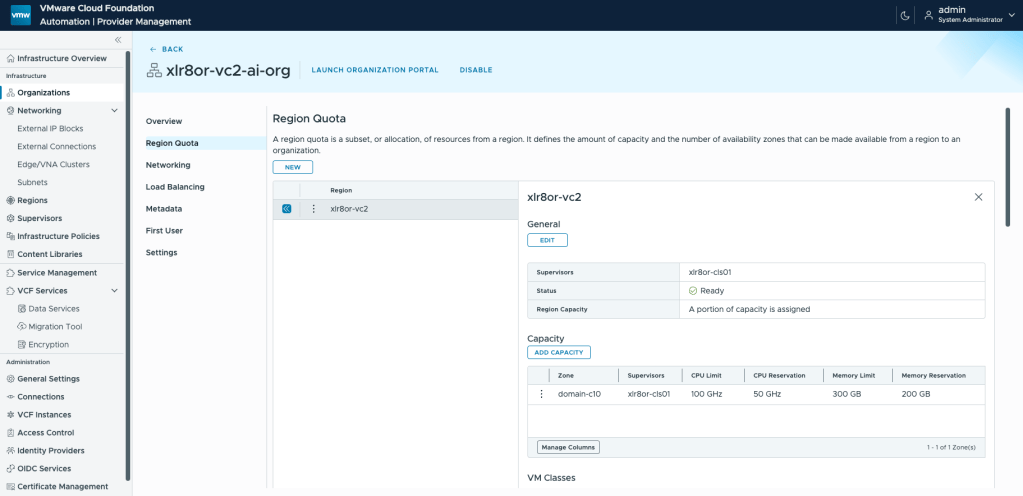
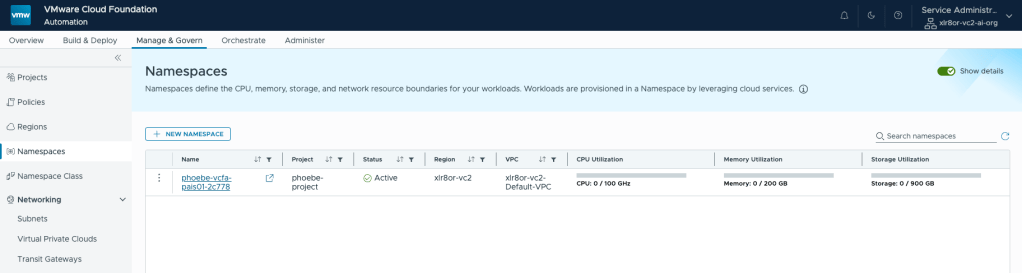
If machines are missing or nodes are stuck at NotReady status for a long time (i.e., 10 minutes+), it’s likely an infrastructure issue due to capacity or provisioning challenges. If using VCF Automation, confirm that there are enough resources reserved at each level (i.e., organization, namespace, etc.)
- To view the resources for a tenant organization, log into the VCF Automation provider portal and navigate to a specific organization under Infrastructure > Organizations. Confirm the capacity, VM classes, and Storage Classes within the organization under Region Quota.
- To view the resources for a specific namespace within a tenant organization, log into that tenant organization portal and navigate to Manage & Govern > Namespaces. Locate the target namespace to view the resources available.
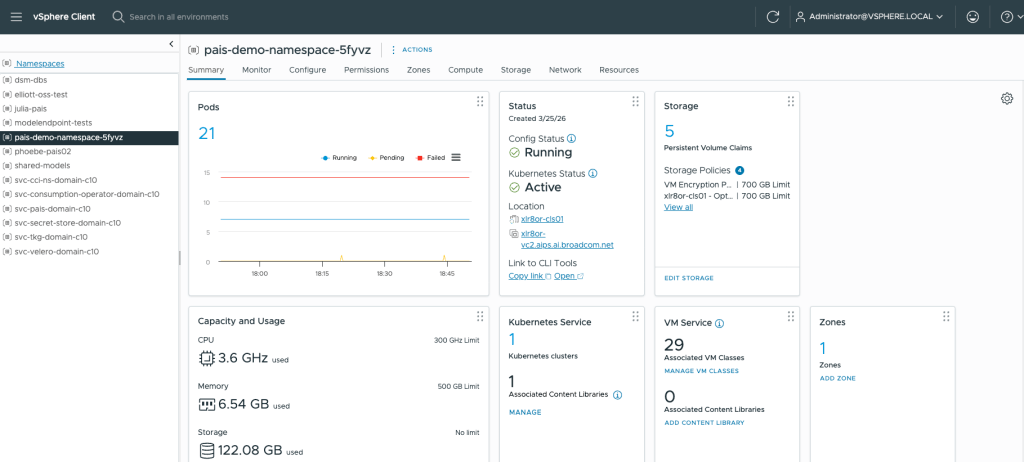
If there are errors to indicate missing storage classes, VM classes, or content libraries, add them to the namespace accordingly via vSphere Client.
- Navigate to Supervisor Management > Namespaces and click on the target namespace where VCF Private AI Services is deployed. Check the Kubernetes Service, VM Service or Storage tiles to confirm.
3. VCF Private AI Services Pods Check
If you see any unhealthy services from the PAISConfiguration resource, check the VCF Private AI Services pods:
kubectl get pods
All the pods should be Ready/Running. If you see anything that isn’t, use the kubectl logs <pod name> command to investigate further.
- Most general pod-startup failures turn out to be CPU/memory under-reservation on the namespace or VM class. Check resource requests/limits and namespace quota before digging into a specific pod’s logs.
- If the db-setup pod is not coming up correctly, this is likely an infrastructure issue with the database itself. Check the database health or connectivity again.
- If there are pods Pending/Unschedulable, this is likely an infrastructure issue (i.e., capacity, node availability, storage-class binding). Go to vSphere Client and check for any alarms or failed tasks.
Conclusion
By following this initial triage flow, you can isolate platform infrastructure issues (host alarms, vSAN health, NSX network realization, or VM class quotas) from application-level deployment errors quickly.
If the root cause cannot be found and issue is not resolved, collect a complete support bundle before escalating the case to Broadcom Support or GSS by following this KB (https://knowledge.broadcom.com/external/article/408731).
References
- Kubernetes Tools
- Installing the VCF CLI
- VCF CLI Quick Start Guide
- VCF Private AI Services Support Bundle KB
Discover more from VMware Cloud Foundation (VCF) Blog
Subscribe to get the latest posts sent to your email.