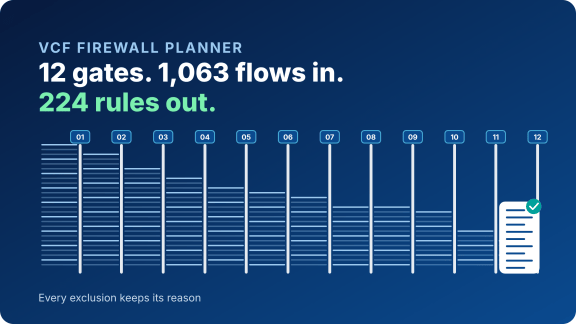

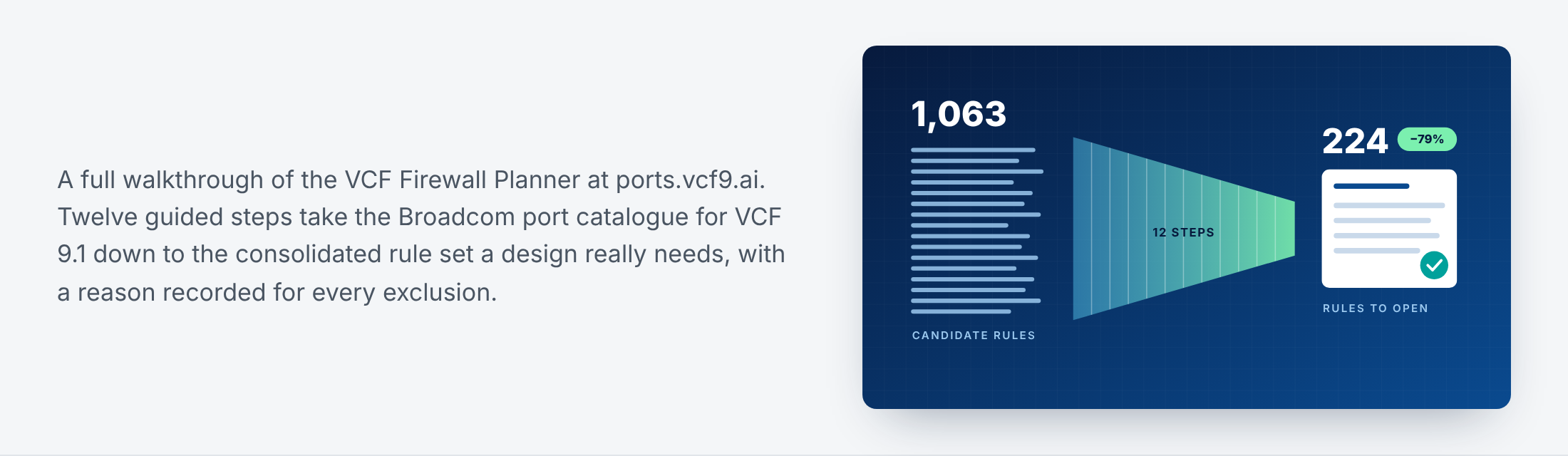
Most published VMware Cloud Foundation (VCF) flows never need a firewall rule. The VCF Firewall Planner takes the full Broadcom port catalogue for VCF 9.1 and, in 12 guided steps, cuts it down to the consolidated rule set your design needs. Every exclusion keeps its reason, so the firewall team can see why a flow was left out, not only that it was.
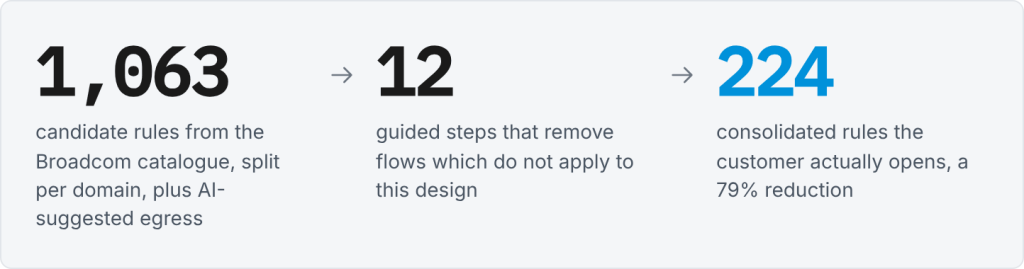
For the ACME assessment used in this walkthrough, the numbers are:

 Why the Raw ports.vmware.com Rule Set Is Hard to Use
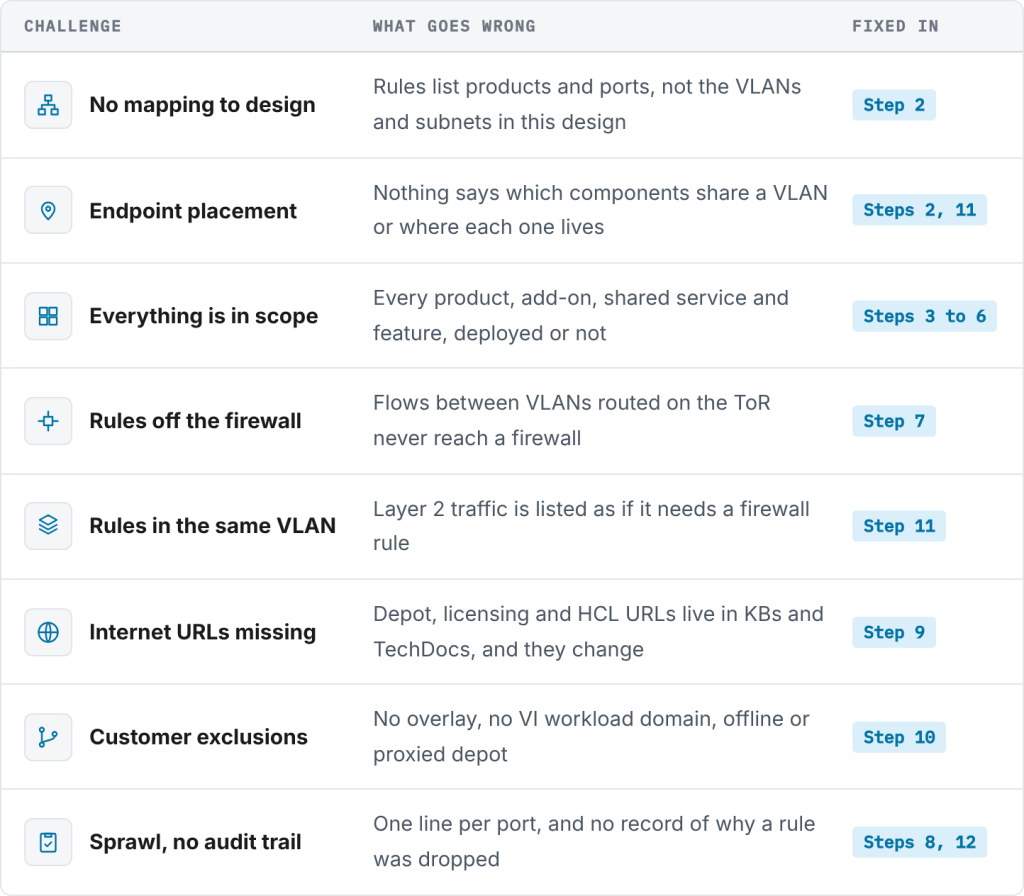
The Broadcom ports catalogue lists every port for every product. That’s what a reference should do, but it isn’t a firewall design. Each row below is a problem I’ve encountered on real engagements, and the planner step that fixes it.
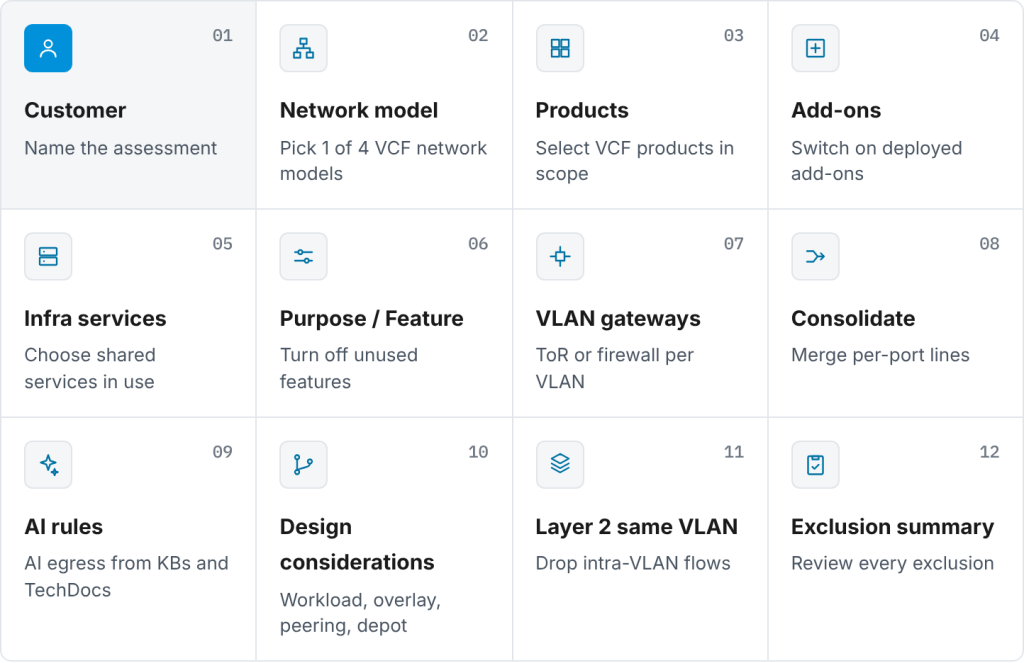
 The 12 Steps
What follows is a live run of the ACME assessment. For each step you get the screen, the problem it solves, and what it changed.
 Step 1: Start with the Customer
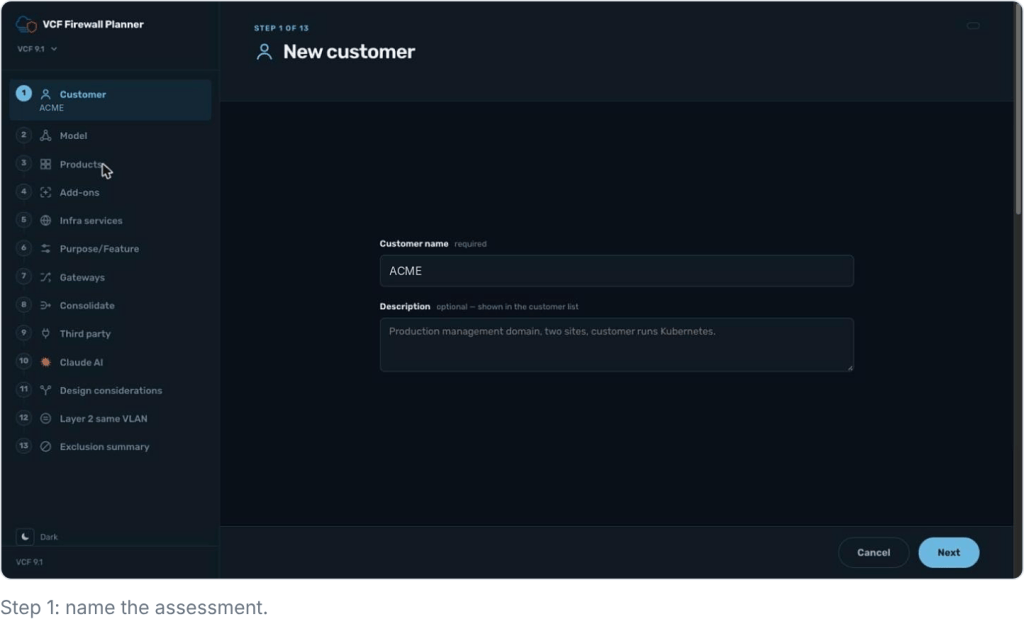
The problem: the catalogue is one generic list for every customer, with no per-engagement record of the decisions you made.
Name the customer and add a short description of the environment. Each assessment is saved and you can pick it again from the sidebar. The left rail tracks your progress through all 12 steps. Here, the ACME assessment is created.
 Step 2: Choose the Network Model
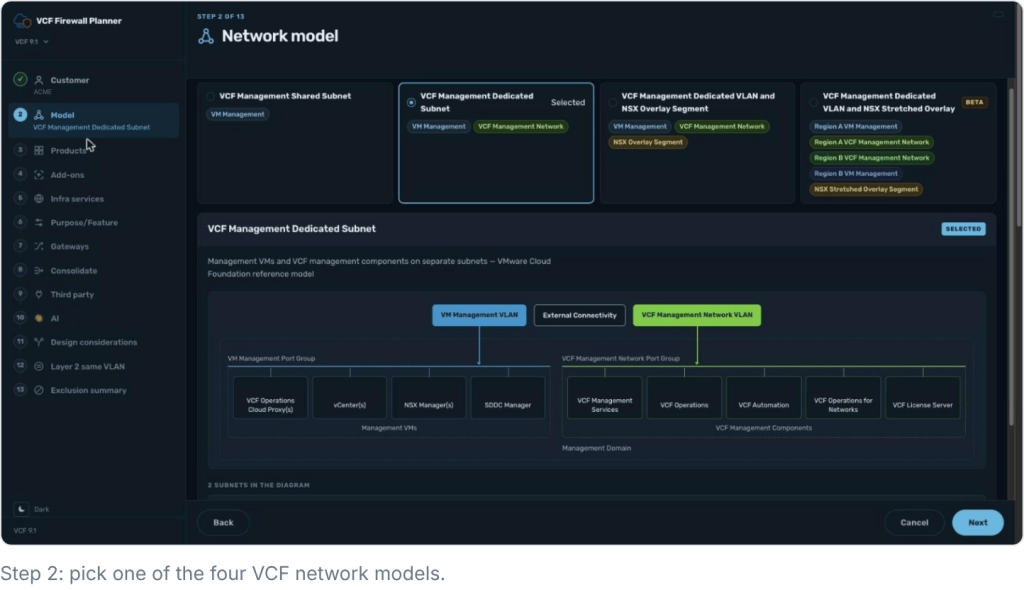
The problem: the rules don’t say which VLAN or subnet each endpoint sits on, so there’s no mapping to the design.
There are four models to choose from: shared, dedicated, overlay and stretched. ACME uses VCF Management Dedicated Subnet. A live diagram shows which components sit on which VLAN, and the model you pick drives the Layer 2 and gateway logic later on.
 Step 3: Select the Products in Scope
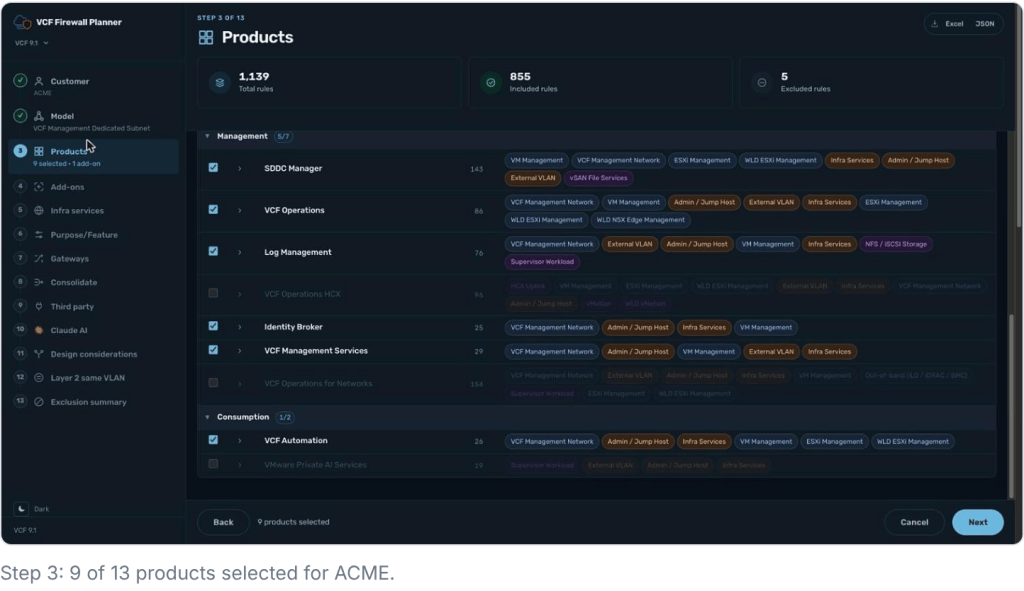
The problem: the catalogue covers every VCF product, whether you deploy it or not.
Products are grouped into Core, Management and Consumption, and each one shows its rule entries and the VLANs it touches. ACME selects 9 of 13 products. Products that aren’t deployed, such as vSAN and HCX, drop out.
 Step 4: Switch On the Add-Ons You Deploy
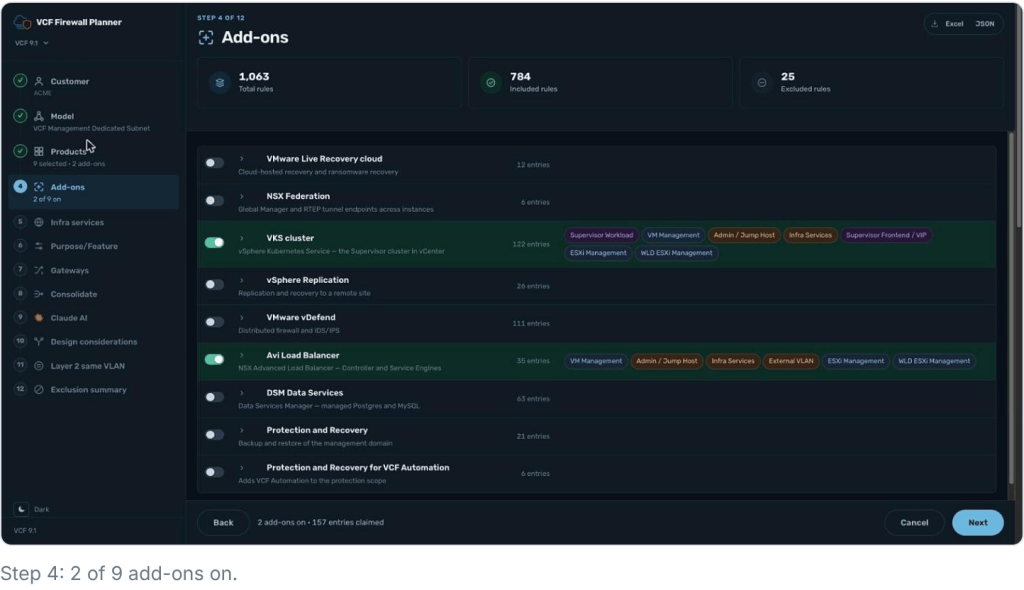
The problem: the list carries rules for add-ons the customer never deployed, such as vDefend or DSM.
ACME turns on two of nine add-ons, which claim 157 entries: the VMware vSphere Kubernetes Service (VKS) cluster and Avi Load Balancer. VMware vDefend, Data Services Manager (DSM), vSphere Replication, and the rest stay off. Each add-on lists the VLANs its flows use.
 Step 5: Pick the Shared Infra Services
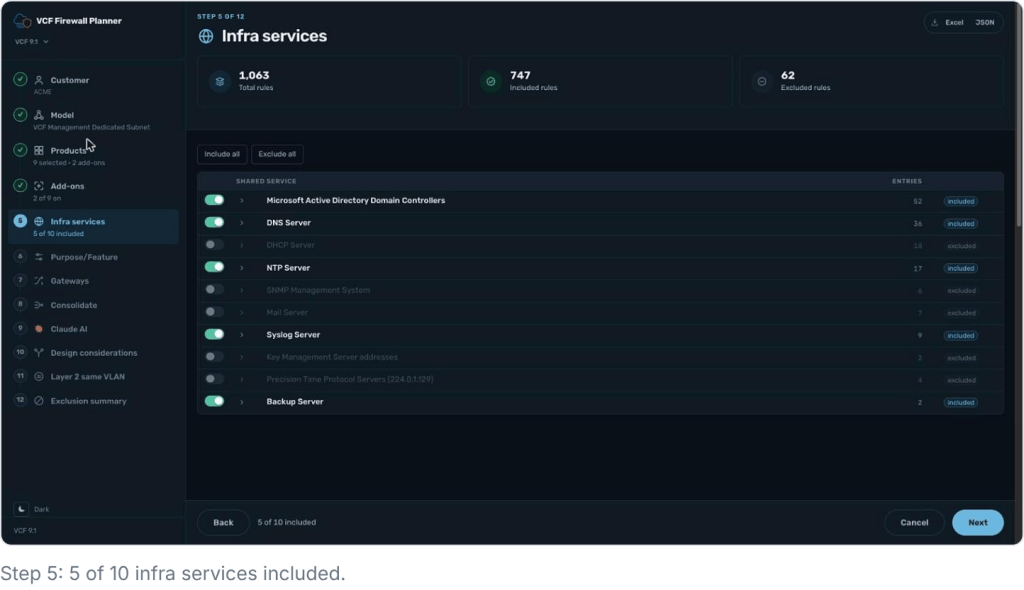
The problem: the catalogue assumes every shared service exists, including DHCP, SNMP, Mail, KMS, and PTP.
ACME includes 5 of 10 services: AD, DNS, NTP, Syslog and Backup. DHCP, SNMP, Mail, KMS, and PTP are excluded. You can include or exclude everything in one click.
 Step 6: Turn Off Unused Features
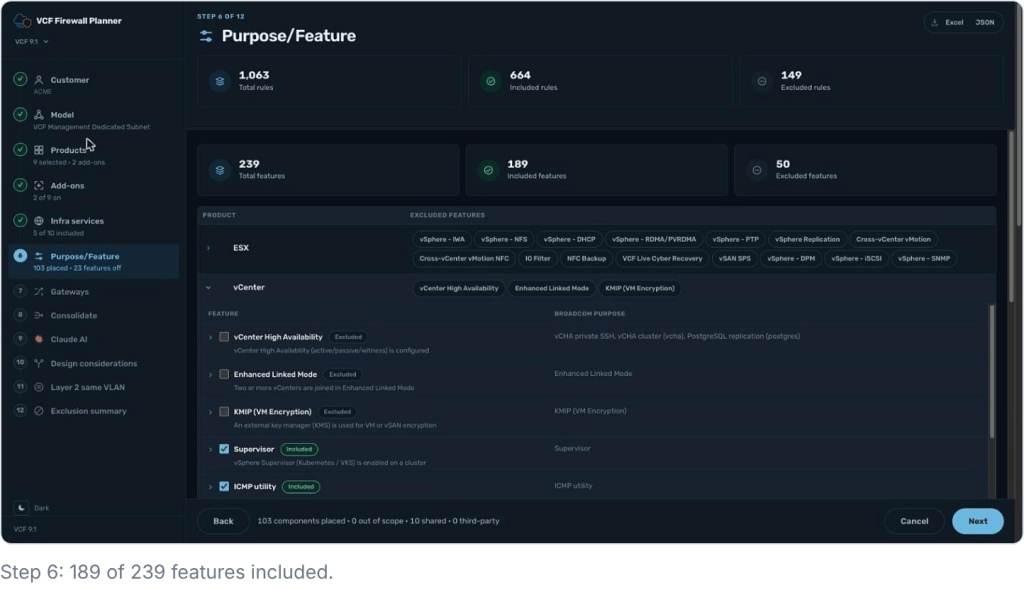
The problem: nothing links a rule to the feature it serves, so you can’t drop rules for features you don’t use.
Every flow is mapped to its Broadcom purpose. ACME keeps 189 of 239 features. vCenter HA, Enhanced Linked Mode, and KMIP are off. By this point 149 rules are excluded.
 Step 7: Set the Gateway per VLAN
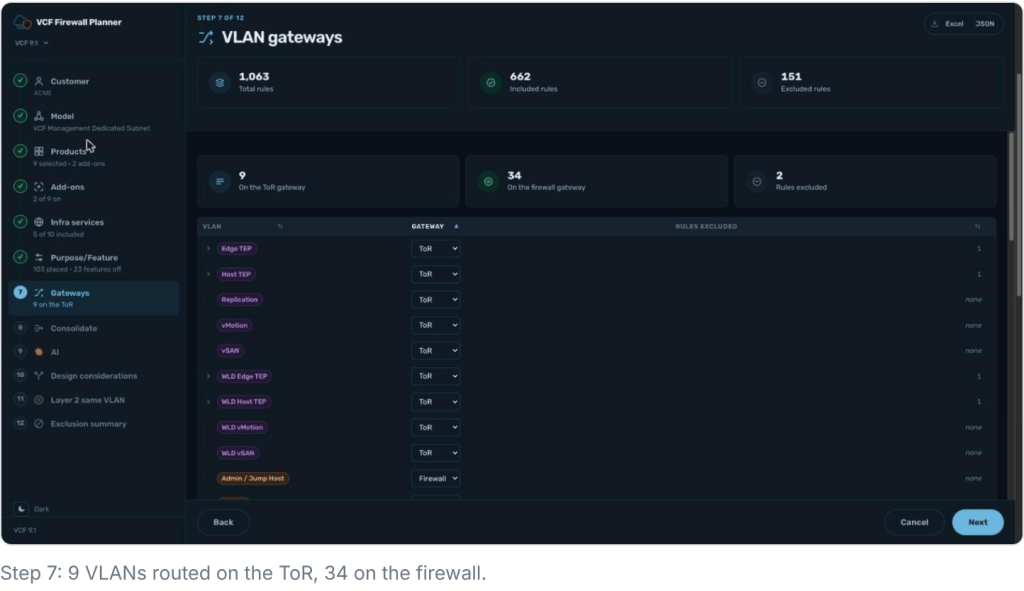
The problem: the list includes rules for traffic that never reaches a firewall, because both VLANs route on the ToR.
Mark each VLAN as routed on the ToR or on the firewall. For ACME, 9 VLANs route on the ToR and 34 on the firewall. Flows with both ends on the ToR never reach the firewall, so they go. TEP-to-TEP flows are removed automatically.
 Step 8: Consolidate the Rules
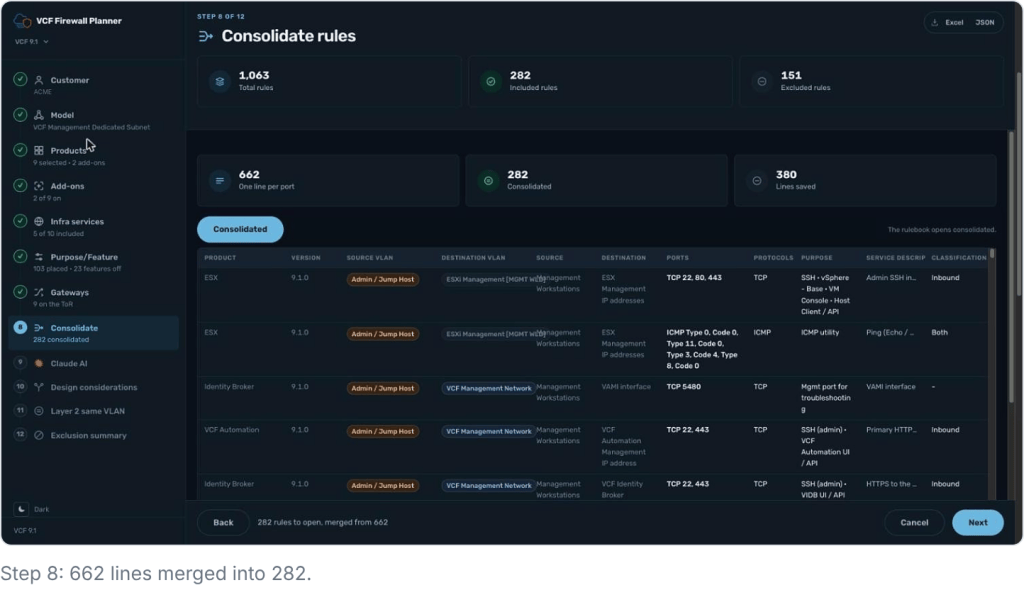
The problem: one line per port means hundreds of near-duplicate lines in the change request.
One line per port becomes one rule per flow. Ports and protocols are merged per source and destination. For ACME, 662 lines merge into 282, saving 380 lines. The rulebook opens in the consolidated view.
 Step 9: Add AI-Suggested Egress Rules
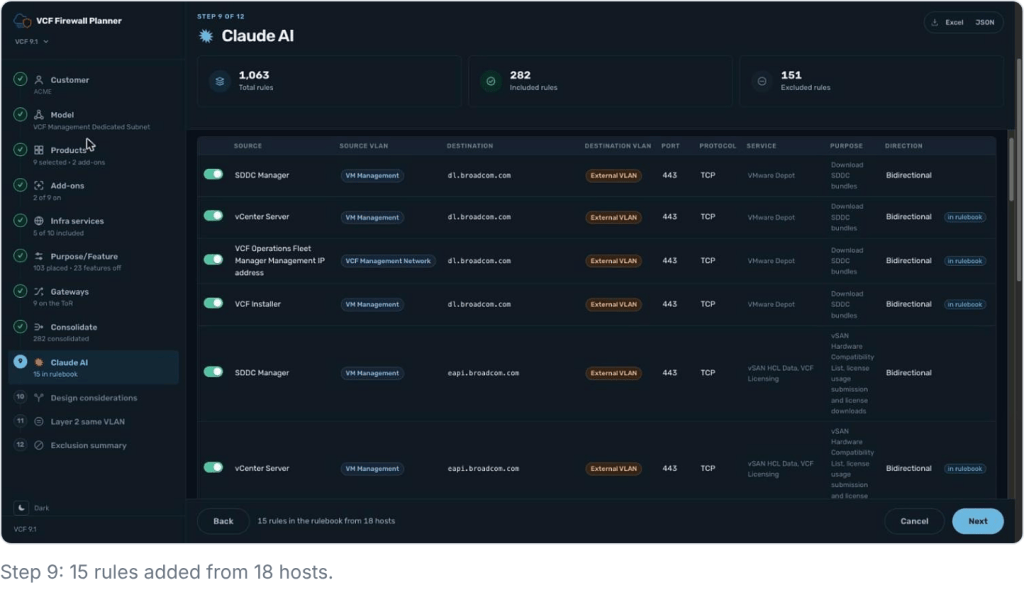
The problem: internet URLs for the depot, licensing and HCL sit in KB articles and TechDocs, not in the catalogue, and they change.
The AI engine reads Broadcom KB articles and TechDocs as well as the ports catalogue. It finds internet egress such as dl.broadcom.com and eapi.broadcom.com on TCP 443. When Broadcom updates a KB or a doc, the next run picks up the change. For ACME it adds 15 rules from 18 hosts. You can toggle each suggestion, and it’s tagged once in the rulebook.
 Step 10: Answer the Design Considerations
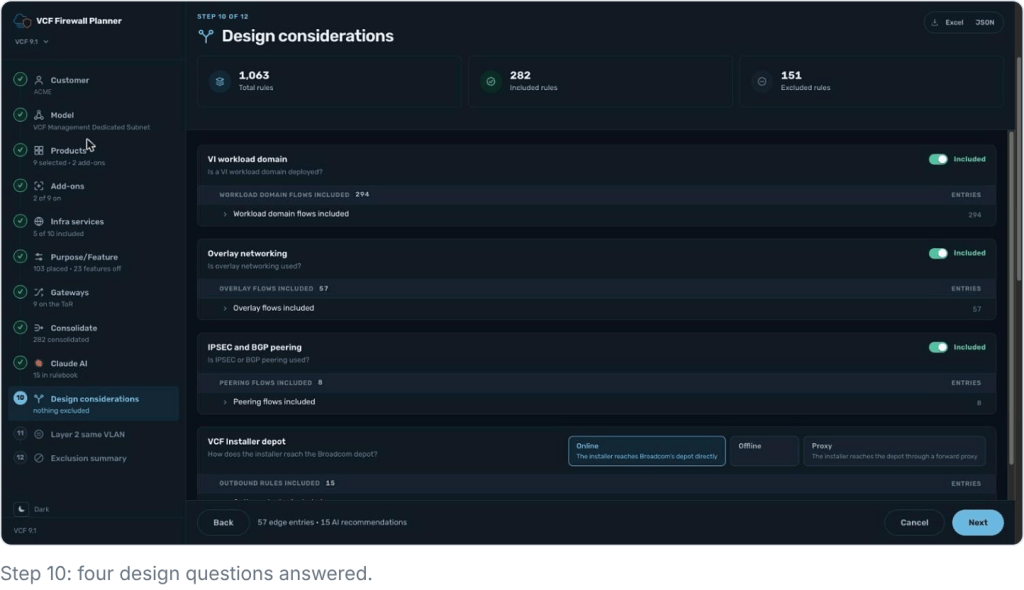
The problem: every customer has its own exclusions, such as no overlay, no VI workload domain, or an offline or proxied depot.
Four design questions switch whole groups of flows on or off:
- VI workload domain flows: 294 entries
- Overlay networking: 57 entries
- IPsec and BGP peering: 8 entries
- VCF Installer depot: online, offline or via proxy
 Step 11: Remove Layer 2 Same-VLAN Flows
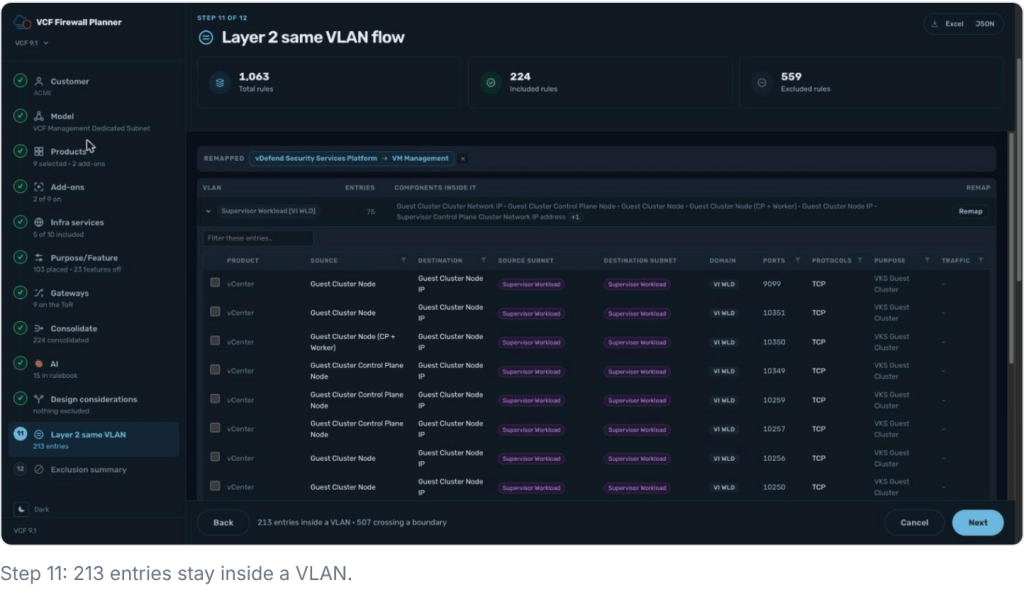
The problem: the list has rules for flows inside the same VLAN, which never cross a firewall.
For ACME, 213 entries stay inside a VLAN and 507 cross a boundary and need a rule. If the design differs from the model, you can remap a component’s VLAN. After this step the included rules drop to 224.
 Step 12: Review Every Exclusion
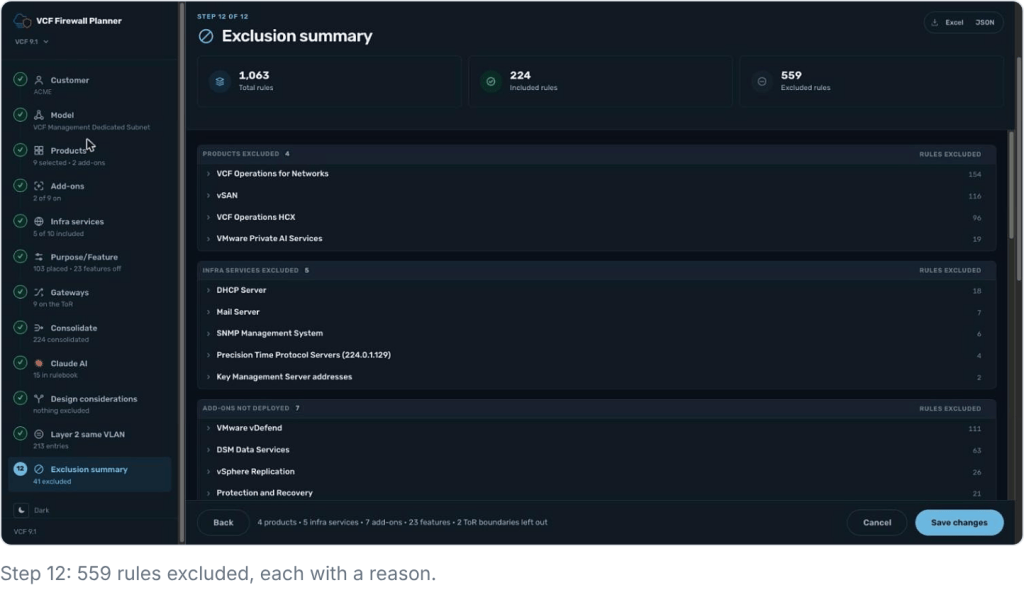
The problem: there’s no record of why a rule was left out, so reviewers can’t validate it.
The exclusion summary lists 559 excluded rules, each with its reason. For ACME, that covers 4 products, 5 infra services, 7 add-ons, 23 features and 2 ToR boundaries. Save your changes to publish the rulebook.
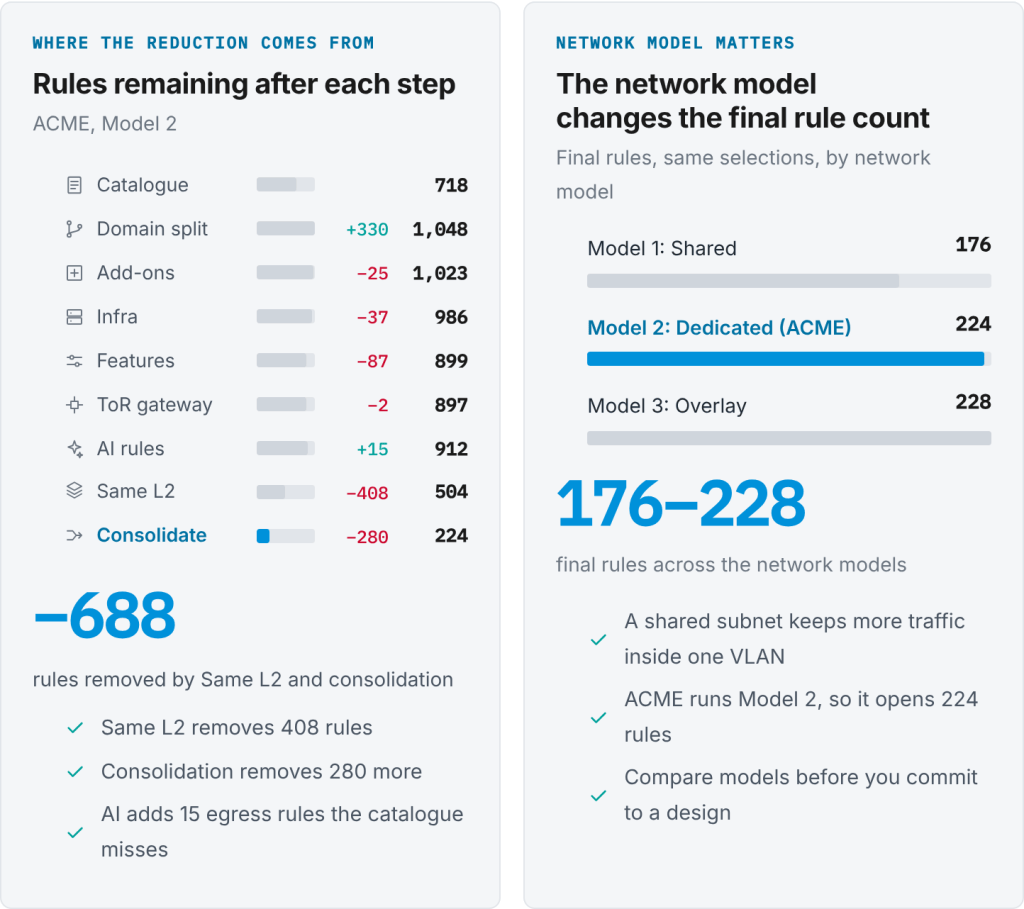
 Results: 1,063 Rules Down to 224
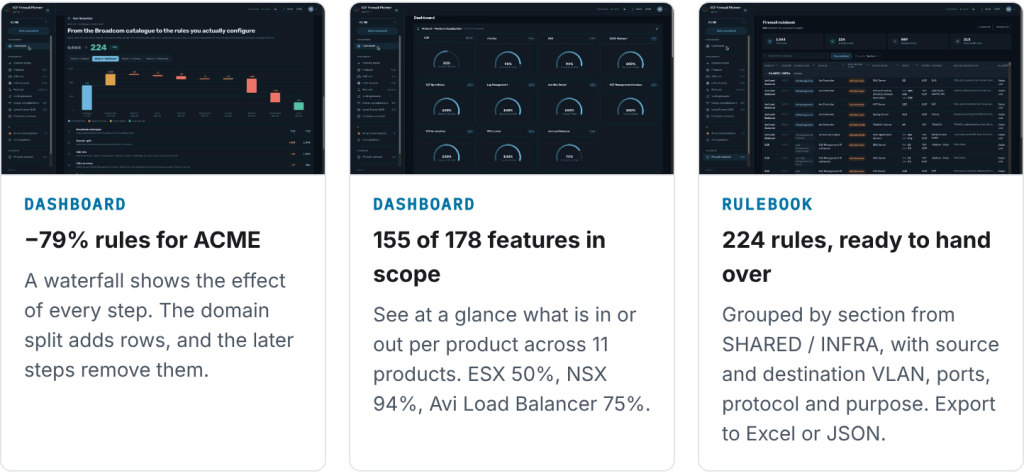
This is what the customer gets at the end of the assessment, shown for ACME on network Model 2.
 Roadmap: Map Your IP/CIDRs from the P&P Workbook to the Rule Set
Today you still copy addresses from the Planning and Preparation workbook into the change request by hand. The next feature removes that step.
RoadmapComing soon
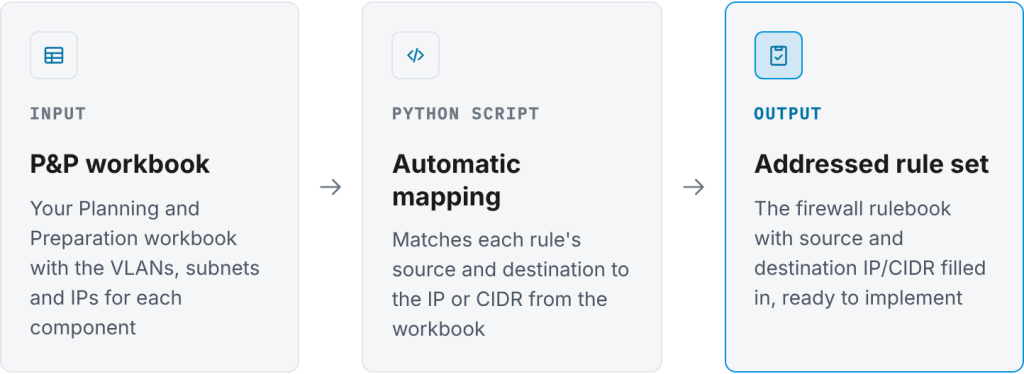
No more copying addresses by hand from the workbook into the change request.
 Get Started
Get started
The planner is at ports.vcf9.ai. Sign in with your company email, and if it’s your first time, click Register. Port data comes from the Broadcom ports catalogue, KB articles, and TechDocs.
 How to Log In
The planner runs at ports.vcf9.ai. You need a work email address. Your account is created the first time you register.
 Login 1: Open the Planner
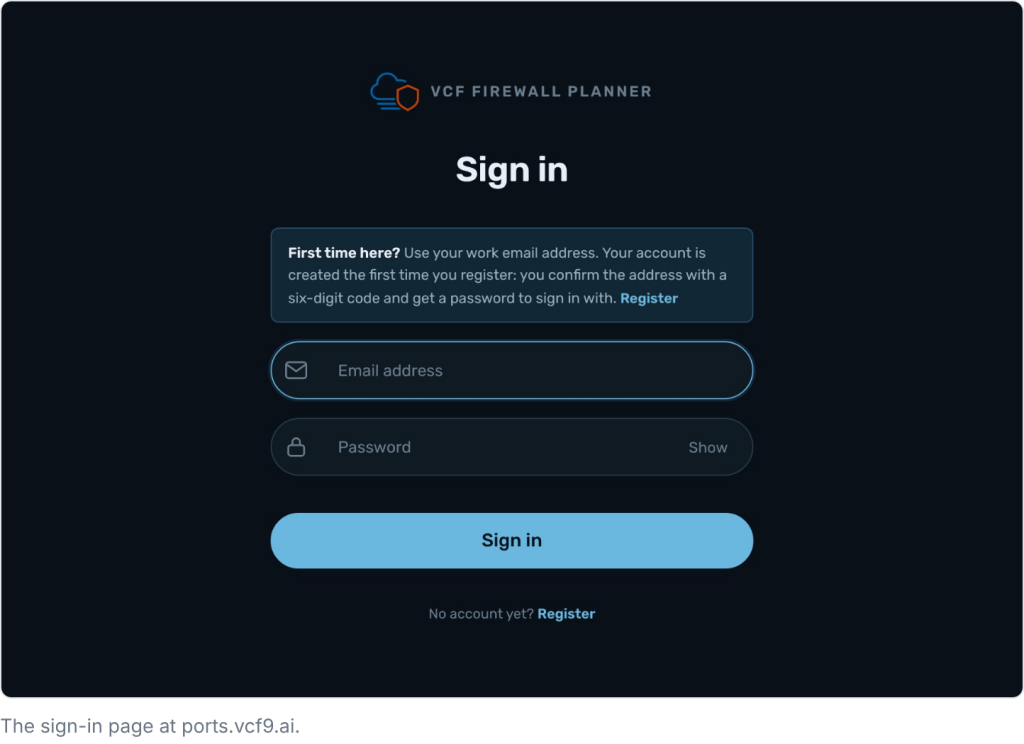
Go to ports.vcf9.ai. The sign-in page opens. If this is your first visit, click Register. If you already have an account, skip to Login 3.
 Login 2: Register on First Use
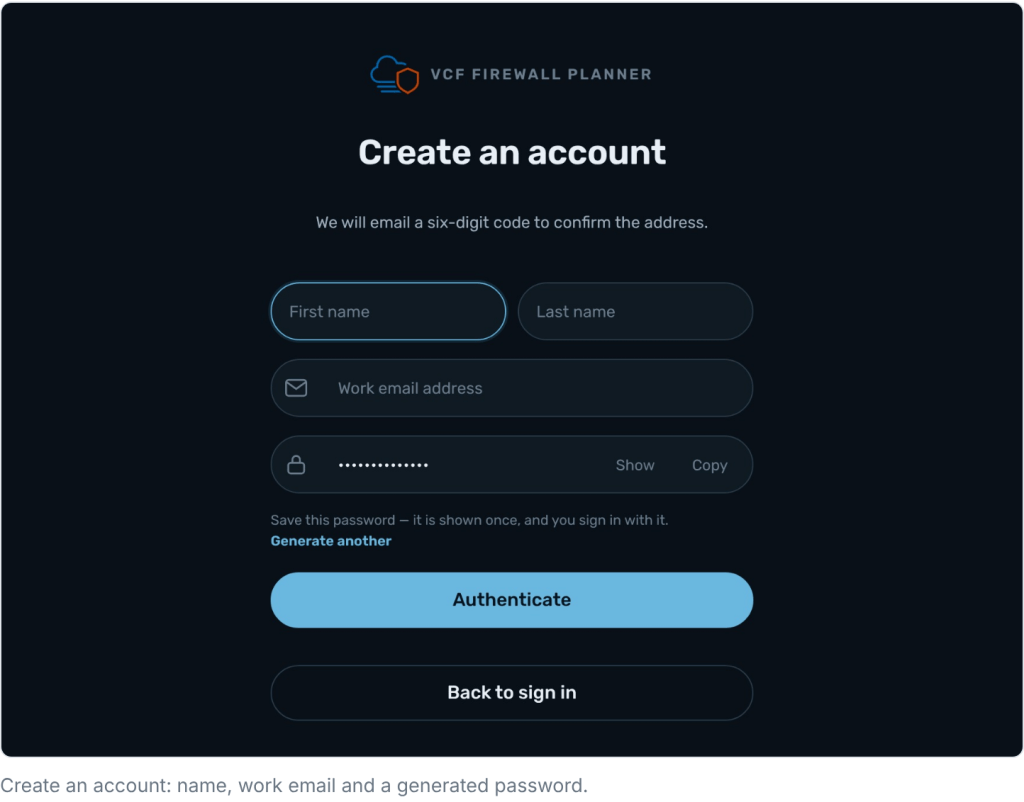
Enter your first name, last name and work email address. The planner generates a password for you. It is shown once, so click Show or Copy and save it before you go on. Click Authenticate, then enter the six-digit code sent to your email to confirm the address.
 Login 3: Sign In
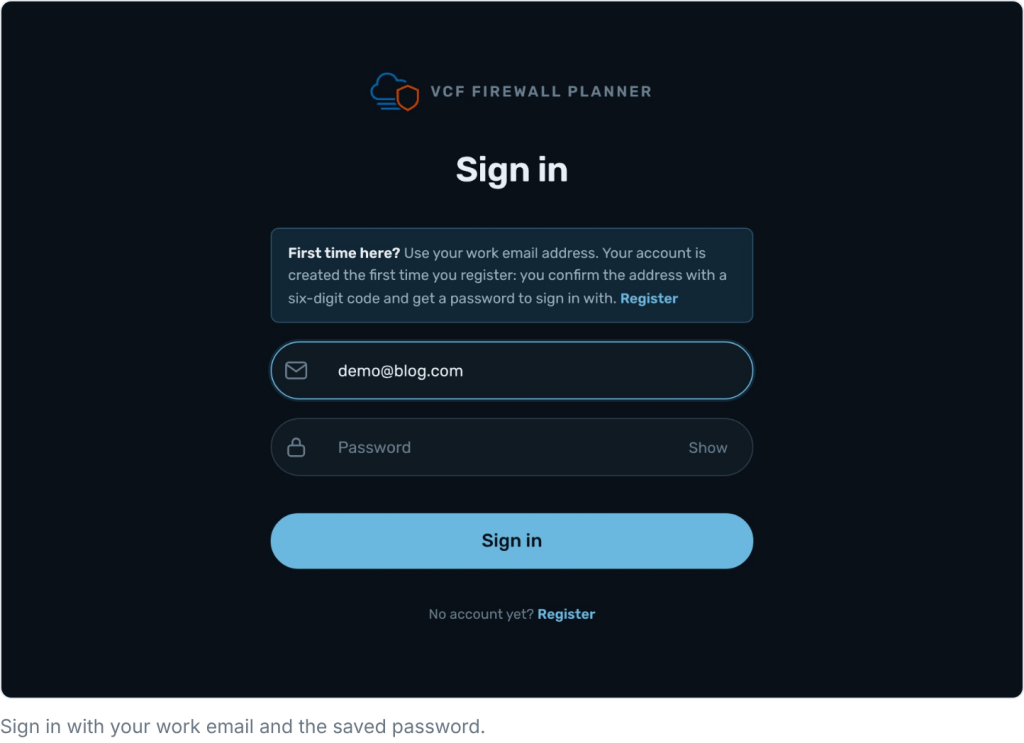
Enter your work email address and the password you saved at registration, then click Sign in. The planner opens on the assessment list, where you start at Step 1.
 Use it on your next project
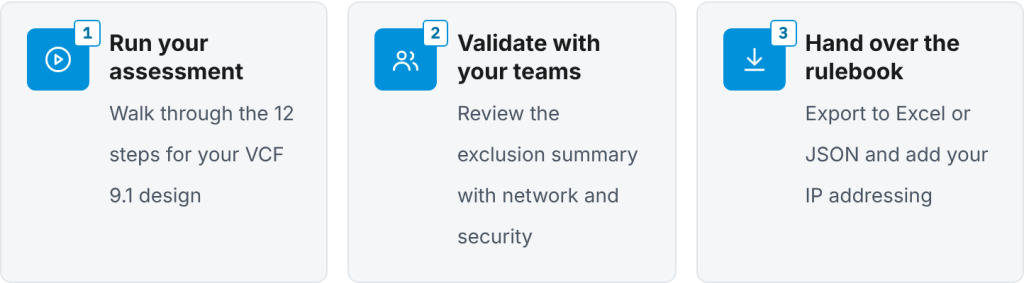
Have a VCF 9.1 design coming up? Run its firewall planning through the VCF Firewall Planner before the first rule request goes to the firewall team. Build the assessment for your customer, take the consolidated rule set and the exclusion summary into the design review, and give the firewall team a list where every rule has a reason.
Then tell me what would make it better. If a step doesn’t match how your customer builds VCF, a flow looks wrong, or you want another export or check, leave a comment on this post or send me a note.

Discover more from VMware Cloud Foundation (VCF) Blog
Subscribe to get the latest posts sent to your email.