vSphere Configuration Profiles, first introduced in VMware vSphere 8.0, allows VMware Cloud Foundation administrators to manage the ESX host configuration at a cluster level. In this article, we will discuss how this feature compares to Host Profiles, and how to transition from Host Profiles to vSphere Configuration Profiles in vSphere 9.
Note: Screenshots and steps described are based on vSphere 9.0.2. Certain UI elements or verbiage may differ in earlier or later versions.
About vSphere Configuration Profiles
vSphere Configuration Profiles is a new feature, first introduced in vSphere 8.0, that is a successor to Host Profiles, in its ability to manage ESX host configurations at scale. Host Profiles is made unwieldy by its requirement that the host configuration needs to be specified in its entirety. This places an undue burden on administrators, who may only be aware of the changes that they want to make to the configuration. vSphere Configuration Profiles, in contrast, only requires the admin to define the changes to the default configuration. This also makes the configuration document human-readable and much more manageable.
Transitioning from Host Profiles
Administrators currently managing ESX host configurations using Host Profiles on a cluster whose lifecycle is managed by vSphere Lifecycle Manager images, can transition their clusters to use vSphere Configuration Profiles.
Note: Using vSphere Configuration Profiles with baseline managed clusters are supported in vSphere 8 U3. However, baseline managed clusters are no longer supported in vSphere 9 and Host Profiles are deprecated, but still supported, in vSphere 9. We recommended using image managed clusters using vSphere Lifecycle Manager.
A best practice before transitioning to vSphere Configuration Profiles from Host Profiles is to ensure the ESX hosts are currently compliant with the Host Profile.
Let’s walk through the transition.
Manage Configuration at Cluster Level
Start with enabling vSphere Configuration Profiles on the cluster. Navigate to Cluster > Configure > Configuration under Desired State. Click on Create Configuration. This will run eligibility checks to make sure the cluster can be transitioned to vSphere Configuration Profiles.
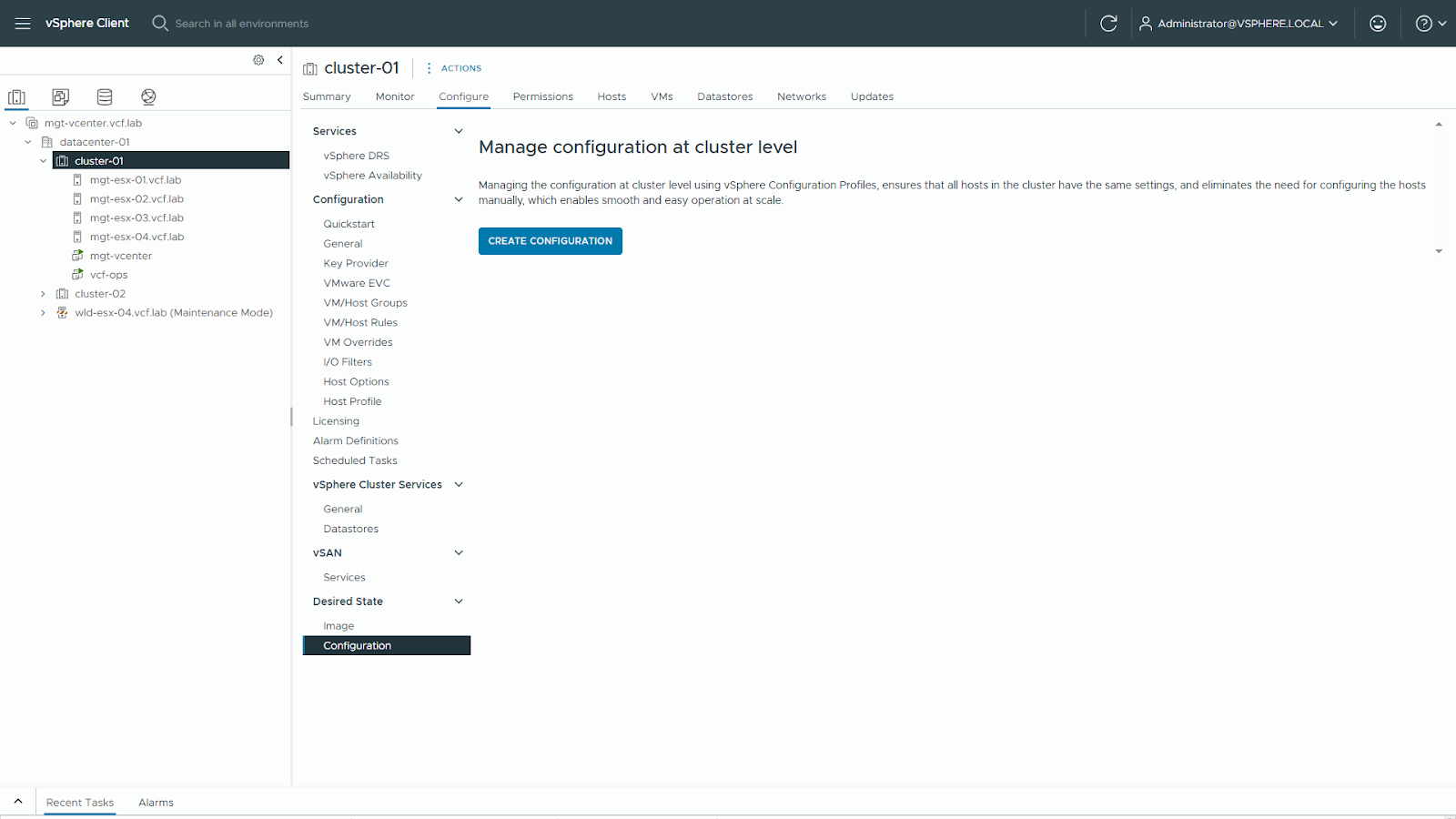
Figure 1 shows the option to start using vSphere Configuration Profiles on an existing cluster.
Note: If the cluster has a Host Profile attached to it, you will see a warning to remove the Host Profile once the cluster has been transitioned to vSphere Configuration Profiles. Once the transition is completed, Host Profiles cannot be attached to the cluster, or to hosts within the cluster. You can also use this workflow, even if you are currently not using Host Profiles.
Create Configuration
Next, specify how the ESX host configuration for vSphere Configuration Profiles should be imported. You have 2 options to do this.
- 1. Import it from a reference host
- 2. Import a JSON file that has the desired cluster configuration.
Since we are transitioning a cluster that is managed by Host Profiles, the preferred approach is to use the “IMPORT FROM REFERENCE HOST” option. You can choose any ESX host in the cluster as reference host, since all hosts should already be compliant with the Host Profile that was in use.
Note: When importing from a reference host in a cluster, any deviations from the reference host configuration will be captured as host overrides. You may need to manually inspect the configuration and remove these overrides if you want all hosts in the cluster to have a uniform configuration.
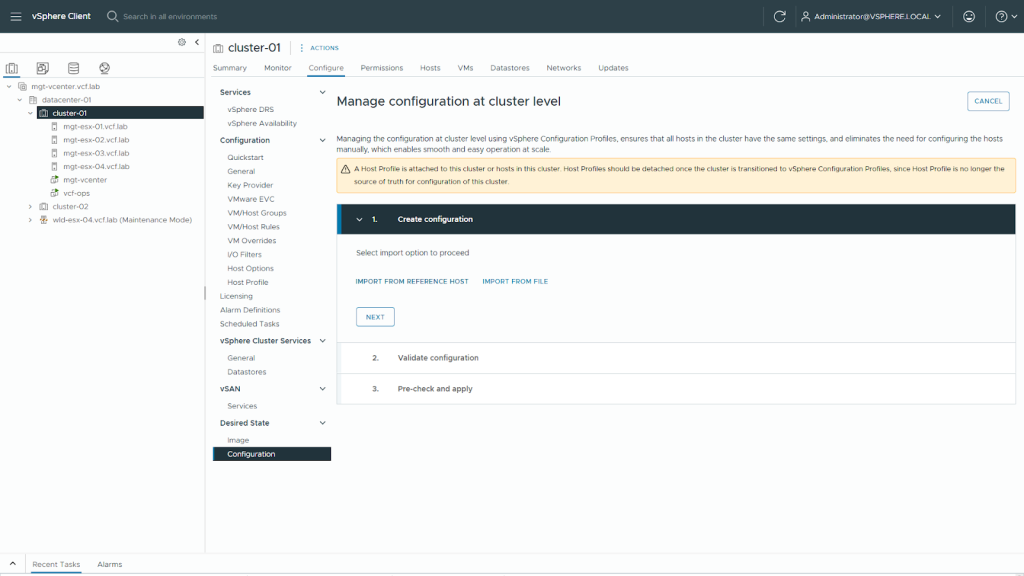
Figure 2 shows the import options.
Click Import.
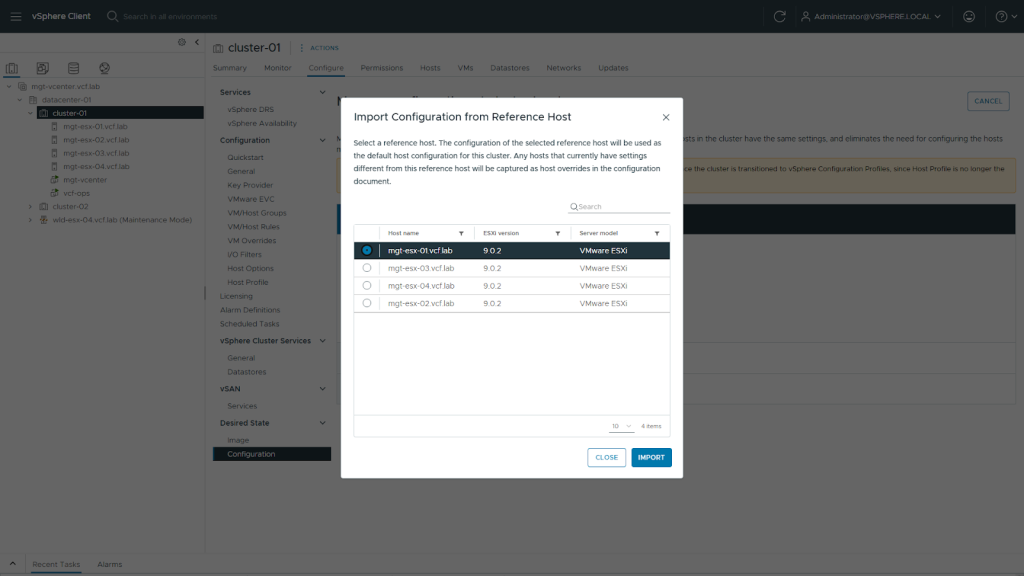
Figure 3 shows choosing a reference host.
Once the document is imported, Click Next.
The Import process validates the generated document against all ESX hosts in the cluster. Once the document validates successfully, Click Next.
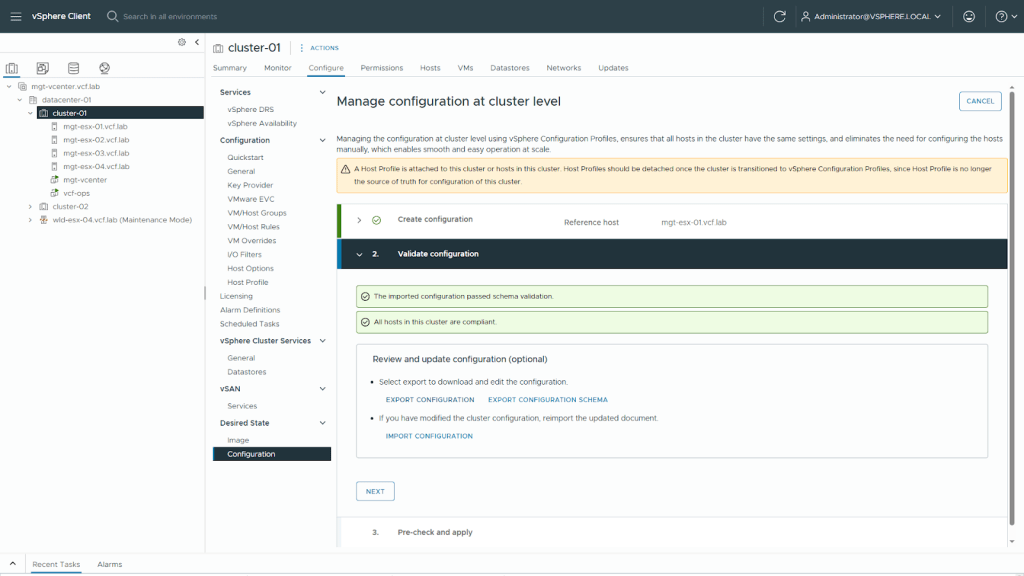
Figure 4 shows the configuration validation.
Pre-check and Apply
In the last step, vSphere Configuration Profiles checks ESX hosts in the cluster for compliance against the desired configuration, and remediates any drifts found during the compliance check.
Note: Since we are transitioning from a Host Profile managed cluster we do not expect any remediation to be needed.
Review the impact to the hosts that applying the configuration changes will have. Click Finish and Apply.
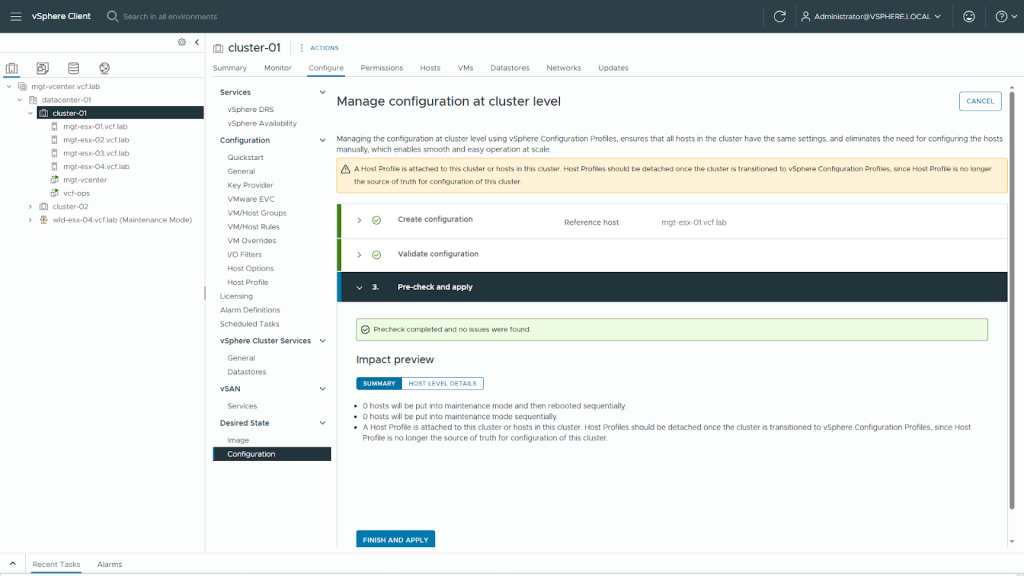
Figure 5 shows the impact preview.
Click Continue. At this point, the generated vSphere Configuration Profile will be set as the desired configuration of the cluster and any ESX hosts that are not in compliance with the vSphere Configuration Profile will be remediated.
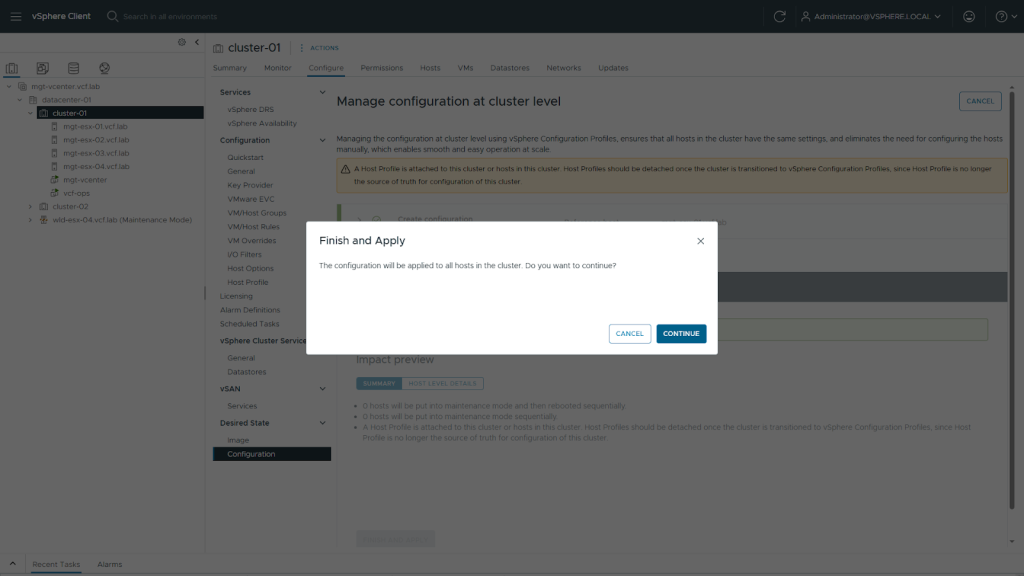
Figure 6 shows the finish and apply confirmation dialog.
vSphere Configuration Profiles is now enabled and you can review the configurations that have been set.
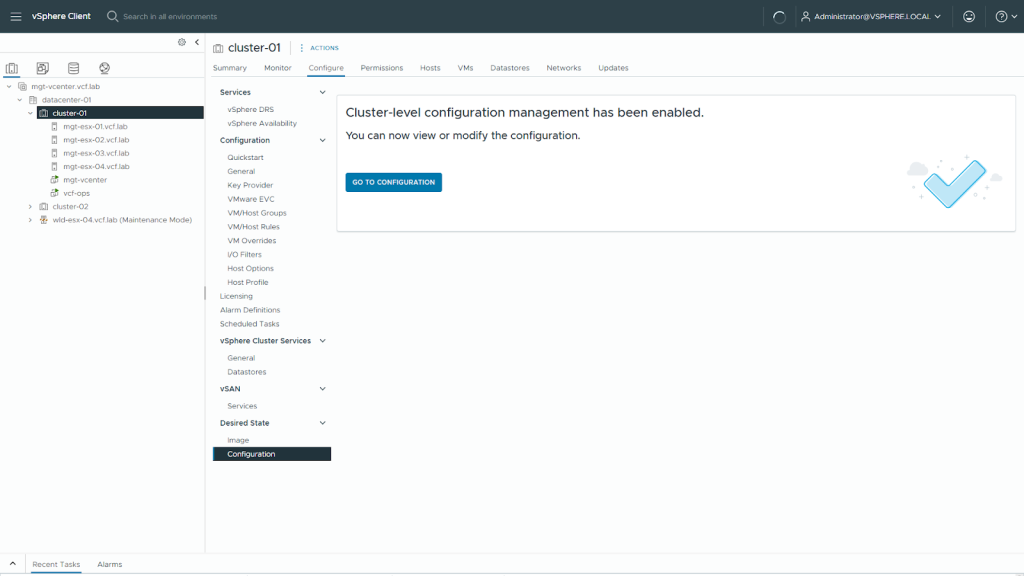
Figure 7 shows the cluster-level configuration has been enabled.
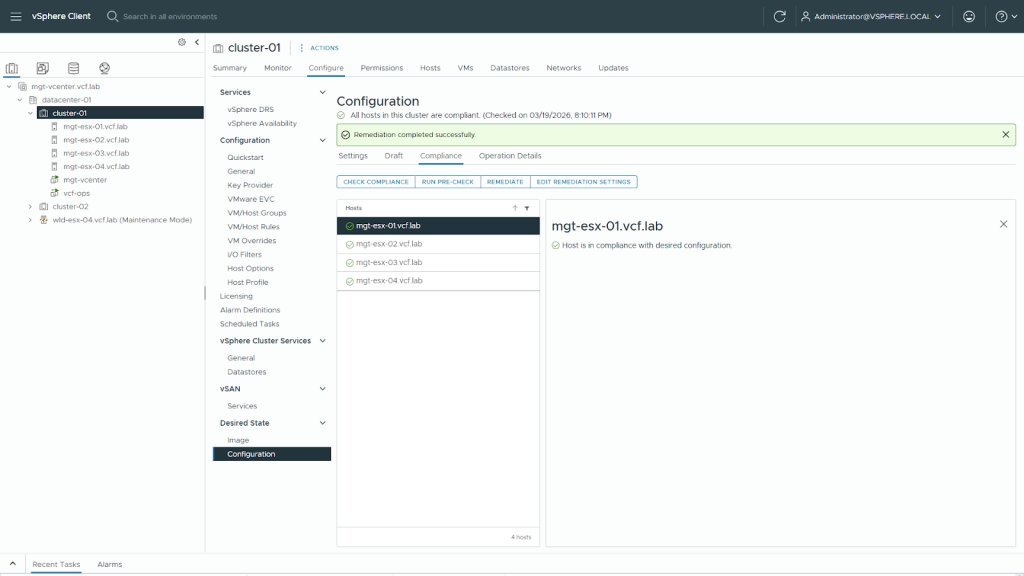
Figure 8 shows the compliance of the hosts against the cluster configuration.
Lastly, detach the host profile from the ESX hosts.
Summary
We realize managing ESX configurations is a challenge in customer environments. vSphere Configuration Profiles is a new capability, first introduced in vSphere 8.0, that addresses this challenge at scale.
Discover more from VMware Cloud Foundation (VCF) Blog
Subscribe to get the latest posts sent to your email.