
When you deploy the VMware vCenter appliance, you select an appliance that is suitable for the size of your environment. The option that you select determines the number of CPUs, the amount of memory, and the size of the disks for the appliance. We refer to these sizes as “t-shirt sizes” and they consist of tiny, small, medium, large, and extra-large. Disk size can use sizes default, large and extra-large.
For more information on vCenter sizing, see the documentation System Requirements for the vCenter Appliance.
Resizing CPU and memory is straightforward. Simply shut down the vCenter VM and increase the CPU and memory as desired and power it back on. Resizing the disks is a little more involved and you can learn more about that process in the Knowledge Base article Increasing the disk space for the vCenter Server Appliance.
In this blog we explore options to automatically resize vCenter, including a new API introduced in VMware Cloud Foundation (VCF) 9.1. Using the new API is the preferred method once you are running vCenter version 9.1.
Important: Resizing vCenter is a one-way process and is for sizing up only. Be sure to take appropriate backups before performing any resize operation. Resizing using the API is not supported if the vCenter is running on snapshots.
Resize vCenter VCF 9.1 using API
VCF 9.1 introduces a new API that makes it even easier to resize the vCenter. A single API call and a reboot are all that is needed to scale up vCenter compute and disk sizes.
You can initiate the API using the Developer Center API Explorer within vCenter. The API is named deployment/size and uses the PATCH method to invoke the API.
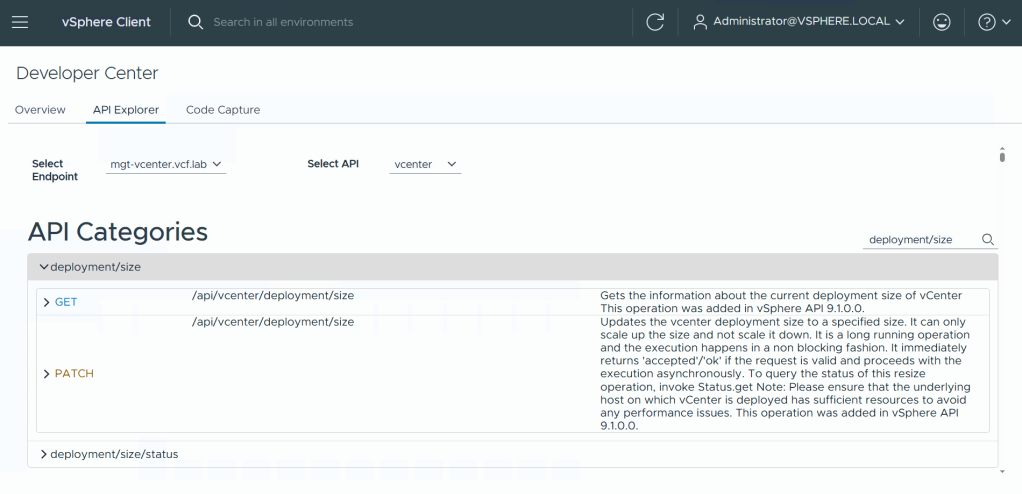
You can invoke the API directly from the API Explorer. The API requires a body of variables.
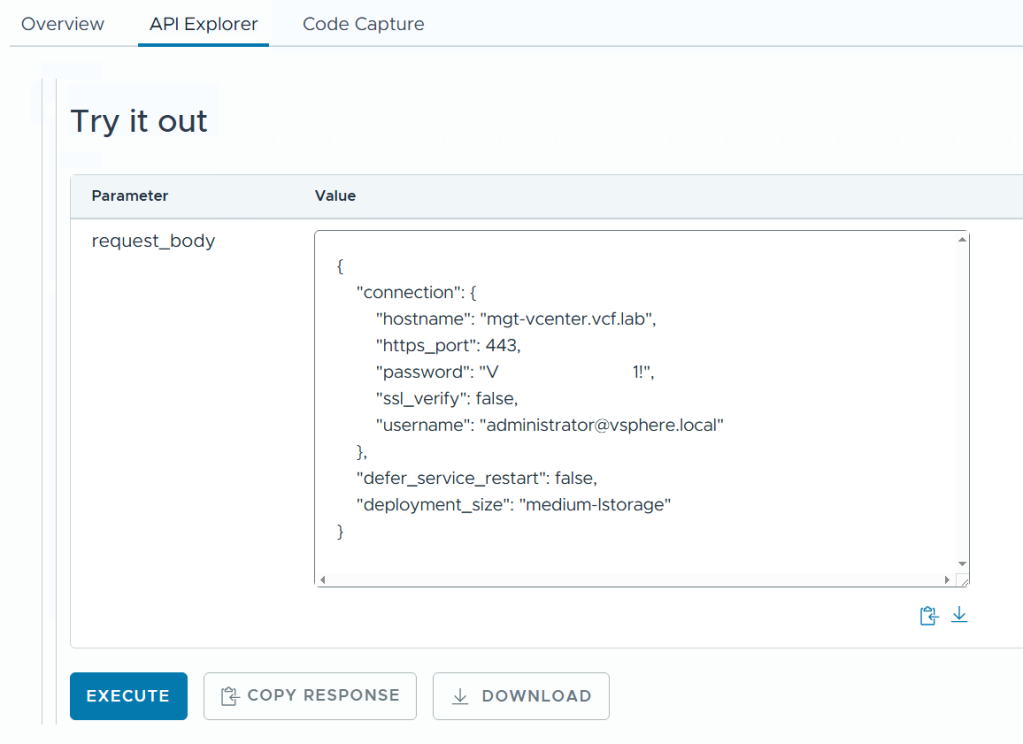
The hostname of the vCenter being resized, the https port, and the username and password of a vCenter administrator user are all required. If the vCenter VM is not self-managed, use the managing vCenter as the hostname and credentials values.
|
1 2 3 4 5 6 7 8 9 10 11 12 13 |
{ "connection": { "hostname": "< vcenter_hostname >", "https_port": 443, "password": "< vcenter_sso_admin_password >", "ssl_verify": false, "username": "administrator@vsphere.local" }, "defer_service_restart": false, "deployment_size": "< see_size_table >" } |
The value for deployment_size can be found in the table below.
The vCenter “t-shirt” sizes small, medium, large, and extra-large all have additional sizes for large and extra-large disks. Determine the size you wish to resize vCenter to and use the appropriate string from the deployment_size API value column.
| Size | deployment_size(string) | CPU (vCPU) | Memory (GB) | Disk (GB) |
|---|---|---|---|---|
| Small with default disks | small | 4 | 21 | 734 |
| Small with large disks | small-lstorage | 4 | 21 | 2084 |
| Small with extra-large disks | small-xlstorage | 4 | 21 | 4344 |
| Medium with default disks | medium | 8 | 30 | 933 |
| Medium with large disks | medium-lstorage | 8 | 30 | 2233 |
| Medium with extra-large disks | medium-xlstorage | 8 | 30 | 4493 |
| Large with default disks | large | 16 | 39 | 1383 |
| Large with large disks | large-lstorage | 16 | 39 | 2283 |
| Large with extra-large disks | large-xlstorage | 16 | 39 | 4543 |
| Extra-Large with default disks | xlarge | 24 | 58 | 2308 |
| Extra-Large with large disks | xlarge-lstorage | 24 | 58 | 2408 |
| Extra-Large with extra-large disks | xlarge-xlstorage | 24 | 58 | 4668 |
This table is based on vCenter 9.1 storage requirements. Values are subject to change in future releases.
Important: You cannot decrease the size of vCenter or the size of the disks. For example, if you are currently running with size “Small with large disks” you cannot resize to “Medium with default disks” as this would reduce the size of the disks from 2084GB to 933GB.
If you are executing the resize API from the API Explorer, the vCenter services will be restarted and connectivity to the vSphere Client will be lost. By default, the value for defer_service_restart is false. This means that all vCenter services will be restarted as part of the resize operation. If you choose to change this value to true, you will need to manually restart all vCenter services to complete the resize task.
Monitor the status of the resize operation using the deployment/size/status API.
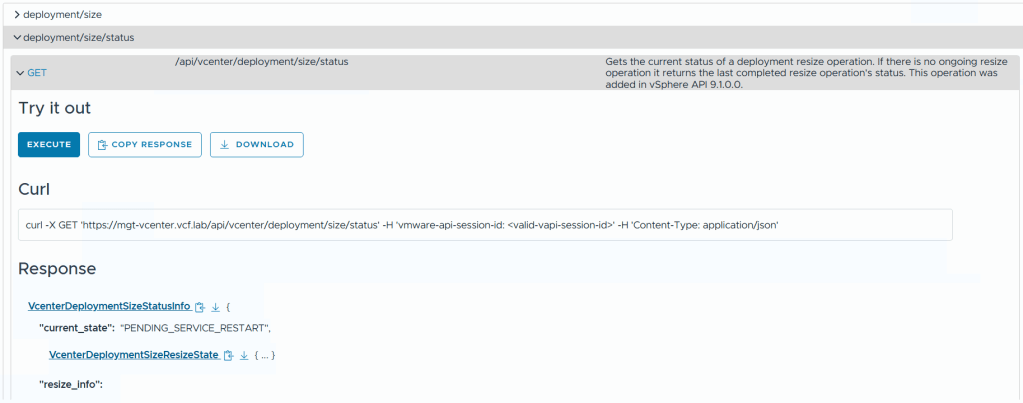
When you see the state “PENDING_SERVICE_RESTART” it means that the resize has completed and you can manually restart the vCenter services. See the Knowledge Base article Stopping, Starting or Restarting VMware vCenter Server Appliance services.
Resize vCenter 9.0 and earlier using reduced downtime upgrade
Reduced downtime upgrade (RDU) is a method of upgrading (or patching) vCenter using a migration-based approach. This means that rather than an in-place upgrade or patch, a new vCenter VM is deployed and the data is copied. This reduces the overall vCenter downtime to a few minutes.
RDU can also be used to resize the vCenter during an upgrade or patch cycle. When configuring the target vCenter VM, simply choose a larger size than the source vCenter. See the section Configure the Target vCenter appliance and step 13.
The following image shows the source vCenter size is Small and the upgrade is choosing deployment size Medium with storage size Large.
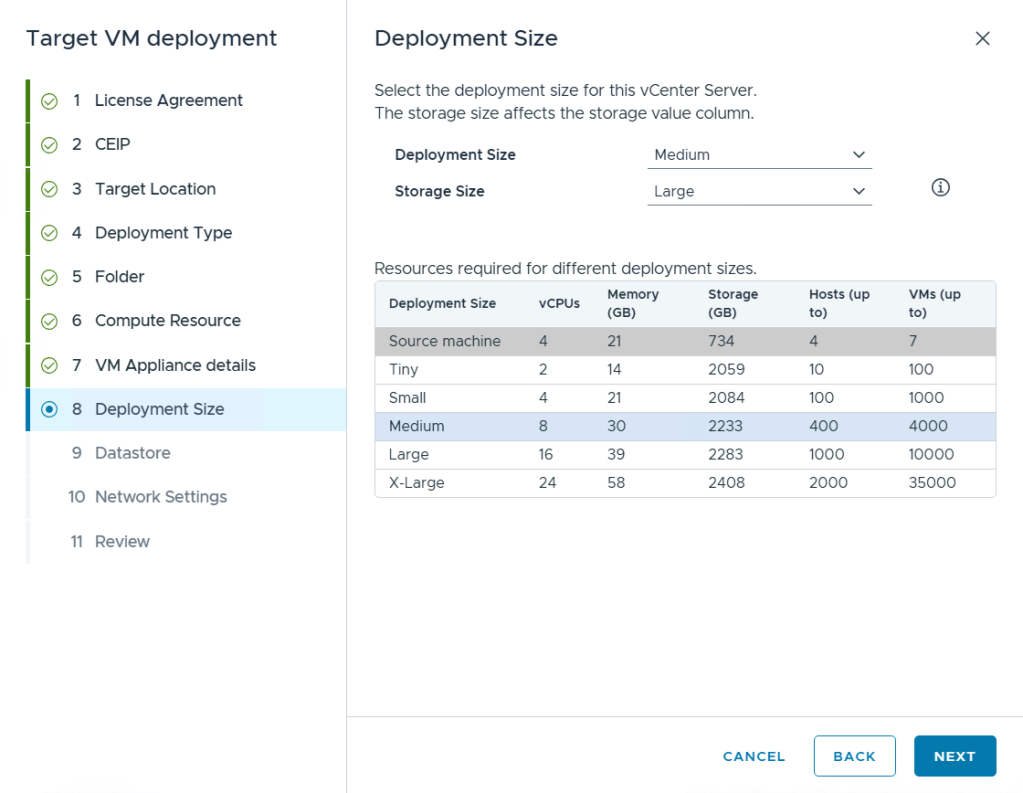
If you are planning to upgrade or patch vCenter, consider if you may need to increase the compute and disk size for the vCenter and combine the process into the maintenance cycle.
For more information on reduced downtime upgrade, see the documentation About the Reduced Downtime Upgrade Process.
Resize vCenter 9.0 and earlier using File-Based Backup Restore
If RDU is not a viable option, perhaps you are currently running the latest patch, you can use the native file-based backup and restore process for vCenter to increase the vCenter size during the restore portion.
Deploy the new vCenter VM to be restored, and choose a larger deployment and storage size than the source backup.
See the document Stage 1 – Deploy a New Appliance and steps 10 and 11.
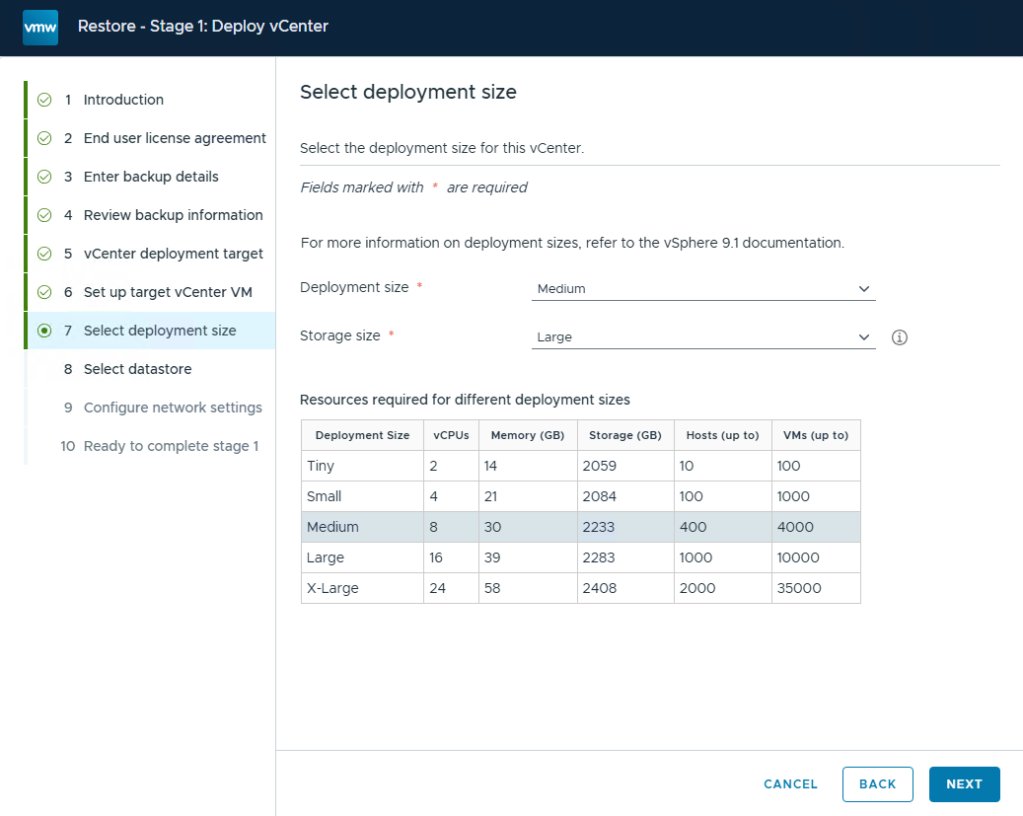
If you do not know the size of the vCenter that the backup was taken from, you can inspect the backup-metadata.json file of the backup and review the DeploymentSize value.
For more information on vCenter backup and restore, see the documentation File-Based Backup and Restore of vCenter.
Discover more from VMware Cloud Foundation (VCF) Blog
Subscribe to get the latest posts sent to your email.