
(Day 12 of 22 in our Cybersecurity Awareness Month series. Today: VM snapshots)
Snapshots might be the most underrated security tool in VMware Cloud Foundation (VCF). They are why you can patch a guest operating system on a weekday afternoon without holding your breath, how you can preserve evidence from a compromised system before anyone touches it, and, with vSAN data protection, a last line of defense against ransomware that has deleted everything else.
They’re also misunderstood. VM snapshots aren’t backups, legacy VMFS and SparseSE snapshots can hurt performance if they pile up, and they hold copies of data that deserve the same protection as the original. Used well, though, VM snapshots really are your best friend. Here’s how to treat them like one.
What VM Snapshots Capture
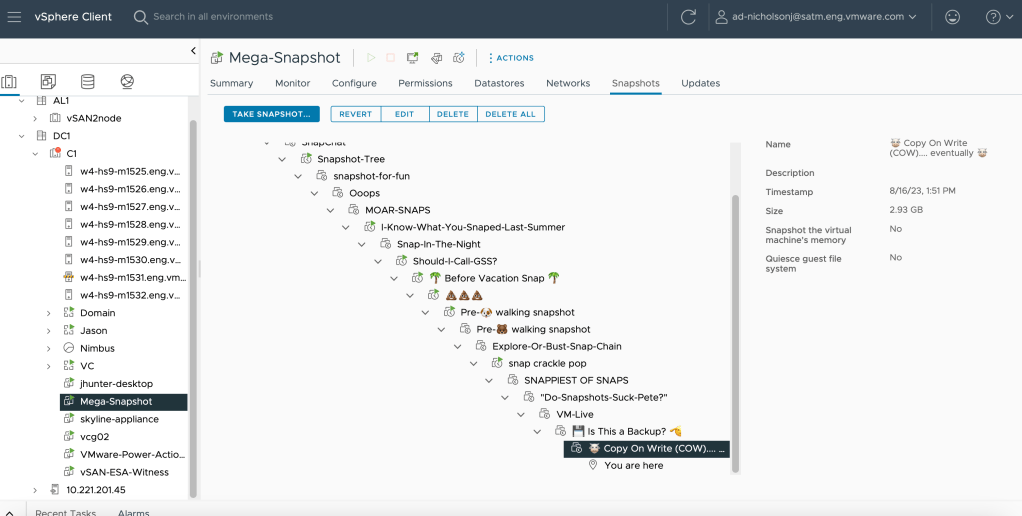
A snapshot preserves a virtual machine’s state at a point in time: its settings, its power state, the contents of its disks, and, if you choose, the contents of its memory. Traditional VM snapshots freeze the original virtual disk and send new writes to a delta disk, so the snapshot is really a chain of changes stacked on a frozen base. Reverting throws the changes away. Deleting a snapshot merges them back into the base disk, which is called consolidation.
vSAN Express Storage Architecture (ESA) takes a different approach. Its native snapshots use a log-structured design instead of chains of delta disks, which makes them much faster to create and delete and keeps performance steadier while they exist (details).
When you take a snapshot, you make two choices:
- Memory or no memory. Including memory captures the running state of the guest, so a revert brings the VM back running, exactly as it was. It takes longer, can briefly pause the VM, and writes a file roughly the size of the VM’s memory. This feature also has value for security researches trying to dissect “in memory only” attacks.
- Quiesced or not. Quiescing asks VMware Tools to flush the guest’s file system buffers so the disks are consistent. In windows land this commonly includes invoking VSS to accomplish this process. Additionally, pre-freeze and post thaw scripts can be used to run application specific quiesced hooks. This is a common workflow and here is a backup partner’s examples for a number of applications and databases. Additionally some backup software use their own application scripting and hooks and use this process to quiesce ahead of application aware snapshotting.
Take a Snapshot Before You Change Things
The most common use for snapshots is a quick way back. Before you patch a guest operating system, upgrade an application, or change a setting you’re not completely sure about, take a snapshot. If the change goes badly, revert, and you’re back where you started in minutes instead of hours. That safety net is a security feature in its own right, because teams that are afraid of breaking things patch less often, and our post on patching makes the case for patching often.
VCF uses VM snapshots this way, too. In VCF 9.0, the fleet management upgrade workflow snapshots the management components that support it by default before an upgrade (docs). A few rules apply:
- Not every component supports snapshots. Broadcom doesn’t support snapshots of NSX Manager or NSX Edge nodes, because they can lead to cluster instability or database corruption. Use NSX file-based backups instead (KB 433822).
- Follow the documented procedure for clustered appliances. VCF Operations, for example, should be taken offline and every node snapshotted together, without memory or quiescing (docs).
- Use snapshots as a short-term rollback. Broadcom’s guidance for SDDC Manager says snapshots are not backups and should only be used as a temporary rollback measure (KB 432552). Take a real backup before an upgrade, too.
- Delete the snapshot when you’re done. Once the change has proven itself, remove it.This can also be scheduled.
Use VM Snapshots to Preserve Evidence
When you suspect a virtual machine is compromised, the instinct is to shut it down. Resist it, at least until you’ve captured its state. Memory holds things that disappear at power-off, like running processes, network connections, encryption keys, and malware that never touches the disk. NIST’s forensics guidance has long recommended collecting this volatile data first (NIST SP 800-86).
VM snapshots that include memory are an easy way to do that. The snapshot writes the guest’s memory to a file without anyone logging in to the guest, which avoids tipping off an attacker or overwriting evidence with your own tools. Broadcom’s vmss2core utility converts that memory file into a dump that common memory forensics tools can read (KB 323788). Take the snapshot, copy the files somewhere safe, and then decide whether to isolate the VM, disconnect it, or power it off.
If the VM uses VM encryption, its memory file is encrypted, too, so work out ahead of time how your responders will decrypt it for analysis.
Immutable Snapshots as a Last Line of Defense
Ransomware crews know about snapshots, and they delete them. Threat researchers describe one group that targets vSphere deleting backup jobs, snapshots, and backup repositories before it encrypts anything (report). Immutable snapshots are built for that moment.
vSAN data protection, which is part of VCF, takes scheduled, crash-consistent snapshots of VMs on vSAN ESA clusters and keeps them according to a retention policy you set, up to 200 snapshots per VM (overview). Mark a protection group immutable, and its snapshots can’t be deleted through normal administration; they go away when their retention period ends. Immutability is deliberately hard to undo, and once it’s on, an administrator can’t turn it off without help from Broadcom support (KB 411539). Choose retention periods carefully, because immutable snapshots use capacity until they expire. VCF 9.1 also adds a vSAN health check that flags an immutable protection group that has been unlocked, which is worth an alert (KB 450962). The optimal way to use immutable snapshots, is combined with replication. VMware Live Recovery can be configured to keep immutable snapshots in a secondary cluster (potentially using cheaper QLC flash devices), stored on a cluster that is on different vCenter with different SSO/Authentication controlling the environment.
Know the limits, too. Local vSAN snapshots live on the same datastore as the VMs they protect, so they won’t help if you lose the cluster or the datastore itself. Treat them as a complement to backups stored somewhere else.
Keep Snapshots Short-Lived and Protected
Traditional VMFS and SpareSE snapshots carry a cost when they stick around. Every write goes to a delta disk, chains grow, and consolidation takes longer the bigger they get. Broadcom’s guidance is to use only two or three snapshots in a chain for performance, even though up to 32 are supported, and not to keep any single snapshot for more than 72 hours (KB 318825). A forgotten snapshot can even cause vCenter file-based backups to fail (KB 441880). This KBs recommendations are not relevant to vSAN ESA snapshots, and the maximums are higher with vSAN data protection.
VM snapshots are security artifacts, too:
- They contain data. A snapshot holds the VM’s disk contents at that moment, and a memory snapshot holds whatever was in memory, which can include credentials and keys. Protect datastore access accordingly.
- Control who can take and revert them. vCenter has separate privileges for creating, removing, and reverting snapshots (privileges), and most people who work with VMs don’t need all of them.
- Remove stale snapshots. NIST recommends removing obsolete snapshots and clones to reduce the attack surface (NIST SP 800-209). VCF Operations can help find them, because its Reclaim feature lists snapshots you can review and delete (docs). vCenter also offers a scheduled task to automatically delete snapshots.
- Be careful with domain controllers. Active Directory has safeguards for snapshot reverts, but Microsoft recommends against using snapshots of domain controllers in place of backups (Microsoft). Our post on protecting Active Directory covers why.
Snapshots can also be scheduled for creation, and deletion using scheduled tasks now in vCenter.

Make VM Snapshots Part of Your Routine
VM snapshots work best as part of the plan instead of an afterthought. Take one before every risky change, and delete it once the change proves out. Capture memory before you shut down a VM you suspect is compromised. Set up vSAN data protection with immutable snapshots for the workloads you can’t afford to lose, and practice restoring from them. Then go looking for snapshots that have outstayed their welcome.
Snapshots won’t replace backups, and our post on backups and restores covers the other half of recovery. But a good snapshot taken at the right moment has saved more than one weekend.
Discover more from VMware Cloud Foundation (VCF) Blog
Subscribe to get the latest posts sent to your email.