

The security risks posed by frontier AI models make rapid response to any new security threats of utmost importance. Broadcom is taking steps to make sure that VMware Cloud Foundation (VCF) is equipped for immediate patching, enabling organizations to act quickly to any threats that may arise. This means that we will be providing more frequent monthly Express Patches to VCF 9.1. This blog describes what this process looks like and shows how to make sure you are on the most recent patches.
Before you begin, you must upgrade to VCF 9.1, as Express Patches are released for this version.
Step 1: Checking for and Downloading Patches
The first step is to check for any new available patches. This can be done by navigating to the Build > Lifecycle section of VMware Cloud Foundation Operations.
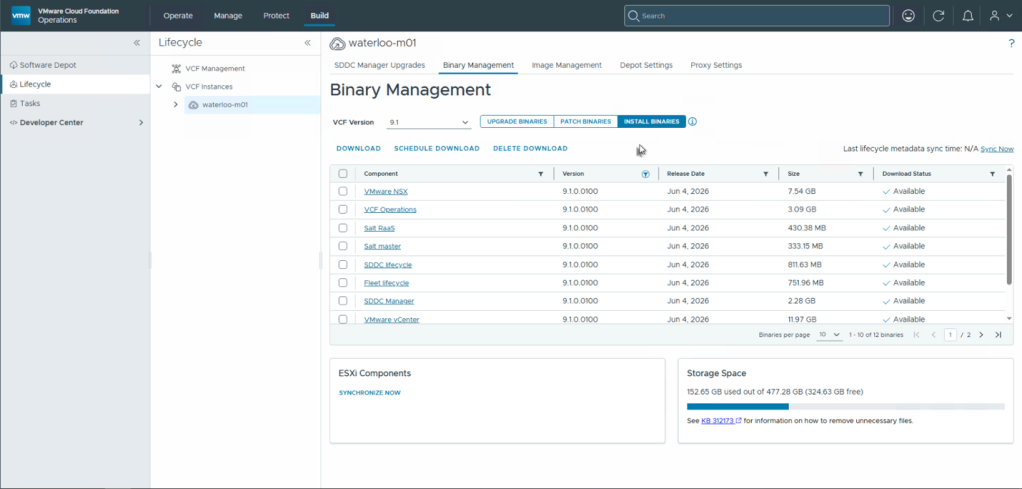
You will notice that if you click into either the Patch Binaries or the Install Binaries sections that you will see patches for any of the products that have had security vulnerabilities resolved. In the above case it is the June 4 patch 9.1.0.0100 version.
The first task is to download the patches for the patch release that is being deployed. This can take some time depending on the number of patches released but makes them available to be deployed once complete.
Step 2: Updating VCF Management Components
When the patches are downloaded, you can deploy them for the VCF Management Components first, starting with Fleet Lifecycle. Navigate to VCF Operations and select Build > Lifecycle > VCF Management > Upgrade and on this page, you can select the Target Version for upgrade.
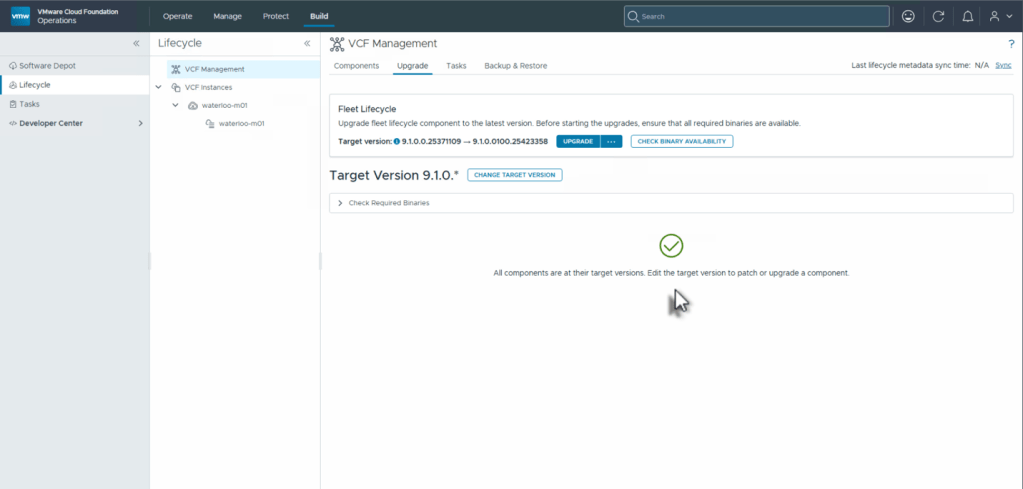
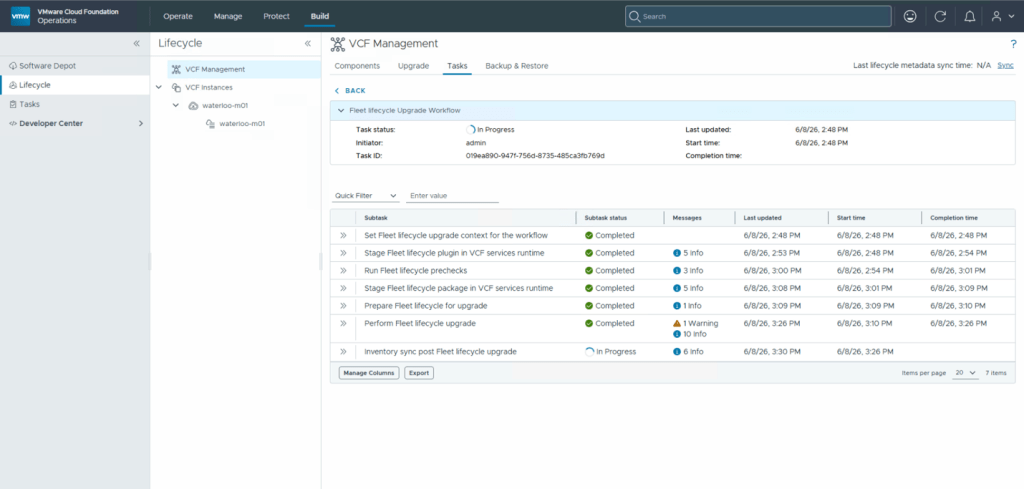
You can then click the Upgrade button, which will perform the upgrade of this component. The upgrade process will take some time to run but you can click to see the details of the progress.
Once complete, you will have the option to set the target version for each of the components that are a part of the VCF Management Services with an update available.
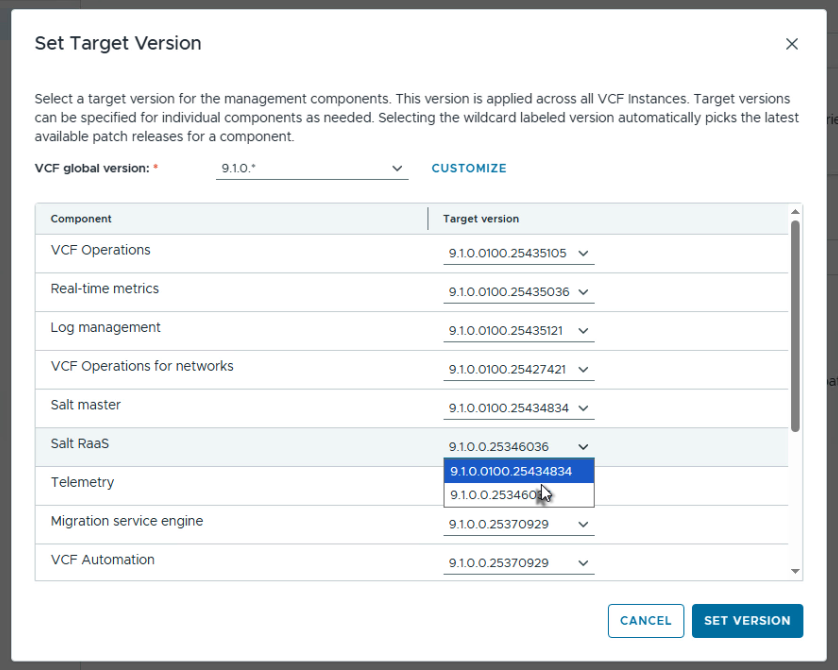
When the version is set, you can then apply the patches. It is recommended to run the precheck on all the components first by clicking Run Prechecks. I normally run for all components at the same time and correct any issues found. Once the prechecks have all passed properly, you can then click Upgrade to upgrade the components. I normally select all, so that the upgrade is completed as quickly as possible.
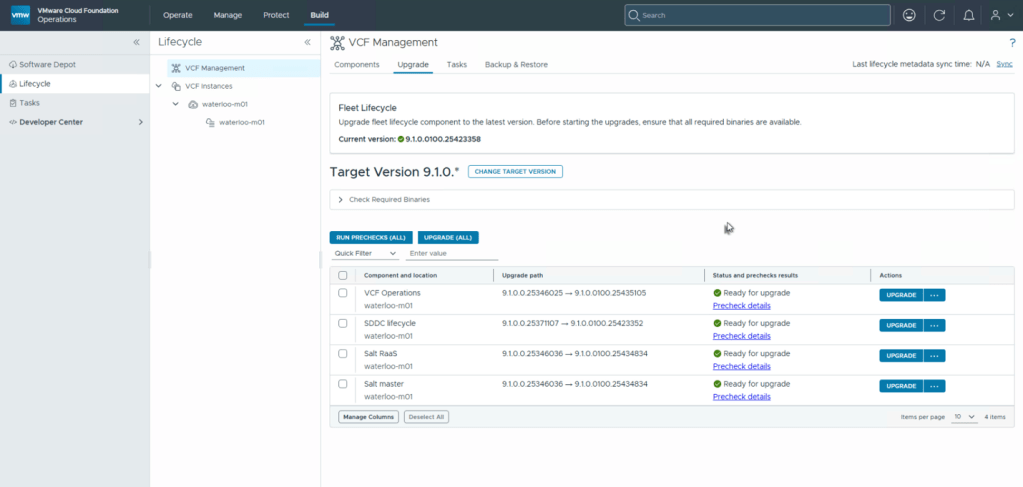
This process also can take some time based on the components being upgraded. Once the Management component upgrade is complete, you can proceed to the VCF core components.
Step 3: Upgrading VCF Core Components
As with previous releases, upgrading VMware SDDC Manager, VMware vSphere, and VMware NSX is a similar process to previous releases. VCF will take advantage of Live Patching for VMware ESX hosts and Quick Patching for VMware vCenter to expedite the time it takes to deploy the security patches for these components.
To apply the 9.1.0.0100 patches, navigate to VCF Operations again, and select Build > Lifecycle Management > VCF Instance > Upgrades. From here you can click the Plan Component Upgrade Button to select the target patch version and build a plan for the upgrade.
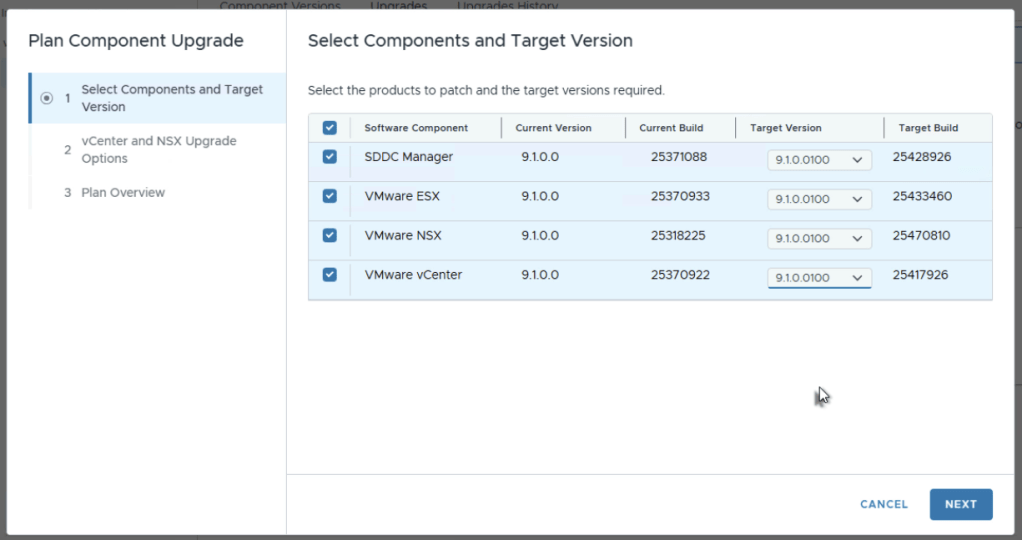
Once the plan has been created, you can begin the process of upgrading each of the components.
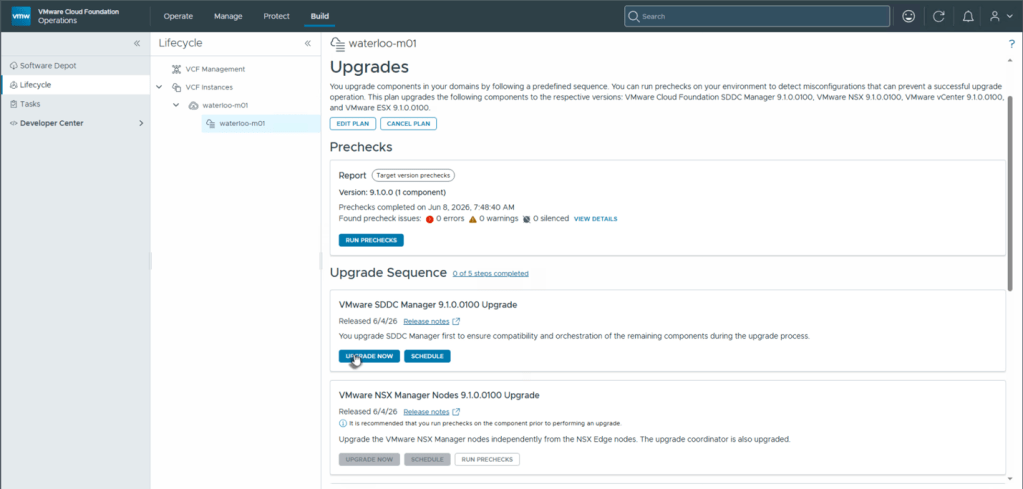
Depending on the components that are being upgraded, the plan will have one or more steps to execute. Proceed through the upgrades. Once complete, you will have successfully applied the 9.1.0.0100 patches.
Need Help?
Upgrading or patching VCF 9.1 requires careful planning and execution to minimize disruptions. If you need assistance with your upgrade, VCF Professional Services can help. Contact your account director for more information.
Discover more from VMware Cloud Foundation (VCF) Blog
Subscribe to get the latest posts sent to your email.