In VMware Cloud Foundation Operations 9.1, the Log Assist feature supports all core and management layers of VMware Cloud Foundation (VCF). Diagnostics Log Assist streamlines support by automatically collecting, bundling, and transferring logs to Broadcom for troubleshooting. It significantly cuts down manual effort and speeds up log transfer (often 30-40% faster), while providing a secure, centralized library to track these transfers for better support management.
Key Benefits:
- Faster Troubleshooting: Reduces time spent manually gathering and uploading logs, allowing Broadcom engineers to diagnose issues faster.
- Streamlined Process: Simplifies log collection and transfer directly from VCF Operations to an open Broadcom case.
- Centralized Tracking: Provides a log library to view, manage, and track all log transfers and interactions with support.
- Enhanced Security: Securely transfers sensitive log data to support for analysis.
Configuring Log Assist
In this video, we go over the configuration of Log Assist:
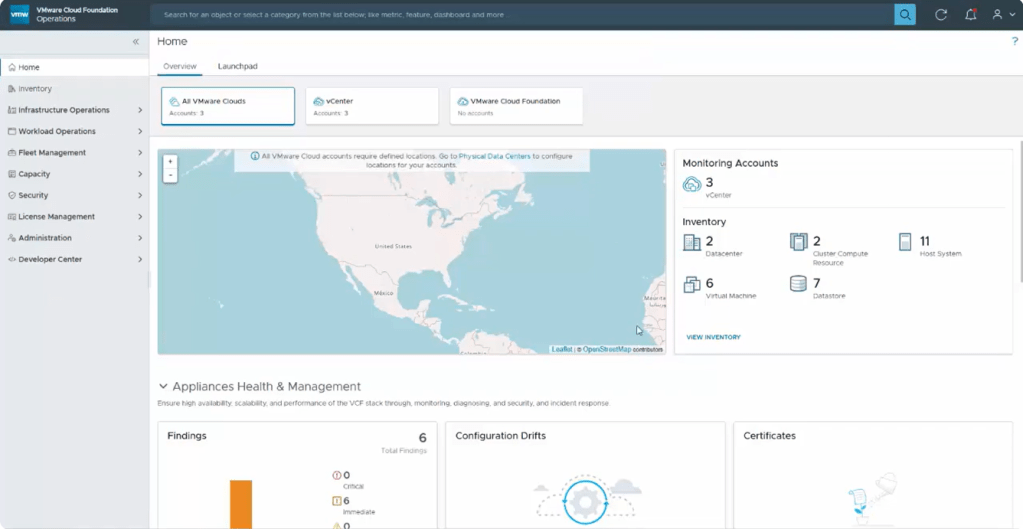
To begin your Log Assist setup, please go to Administration → Control Panel → Log Assist.
The Log Assist configuration consists of three steps.
Step 1 is under License Manager → Registration where you will set the reporting mode of Operations to Connected.
Step 2 is under Administration → Cloud Proxies where you will select a cloud proxy and activate it for Log Assist.
- Note: If your environment does not have a unified cloud proxy, please deploy one for Log Assist. The following documentation will assist you in this process. https://techdocs.broadcom.com/us/en/vmware-cis/vcf/vcf-9-0-and-later/9-0/fleet-management/collecting-data-with-cloud-proxies-in-vrealize-operations-cloud/configuring-cloud-proxies-in-vrealize-operations-cloud.html
Step 3 is under Infrastructure Operations → Configurations → Log Assist. Select the objects you would like to assist to your cloud proxies for Log Assist.
Using Log Assist
In this video we go over the usage of Log Assist:
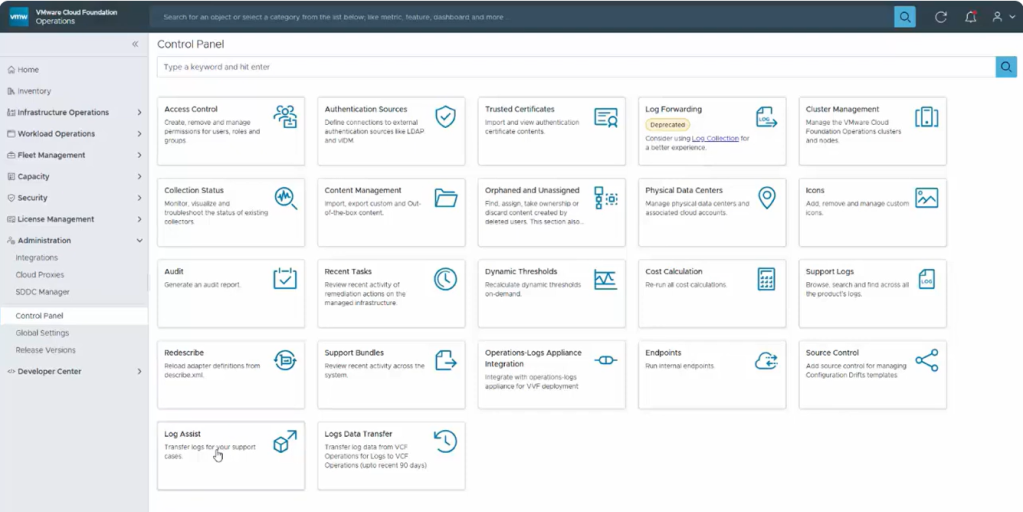
To use Log Assist, please go to Administration → Control Panel → Log Assist.
The first step is to select the object(s) that you would like to send logs to Broadcom Support for.
Click Next and wait for the connectivity validation.
- In case the check fails, click RE-VALIDATE to get the latest connectivity status for your environment. Validation checks the connectivity, authentication, and required privileges for the object. To fix privileges, see KB 375817.
Click Next to progress to the “Transfer to Support Portal” tab. From this tab enter your case number in the Support case ID field and choose transfer.
Please note: To accelerate a case with Broadcom Support, you can add log-based diagnostic findings to identify known issues that might contribute to the troubleshooting. Make sure the findings cover the period for which the issue was observed. When you initiate a transfer, Log Assist uploads the diagnostic findings along with the support bundles. For more details, see How to collect a Diagnostics Log Bundle.
Additional Resources
Creating and managing Broadcom support request (SR) cases
Use Log Assist to Accelerate Your Support Cases
Questions and Answers for Diagnostics for VMware Cloud Foundation
Discover more from VMware Cloud Foundation (VCF) Blog
Subscribe to get the latest posts sent to your email.