In our previous blog post, we explored how VMware Cloud Foundation (VCF) Edge 9.0 enables organizations to deploy single-host edge sites that support both VM and container workloads, dramatically reducing edge footprint and capital expenditure. While single-host deployments excel in space-constrained environments, many organizations require additional resilience and capacity at their edge locations.
This post builds on that foundation by demonstrating a two-host edge site deployment pattern. We will also showcase how to leverage VCF’s brownfield import capability to bring in this two-host edge site under VCF management. This approach delivers significant operational benefits for organizations that need to standardize their edge infrastructure management while preserving their existing investments and configurations.
Why Choose Two-Host VCF Edge Sites?
A two-host deployment provides several advantages over single-host configurations:
- High Availability: With two hosts, vSphere HA can restart VMs on the surviving host during hardware failures, minimizing downtime for critical edge workloads
- Maintenance Flexibility: Perform rolling updates and maintenance without service interruption using vMotion to migrate workloads between hosts
- Enhanced Performance: Distribute workload demands across two physical hosts, reducing resource contention
- Growth Capacity: Start with two hosts and scale workloads without immediate hardware expansion
Industries such as manufacturing facilities with 24/7 operations, retail locations requiring continuous point-of-sale availability, and healthcare facilities providing critical patient services benefit significantly from this deployment pattern.
VCF Edge Brownfield Import: Key Advantages
VCF’s brownfield import capability addresses a common enterprise challenge: integrating existing infrastructure into standardized management frameworks. Rather than requiring complete infrastructure rebuild, brownfield import:
- Preserves Existing Configurations: Maintains your current cluster setup and deployed workloads
- Reduces Migration Risk: Eliminates the need for workload migration and reconfiguration
- Accelerates VCF Adoption: Brings existing infrastructure under VCF management in hours, not weeks
- Enables Standardization: Applies consistent lifecycle management, security policies, and operational practices across all edge sites
This approach proves particularly valuable for organizations with distributed edge locations where downtime for infrastructure conversion is not acceptable.
Two-Host VCF Edge Architecture Overview
The two-host edge site architecture builds upon the single-host design with enhanced resilience:
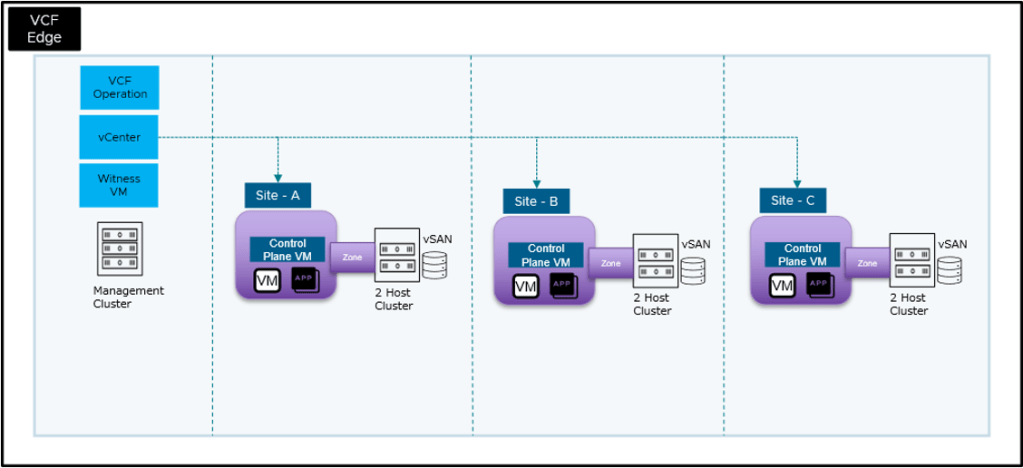
Key Components:
- Two ESX Hosts: Provide HA capability and workload distribution at the edge site
- vSphere Distributed Switch (vDS) or NSX: Consistent network configuration across both hosts
- Shared Storage: We’ll make use of VMware vSAN in this example
- vSphere HA & DRS: Automated failover and resource optimization
- Supervisor Cluster: Optional Kubernetes control plane for container workloads
- VCF Management: Centralized lifecycle management, compliance, and operations
Prerequisites for VCF Edge Brownfield Import
Before beginning, ensure you have:
- VCF 9.0.2 Environment: VCF 9.0.2 Management Domain deployed in the primary data center
- Two ESX Hosts: VCF 9.0.2 compatible hardware meeting minimum specifications with ESX 9.0.2 installed
- Network Configuration: Appropriate VLANs and IP addressing for management, vMotion, and vSAN networks
- Storage: Either shared storage (SAN/NAS) or local disks for VMFS/vSAN configuration
Part 1: Cluster Setup in vCenter
This section demonstrates creating a two-host vSAN cluster with witness VM in vCenter before importing it into VCF management.
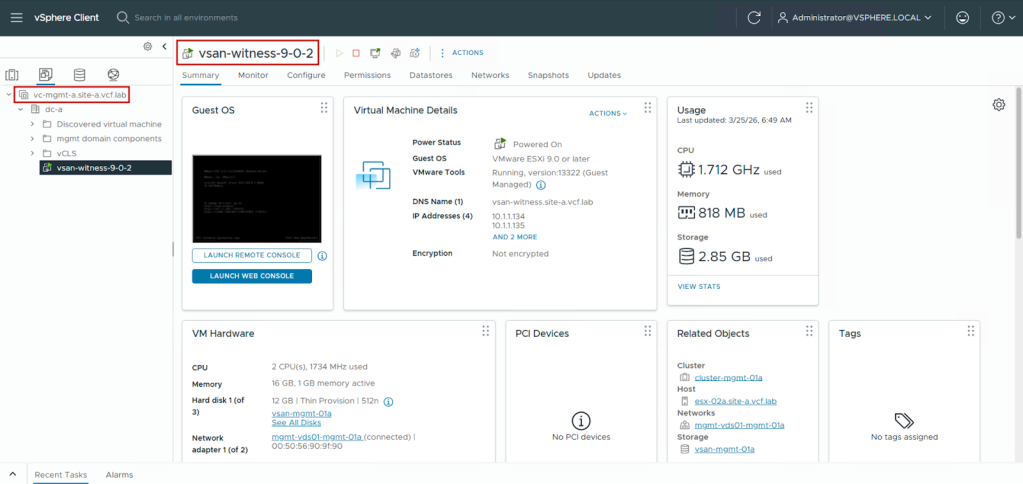
Step 1: Deploy vSAN Witness VM in the management domain
- Download the vSAN Witness OVA from the Broadcom Support Portal for the specific version of VCF you are running (9.0.2 in this case) and deploy it on the management domain vCenter. Ensure that the network provided to the vSAN witness will be able to reach the edge site.
Note: In this demo, we are deploying the vSAN witness VM in our central DC where the management domain is located to allow the same witness VM to be used by multiple edge sites to form the vSAN cluster. While this design works for our demo, placing the witness VM in the management domain or the central DC is not a strict requirement. Based on the architecture design, the vSAN witness VM placement can be changed as long as the latency between vSAN witness VM and the edge site hosts remains under 500 ms.
Step 2: Set up ESX Hosts, vCenter, and vSphere cluster at the edge site
- Deploy ESX 9.0.2 on the two physical servers you wish to use for the edge site
- Download the vCenter 9.0.2 ISO and install it on one of the ESX servers. In this example, we select the option to use an existing datastore during vCenter deployment. We created a VMFS datastore on the ESX host for this. This allows us the flexibility to configure vSAN manually. Once deployed, we get access to the vCenter where we will start the cluster configuration.
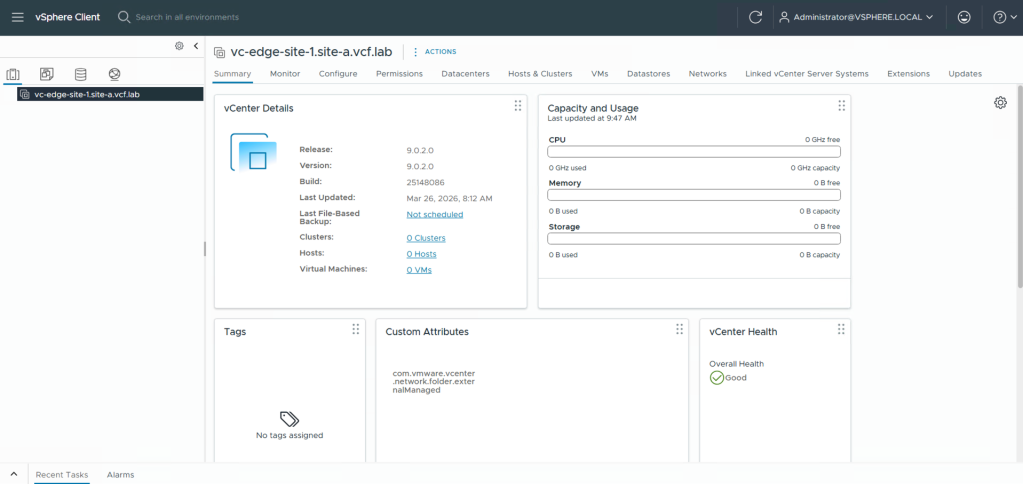
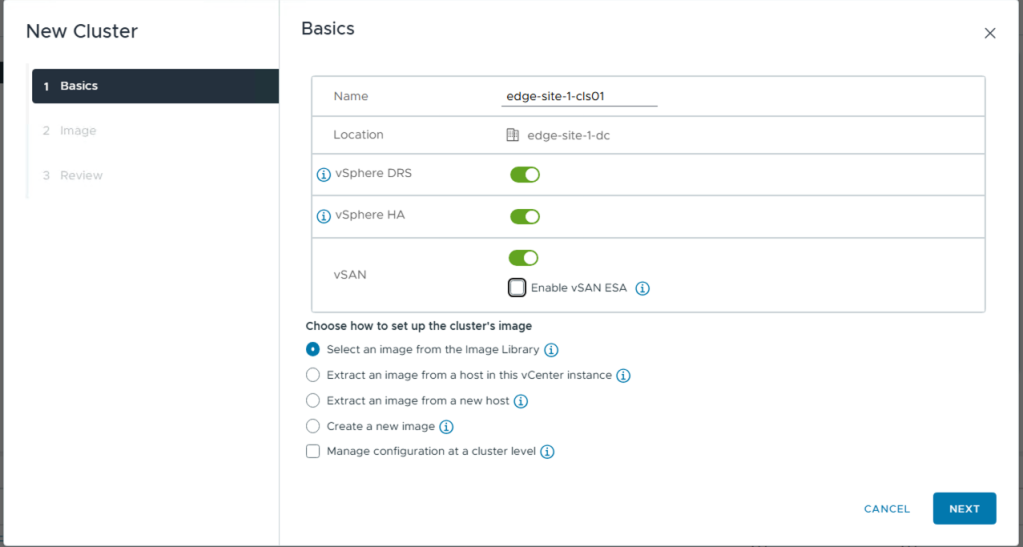
- Now in the edge site vCenter, we create the data center object, a cluster with DRS, HA, and vSAN enabled, and add the two ESX hosts into it.
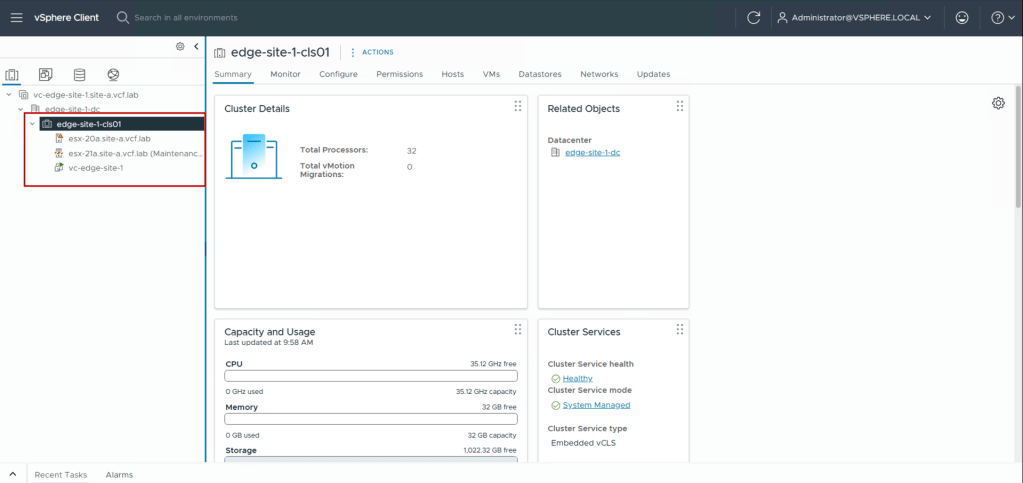
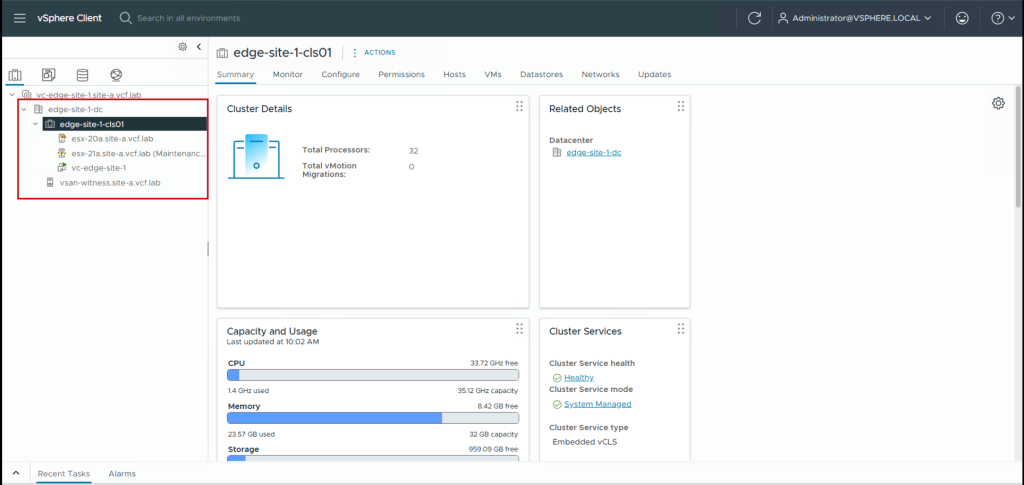
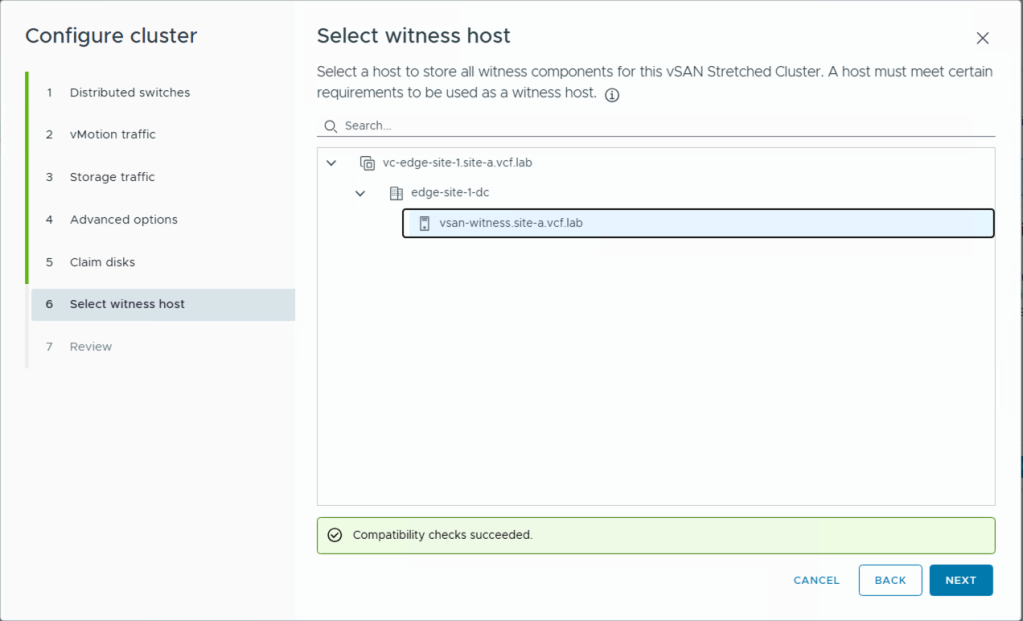
- Next we add the vSAN Witness appliance as a host in the edge site at the data center level (not in the cluster directly) and move it out of maintenance mode.
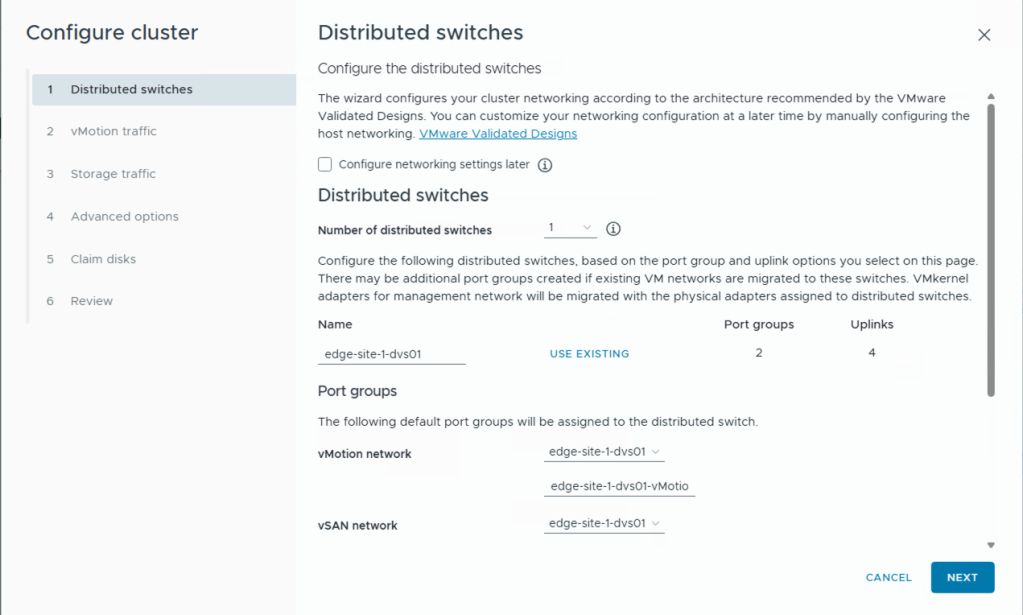
- Next we use the Cluster Quickstart wizard (vCenter Inventory > Cluster > Configure > QuickStart) to set up the cluster networking. This automates the creation of vDS, vmkernel ports, and migrating the two ESX hosts in the cluster from virtual Standard Switches (vSS) to virtual Distributed Switches (vDS). This is also the wizard where we select the vSAN two-host cluster deployment mode.
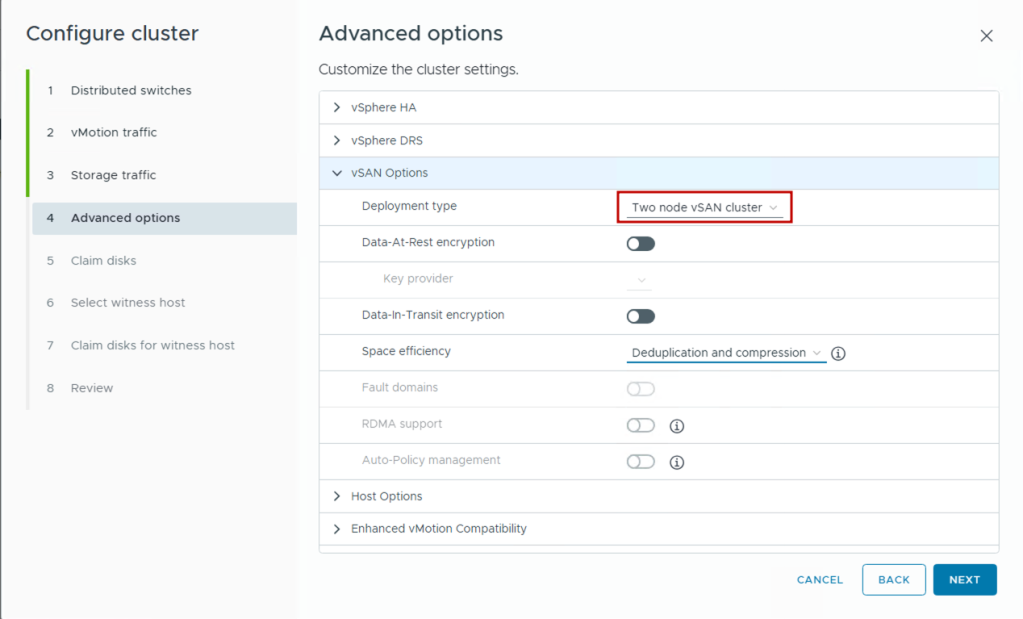
Important: In two-host clusters, setting admission control to tolerate one host failure reserves approximately 50% of cluster resources. This helps ensure sufficient capacity exists on the remaining host during failures.
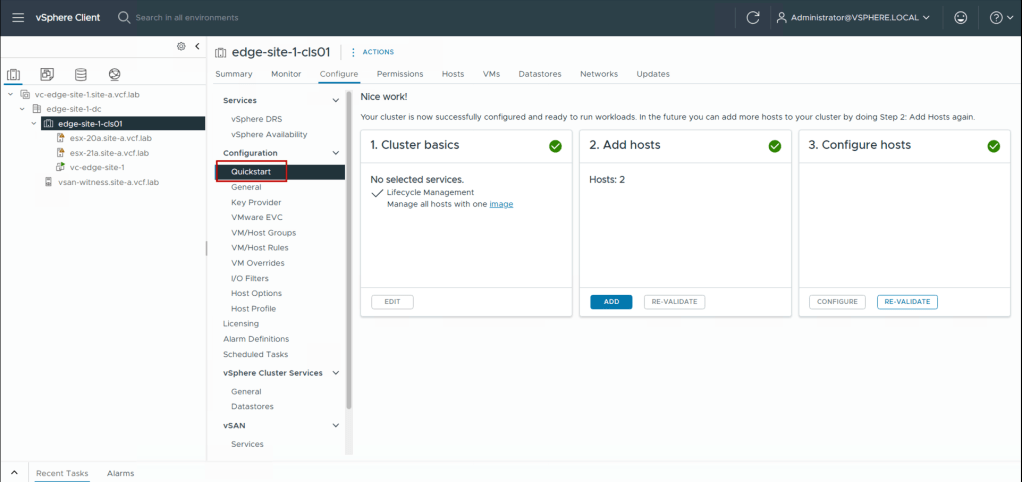
The cluster is now fully configured with two hosts, networking, storage, and high availability. In the next section, we’ll bring this cluster under VCF management using brownfield import.
Part 2: VCF Edge Brownfield Import Process
VCF’s brownfield import allows us to bring the manually configured cluster under VCF management without disrupting existing workloads. This process validates the cluster configuration, imports it into VCF Operations, and enables full VCF lifecycle management capabilities.
Understanding Brownfield Import
Brownfield import performs several key operations:
- Discovery: VCF Operations connects to the edge site vCenter and discovers the existing cluster configuration
- Validation: Verifies the edge site cluster meets the VCF configuration standards
- Import: Registers the edge site cluster in VCF Operation’s inventory
- Enablement: Activates VCF management capabilities including lifecycle management, compliance validation, and automated operations
- NSX: Deploys a new NSX instance if an existing associated NSX instance does not exist. Users have the option to bring in an existing NSX instance tied to that vCenter as well.
Initiate Brownfield Import
- Log in to VCF Operations as administrator
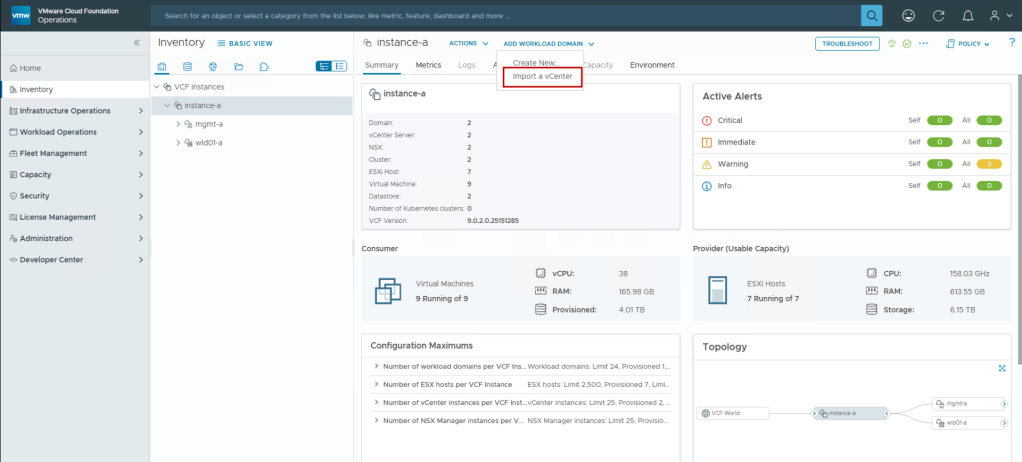
- Navigate to Inventory > Instance > Add Workload Domain > Import a vCenter
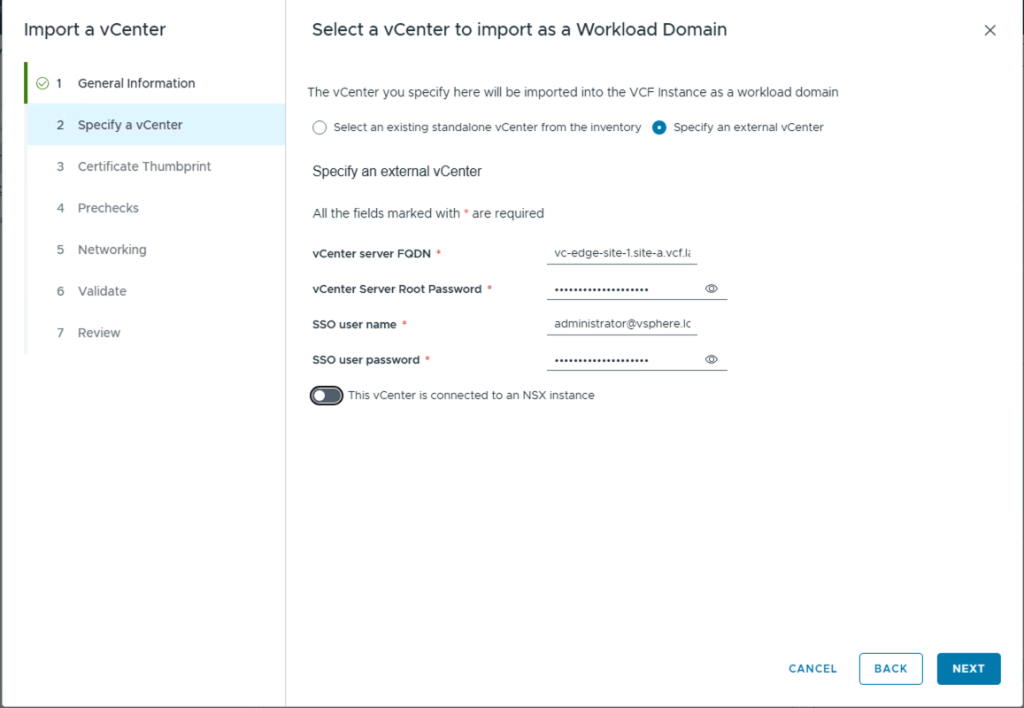
- Provide the edge site vCenter details and toggle the “This vCenter is connected to an NSX instance” switch to turn it off. This will allow deploying a new NSX instance during the import.
- Ensure all precheck validations pass.
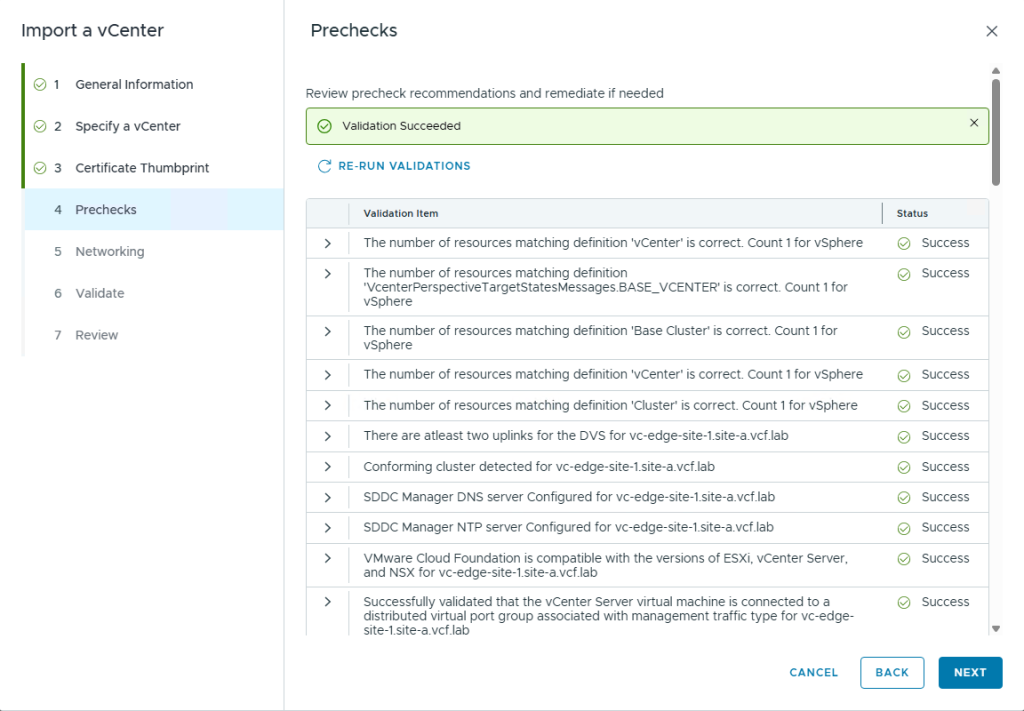
Note: The prechecks also ensure that the edge site vCenter latency is within the acceptable limits to the primary data center where VCF Operations and SDDC Manager are deployed. Latency requirements for VCF can be found here. In this case, the max. latency allowed between SDDC Manager and the edge vCenter is 100 ms.

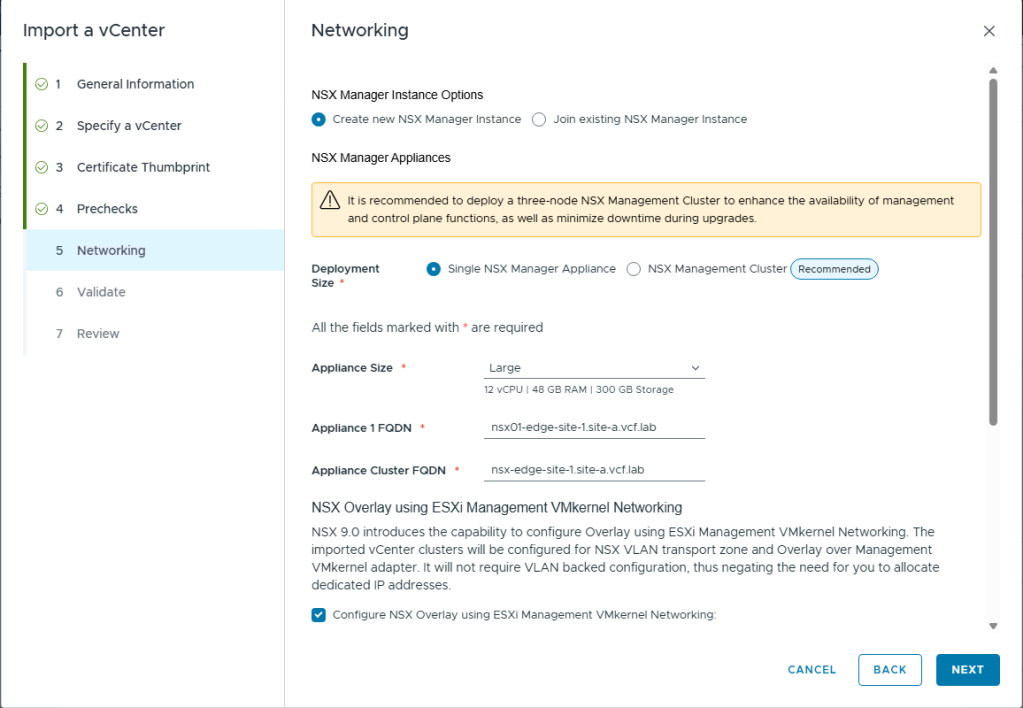
- Provide details for deploying the new NSX instance
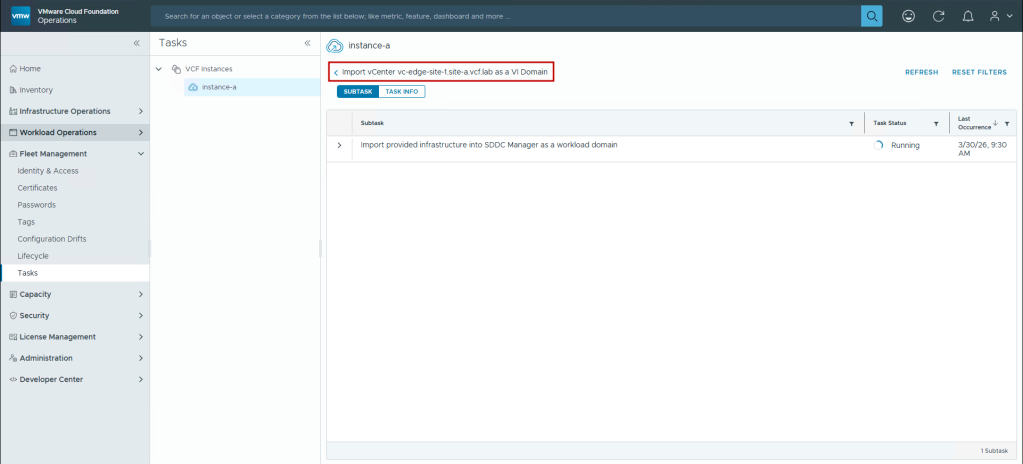
- Monitor the import in the Tasks pane on VCF Operations
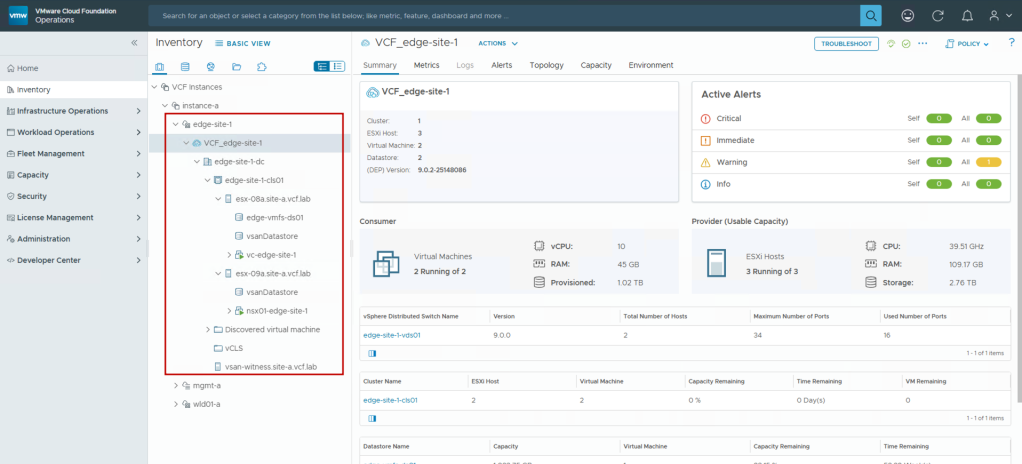
Once the import is successful and the initial sync completes in VCF Operations, you will be able to see the edge site added as a workload domain in the VCF Operations Inventory page, including the newly deployed NSX instance.
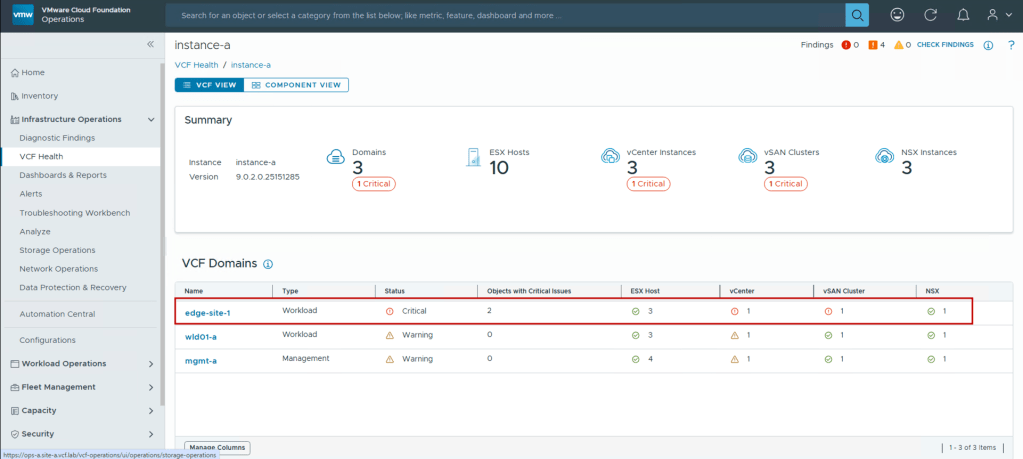
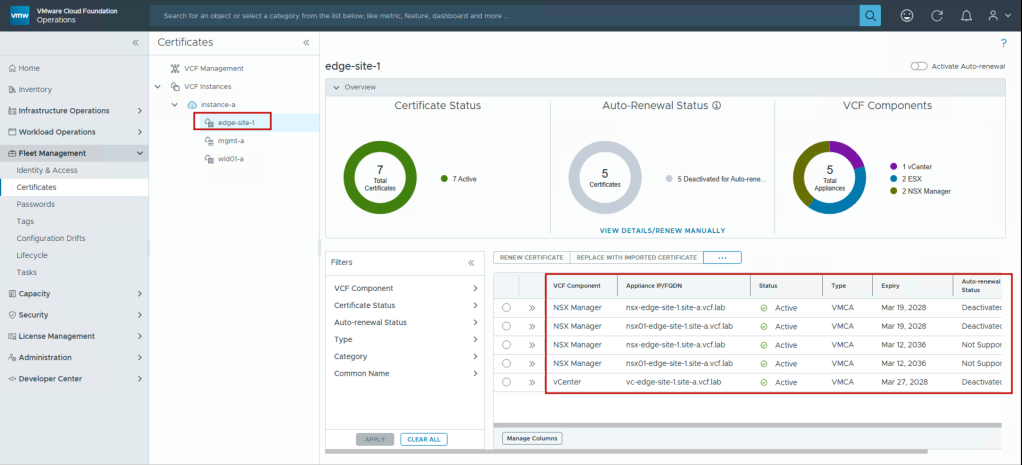
After the edge site is integrated into VCF, you can take advantage of managing the edge site along with all your other VCF components and edge sites from a single pane of glass through VCF Operations by performing tasks such as:
- Health status monitoring
- Certificate management
- Password management
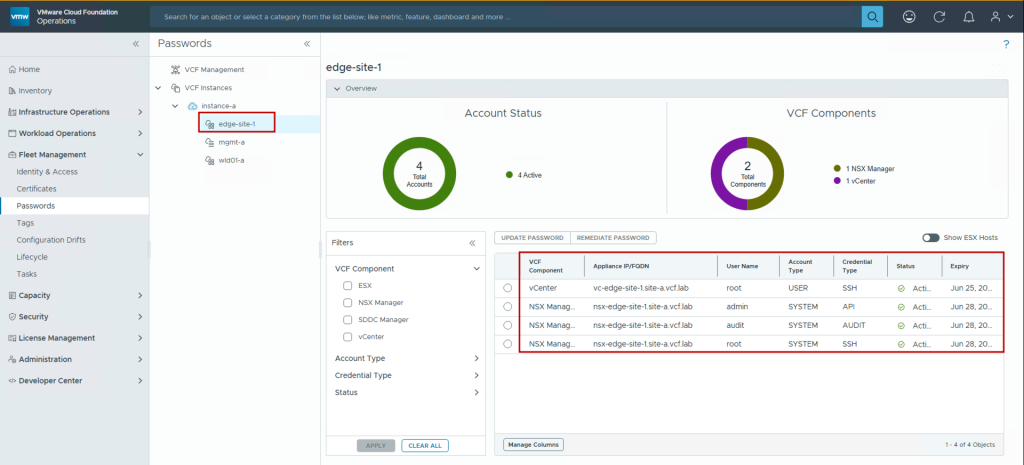
These are just a few of the many advantages VCF brings to edge sites. A lot more features can be found in the VCF 9.0 documentation.
Conclusion
Organizations requiring resilient edge infrastructure no longer face the choice between manual management complexity and complete infrastructure replacement. VMware Cloud Foundation Edge 9.0’s brownfield import capability bridges this gap, enabling you to standardize operations while preserving existing investments.
The two-host edge deployment pattern delivers production-grade high availability for critical edge workloads across retail, manufacturing, healthcare, and other industries. Combined with VCF’s unified management, this approach provides:
- Operational Consistency: Manage edge sites with the same tools and processes as the data center
- Reduced Risk: Import existing configurations without workload disruption
- Accelerated Standardization: Bring all edge sites under VCF management incrementally
- Enhanced Capabilities: Enable automated lifecycle management, security, and compliance
This foundation positions organizations to confidently expand their edge footprint while maintaining operational excellence and controlling costs.
Resources:
- VCF Edge Architecture Design Patterns
- VMware Configuration Maximums
- VCF Edge 9.0: Single Host Edge Site Deployment (Blog, Demo Video)
- VCF Edge 9.0: Automating App Deployment at Scale with GitOps using Argo CD (Blog, Demo Video)
Discover more from VMware Cloud Foundation (VCF) Blog
Subscribe to get the latest posts sent to your email.