
The adoption of containerized applications and microservices has transformed how organizations build and deploy software. However, this transformation comes with a critical challenge: ensuring the security of container images throughout their lifecycle. Container images often contain vulnerabilities from outdated base images, unpatched dependencies, and inherited security flaws that can expose production environments to significant risk.
Harbor, a Cloud Native Computing Foundation (CNCF) graduated project, has emerged as the industry-standard solution for secure container image management. While many know Harbor as an enterprise-grade container registry, it also contains several security features such as vulnerability scanning, policy enforcement, access control, and compliance tooling that directly integrate into the container supply chain.
In this blog post, we’ll explore Harbor’s security capabilities with a focus on vulnerability scanning and detection. We’ll walk through specific steps to enable and configure these features, demonstrate real-world workflows, and show how Harbor integrates with modern DevOps pipelines to create a secure, automated container delivery process.
Why Container Image Security Matters
Container images are the fundamental building blocks of cloud-native applications. Unlike traditional virtual machines, containers share the host operating system kernel, meaning a vulnerability in a container image can potentially compromise the entire host and other containers running on it.
Common security risks in container images include:
- Outdated packages and libraries: Base images often contain operating system packages with known CVEs (Common Vulnerabilities and Exposures)
- Vulnerable application dependencies: Language-specific libraries (npm, pip, maven) may have security flaws
- Misconfigurations: Insecure defaults, exposed secrets, or running as root user
- Supply chain attacks: Compromised base images or malicious packages
- Compliance violations: Failure to meet regulatory requirements like PCI-DSS, HIPAA, or SOC 2
The impact of deploying vulnerable containers can be severe, from data breaches and service disruptions to compliance penalties and reputation damage. This is why security must shift left, starting at the registry where images are stored and managed.
Harbor Container Security Architecture: More Than Just a Registry
Harbor is designed from the ground up with security as a first-class concern. As a trusted cloud-native registry, Harbor provides multiple layers of security controls:
1. Integrated Vulnerability Scanning with Trivy
Harbor integrates Aqua Security’s Trivy scanner to automatically analyze container images for vulnerabilities. Trivy is a comprehensive, easy-to-use vulnerability scanner that detects:
- OS package vulnerabilities (Alpine, RHEL, Ubuntu, Debian, etc.)
- Application dependency vulnerabilities (npm, pip, gem, jar, etc.)
- Known vulnerabilities in programming language runtimes
- Infrastructure as Code (IaC) misconfigurations
2. Role-Based Access Control (RBAC)
Harbor implements fine-grained RBAC that allows organizations to control who can:
- View, push, or pull images
- Scan images manually
- Create and modify projects
- Configure security policies
- Access audit logs
RBAC integrates with LDAP, Active Directory and OIDC providers, making it easy to align with existing identity management systems.
3. Content Trust and Image Signing
Harbor supports both Cosign and Notation for image signing and verification. This ensures:
- Only signed images from trusted publishers can be deployed
- Image integrity is maintained from build to deployment
- Protection against image tampering and man-in-the-middle attacks
4. Security Policy Enforcement
Harbor enables administrators to create and enforce security policies at the project level:
- Prevent deployment of images with specified vulnerability levels
- Block unsigned images from being pulled
- Require manual approval for images that don’t meet security standards
- Create CVE allowlists for accepted vulnerabilities
5. Comprehensive Audit Logging
All activities in Harbor are logged, providing a complete audit trail for:
- Image pushes and pulls
- Vulnerability scan results
- Policy changes
- User access and authentication events
Setting Up and Using Vulnerability Scanning
Now let’s walk through the complete process of enabling vulnerability scanning in Harbor, from initial setup to viewing and acting on scan results.
Prerequisites
To successfully implement the Harbor container security features outlined, ensure you have:
- Harbor v2.8 or later installed (Trivy is the default scanner and can be installed during Harbor deployment)
- Administrator access to your Harbor instance
- Docker CLI configured to authenticate with Harbor
- A sample container image to scan
For a comprehensive understanding, we encourage you to review our previous blog posts which provide detailed procedures for setting up Harbor on a VM or deploying Harbor on Kubernetes.
Step 1: Verify Trivy Scanner Configuration
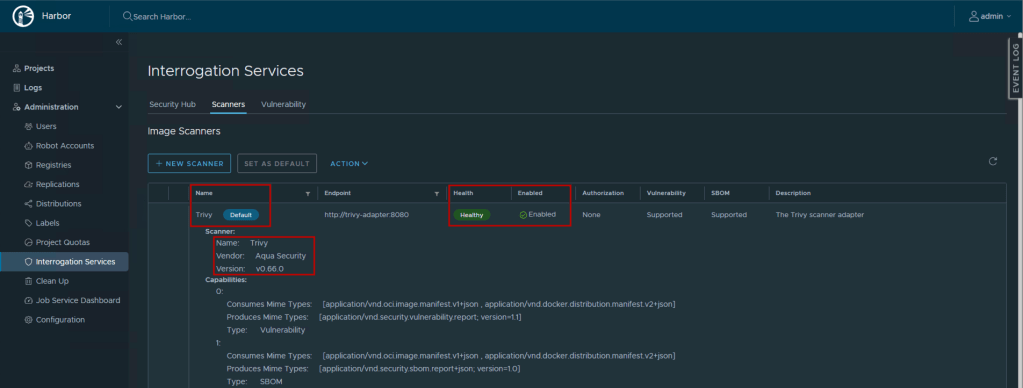
Harbor 2.8+ includes Trivy as the built-in vulnerability scanner. To verify it’s properly configured:
- Log in to Harbor as an administrator
- Navigate to Interrogation Services → Scanners
- You should see Trivy listed with a status of “Healthy”
- Click on the Trivy entry to view scanner details including:
- Scanner adapter version
- Vendor: Aqua Security
Step 2: Configure Automatic Scanning
Harbor can automatically scan images when they’re pushed to the registry. To enable this:
Project-Level Configuration:
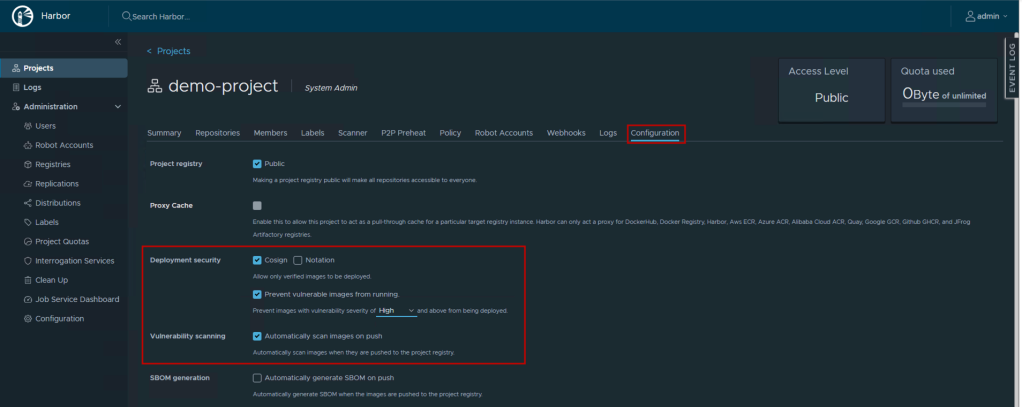
- Navigate to Projects → Select your project (e.g., “demo-project”)
- Go to the Configuration tab
- Under Deployment Security, enable the following options:
- Choose either Cosign or Notation as the source of Content trust.
- Prevent vulnerable images from running: Blocks pulls of images that exceed vulnerability threshold
- Under Vulnerability Scanning, enable the following options:
- Automatically scan images on push: Scans images immediately upon push
- Set the vulnerability severity threshold (e.g., “Critical” or “High”)
- Click Save
System-Level Configuration:
For new projects to inherit scanning policies by default:
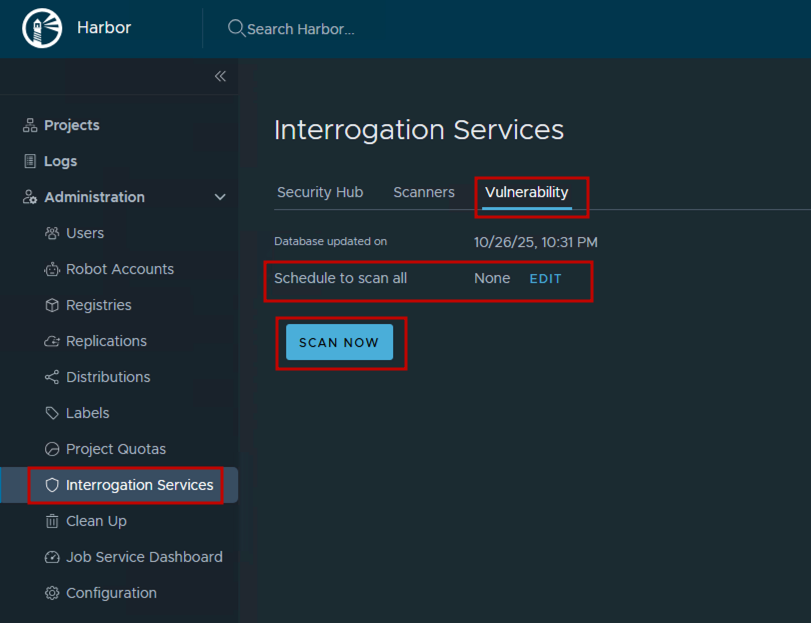
- Navigate to Administration → Interrogation Services → Vulnerability
- Click Schedule to scan all button. Configure your preferred schedule (e.g., daily, weekly) Or click Scan Now to trigger an immediate scan of all images in Harbor
Note: The vulnerability database used by Trivy is automatically updated by the scanner. You don’t need to manually configure database updates.
Step 3: Scanning a Container Image – Complete Workflow
Let’s walk through a complete example of pushing an image and analyzing its vulnerabilities.
Example: Scanning a Sample Application Image
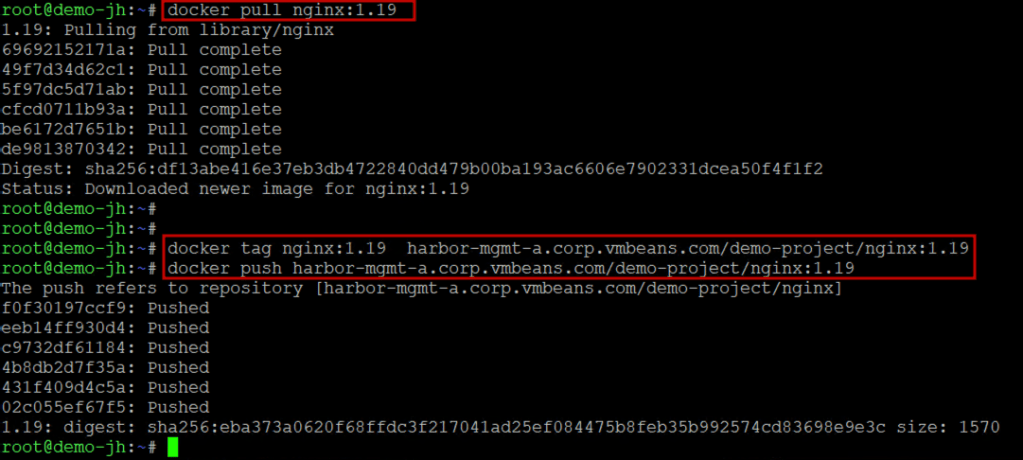
- Tag and push an image to Harbor:
|
1 2 3 4 5 6 7 8 9 |
# Login to Harbor docker login harbor.yourdomain.com -u admin # Tag an image (using a sample nginx image with potential vulnerabilities) docker pull nginx:1.19 docker tag nginx:1.19 harbor.yourdomain.com/production/nginx:1.19 # Push to Harbor (this triggers automatic scanning if enabled) docker push harbor.yourdomain.com/production/nginx:1.19 |
- Monitor scan progress in the UI:
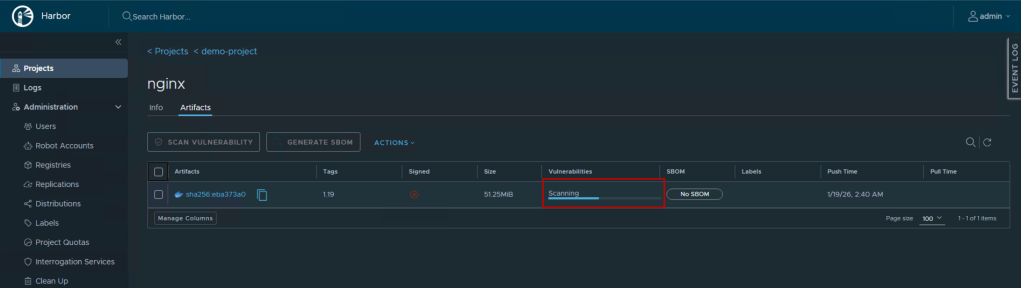
- Navigate to Projects → demo-project → Repositories
- Click on the nginx repository
- Select the 1.19 tag
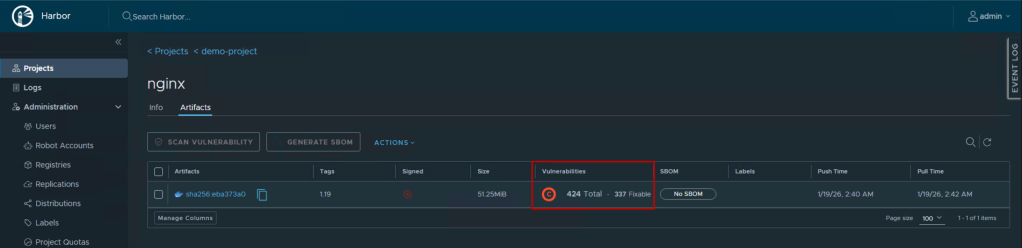
- You’ll see a scanning status badge:
- “Scanning…” – Scan in progress
- “No vulnerabilities” – Clean image
- “X vulnerabilities” – Issues found (shows count by severity)
- View detailed vulnerability report:
Navigate into the artifact and scroll down to open the detailed report. The report displays:
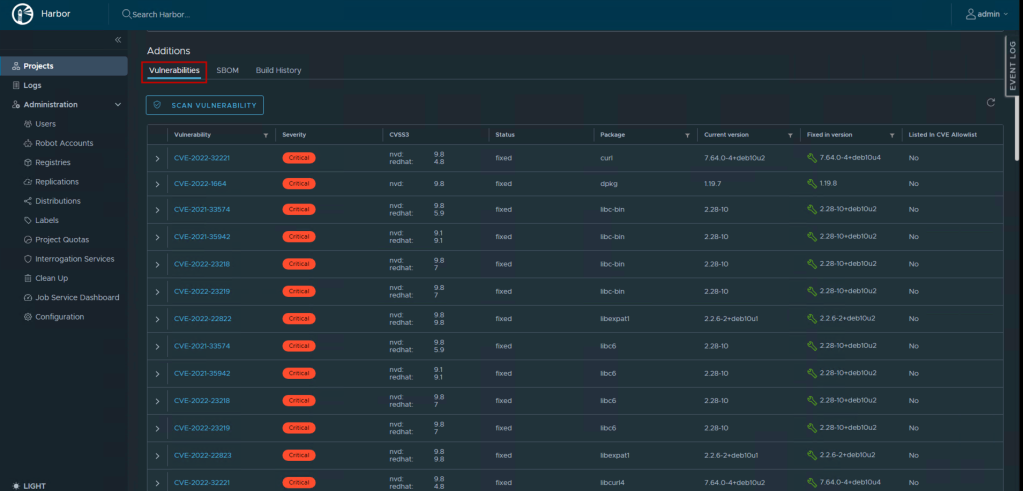
For each vulnerability, you can:
- Click the CVE ID to view full details from the NVD database
- See the affected package name and current version
- Identify which version contains the fix
- Read a description of the vulnerability
- View the CVSS score and vector
- Export vulnerability report:
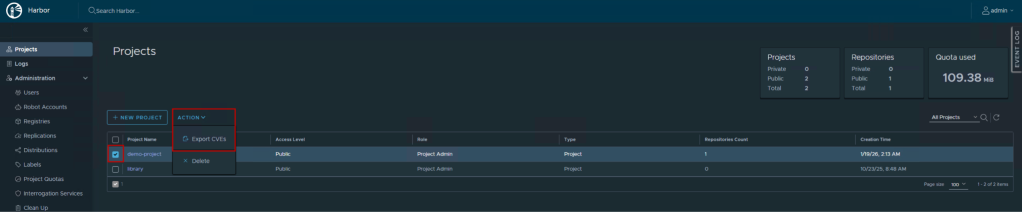
Harbor allows exporting reports for sharing with development teams or for compliance documentation:
- Navigate to Projects and select your project.
- Click on Action → Export CVEs
- Choose your preferred format: CSV or JSON
- Download the report for offline analysis or integration with other security tools
- The exported report includes all vulnerability details: CVE IDs, severity levels, affected packages, and remediation recommendations
Step 4: Manual Scanning and Rescanning
For images already in the registry, or to rescan after database updates:
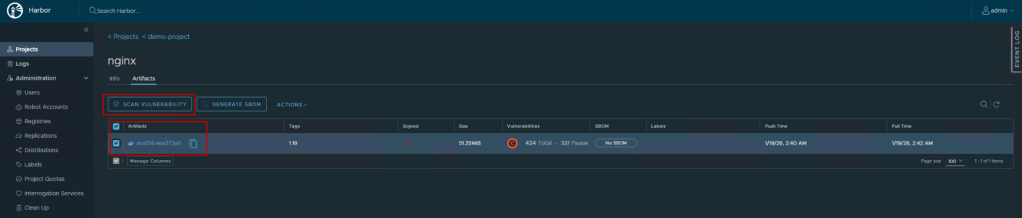
- Navigate to Projects → demo-project → Repositories
- Select the repository containing the image you want to scan
- Click on the specific artifact/tag
- Select Scan Vulnerability
- The scan will begin immediately and progress will be shown in real-time
- Once complete, review the results as described in Step 3
Step 5: Understanding and Acting on Scan Results
Once you have scan results, here’s how to interpret and act on them:
Severity Levels:
- Critical: Immediate action required. These vulnerabilities can be exploited remotely without authentication
- High: Serious vulnerabilities that should be addressed quickly
- Medium: Moderate risk vulnerabilities
- Low: Minor issues with limited impact
Remediation Workflow:
- Identify the root cause: Is the vulnerability in the base image or application dependency?
- Check for available fixes:
- If fixed version is available → Update and rebuild
- If no fix available → Evaluate risk and consider CVE allowlist
- Rebuild the image:
|
1 2 3 4 5 |
# Use the Alpine-based version of NGINX FROM nginx:stable-alpine # Security Best Practice: Remove default config or add specific security headers RUN rm /etc/nginx/conf.d/default.conf |
- Re-push and verify:
|
1 2 3 4 |
docker build -t harbor.yourdomain.com/production/nginx:1.25 . docker push harbor.yourdomain.com/production/nginx:1.25 # Check Harbor UI for updated scan results |
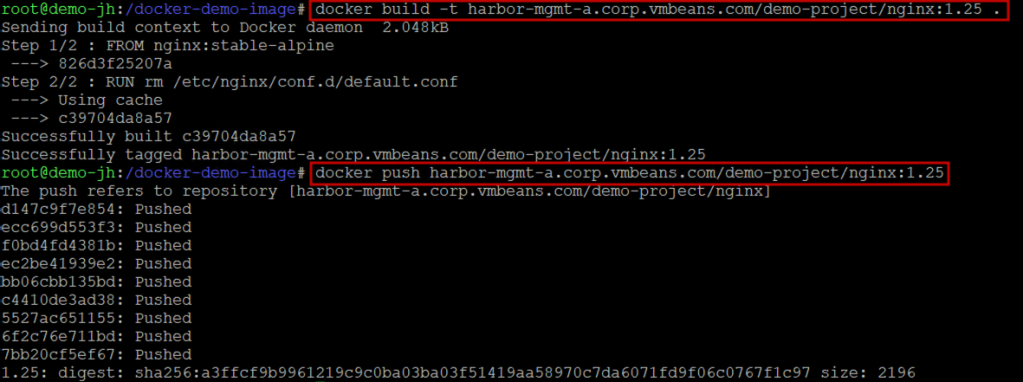
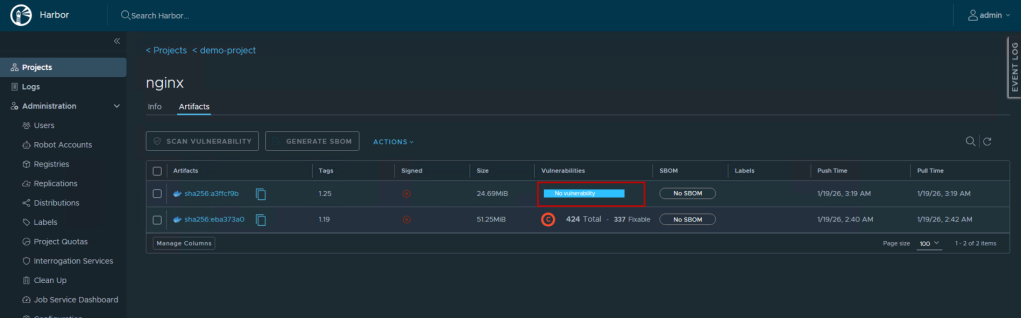
- Update deployments: Once verified clean, update Kubernetes deployments or container orchestration configs
Step 6: Sign the image using Notation
|
1 2 3 4 5 6 7 8 9 10 11 12 13 14 15 16 17 18 19 20 21 |
# 1. Generate the signing key notation cert generate-test "demo-key" # 2. Extract and Add the certificate to a 'signingAuthority' store notation cert add --type signingAuthority --store harbor-ca /root/.config/notation/localkeys/demo-key.crt # 3. Create the Trust Policy cat <<EOF > ~/.config/notation/trustpolicy.json { "version": "1.0", "trustPolicies": [ { "name": "harbor-trust", "registryScopes": [ "*" ], "signatureVerification": { "level": "strict" }, "trustStores": [ "signingAuthority:harbor-ca" ], "trustedIdentities": [ "x509.subject: CN=demo-key,O=Notary,L=Seattle,ST=WA,C=US" ] } ] } EOF |
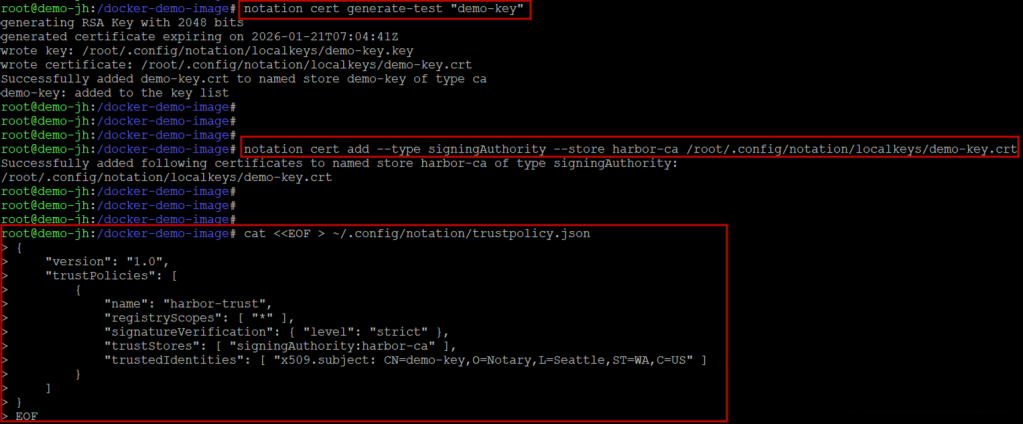
|
1 2 3 4 5 |
# 4. Capture the full registry-based digest DIGEST=<Copy the digest for nginx:1.19 from the Harbor UI> # 5. Sign with Notation notation sign --key "demo-key" --insecure-registry $DIGEST |

Now the image has been signed, adding a critical layer of Harbor container security that can be verified directly from the UI.
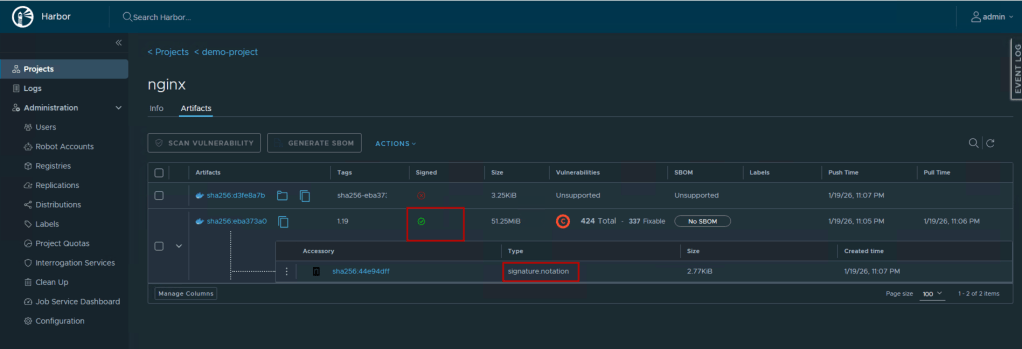
CVE Allowlists
Maintaining Harbor container security doesn’t always mean blocking every risk, sometimes you may need to temporarily accept certain CVEs (e.g., no fix available, mitigated by other controls):
Creating a CVE Allowlist:
- Navigate to Projects → demo-project → Configuration
- Under CVE Allowlist, click Add
- Enter CVE IDs to allowlist (e.g., CVE-2023-12345)
- Add expiration date (optional but recommended)
- Click Save
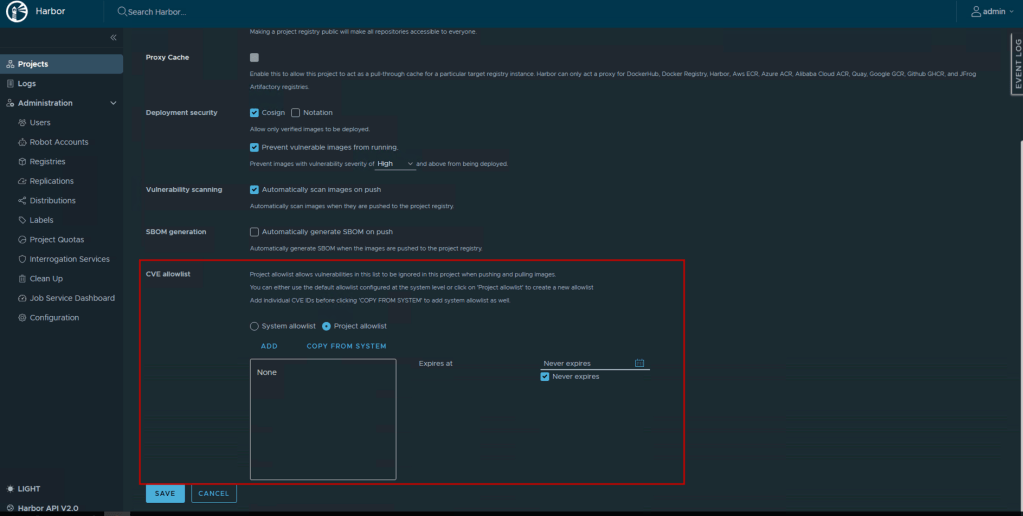
System-wide allowlist:
Navigate to Administration → Configuration → Security and update the System CVE Allowlist for organization-wide exceptions.
Integration with CI/CD Pipelines: Automated Security Workflows
Harbor’s vulnerability scanning integrates seamlessly into CI/CD pipelines (GitLab, GitHub Actions, Jenkins, Azure DevOps) to automate security enforcement. The workflow is straightforward:
- Build and Push: Pipeline builds container image and pushes to Harbor, triggering automatic scanning
- Security Gate: Pipeline queries Harbor’s API for scan results and evaluates against security thresholds
- Deploy or Block: Images passing security checks proceed to deployment; vulnerable images fail the build
Key Benefits:
- Catches vulnerabilities before production deployment
- Automated policy enforcement without manual intervention
- Immediate developer feedback on security issues
- Complete audit trail of scans and deployments
Implementation typically uses:
- Harbor’s REST API for retrieving scan results
- Robot Accounts for secure pipeline authentication
- Webhooks for notifications (Slack, Teams, Jira)
- Configurable security thresholds (e.g., block Critical vulnerabilities, allow limited High vulnerabilities in dev)
This creates a continuous security workflow that protects infrastructure without slowing development velocity.
Conclusion: Building a Secure Container Supply Chain
Container security is not a one-time activity but an ongoing practice that must be embedded into your development and operations workflows. Harbor provides the foundation for a secure container supply chain by:
- Shifting Security Left: Catching vulnerabilities at the registry before deployment
- Automating Security Checks: Integrating scanning into CI/CD pipelines without slowing development
- Enforcing Policies: Preventing vulnerable or untrusted images from reaching production
- Providing Visibility: Giving security and operations teams complete insight into the container landscape
- Enabling Compliance: Maintaining audit trails and enforcing organizational security standards
By implementing a complete Harbor container security strategy with vulnerability scanning enabled, policy enforcement configured, and CI/CD integration established, you create a defense-in-depth approach to container security. This not only protects your infrastructure but also builds confidence in your development processes and accelerates secure software delivery.
As containerization continues to grow, the security practices you establish today with Harbor will serve as the foundation for a robust, scalable, and secure cloud-native application platform.
Follow our Harbor blog series:
- Blog 1 – Harbor: Your Enterprise-Ready Container Registry for a Modern Private Cloud
- Blog 2 – Reducing Harbor Deployment Complexity on Kubernetes
- Blog 3 – Making Harbor Production-Ready: Essential Considerations for Deployment
- Blog 4 – Integrating VMware Data Services Manager with Harbor for a Production-Ready Registry
- Blog 5 – Using Harbor as a Proxy Cache for Cloud-Based Registries
Discover more from VMware Cloud Foundation (VCF) Blog
Subscribe to get the latest posts sent to your email.