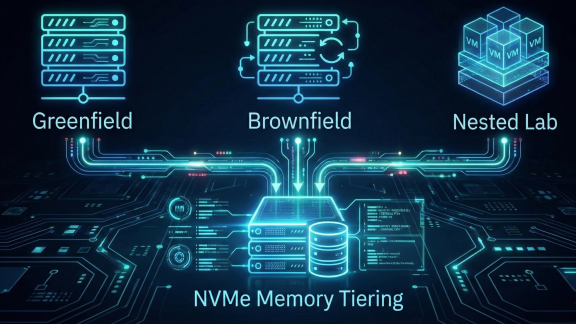

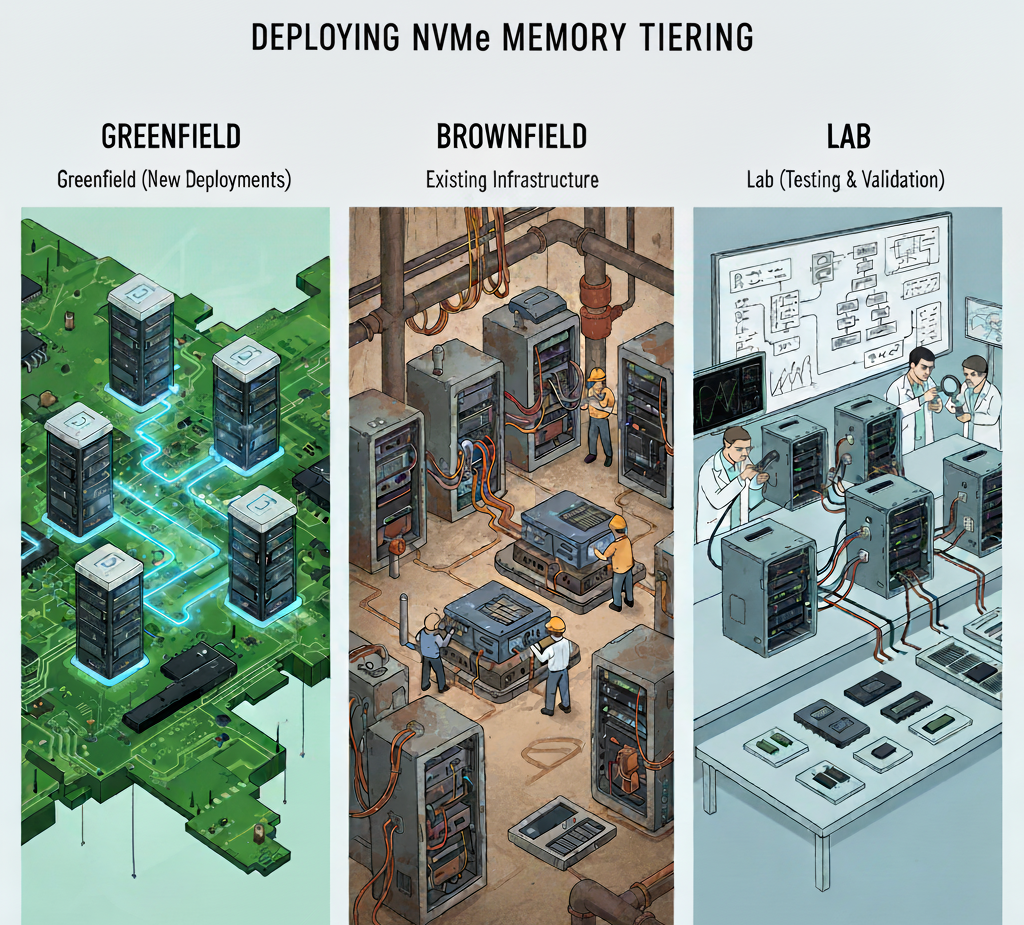
In this part of the blog series, I want to provide some information about the differences when enabling Memory Tiering in different scenarios. Although the core process remains the same, there are things that may require extra attention and planning to save some time and effort. When we talk about greenfield scenarios, we refer to brand new VMware Cloud Foundation (VCF) deployments including new hardware and new configuration for the whole stack. Brownfield scenarios will cover configuring Memory Tiering on an existing VCF environment. Lastly, I do want to include lab scenarios as I have seen mixed statements that this is not supported, but I will cover this at the end of this blog post.
Greenfield Deployments
Let’s start with the configuration process of greenfield environments. In Part 4, I covered how VMware vSAN and Memory Tiering are compatible and can co-exist in the same cluster. I’ve also highlighted something important that you should be aware of during greenfield deployments of VCF. As of VCF 9.0, enabling Memory Tiering is a “Day 2” operation, meaning that you first configure VCF and then you can configure Memory Tiering, but during the VCF deployment workflow, you will notice there is no option to enable Memory Tiering (yet), but you can enable vSAN. How you handle your NVMe device dedicated for Memory Tiering will dictate the steps necessary to get that device presented for its configuration.
If all the NVMe devices for both vSAN and Memory Tiering are present during the VCF deployment, chances are vSAN may auto-claim all of the drives (including the NVMe device you have allocated for Memory Tiering). In this case you would have to remove the drive from vSAN post-configuration, erase partitions and then start your Memory Tiering configuration. This step was covered in Part 4.
The other approach would be to take out, or not add the Memory Tiering device to the server, and add it back to the server after VCF has been deployed. This way, you won’t risk vSAN auto claiming the NVMe for Memory Tiering. Although this is not a major hurdle, it is still good to know what will happen and why, so you can quickly allocate the resources needed for Memory Tiering configuration.
Brownfield Deployments
Brownfield scenarios are a bit easier as VVF/VCF is already configured; however, vSAN may or may not have been enabled yet.
If vSAN is not enabled, you will want to disable the auto-claim feature, go through the vSAN configuration and manually select your devices (except the NVMe device for Memory Tiering). Everything is done in the UI and a procedure that has been used for years. This guarantees you to have the Memory Tiering NVMe device available for configuration. The detailed process is documented in TechDocs.
If vSAN is already enabled, I’m going to assume the NVMe device for Memory Tiering was just purchased and is ready to install. So, all we need to do is add it to the host and make sure it shows up properly as an NVMe device, and that it has no existing partitions. This is probably the easiest scenario, and the most common.
Lab Deployments
Now let’s talk about the long-awaited lab scenario. For a bare metal type of lab where ESX is single layered, and there are no nested environments, the same greenfield and brownfield principles apply. Speaking of nested, I’ve seen blogs and comments that nested Memory Tiering is not supported. Well, it is and it is not.
When we talk about nested environments, we are referring to two layers of ESX. The external layer is ESX installed on the hardware (normal setup) and the internal ESX layer is composed of virtual machines running ESX, and acting as physical hosts. Memory Tiering CAN be enabled in the internal layer (nested), and all configuration parameters work fine. What we are doing is taking a datastore and creating a virtual Hard Disk of type NVMe to present to the VM that acts as a nested host. Although we do see an NVMe device on the nested host and can configure Memory Tiering, the backing storage device is composed of the devices forming the datastore selected. You can configure Memory Tiering, and the nested hosts are able to see hot and active pages, but don’t expect any type of performance given the backing storage components. Does it work? YES, only in lab environments.
Testing in a lab environment is very helpful to help you go through the configuration steps, and understand how the configuration works and what advanced parameters can be configured. This is a great use case for preparing (practicing) to deploy in production, or even just getting familiar with the feature for certification exam purposes.
What about the outer layer? Well, this is the one that is not supported in VCF 9.0, as the outer ESX layer has no visibility to the inner layer and cannot see the VM memory activeness, in essence trying to see through the nested layer to the VM (inception). That is the main difference (without going too much into technical details).
So if you are curious about testing Memory Tiering, and all you have is a nested environment, you can configure Memory Tiering and any of the advanced parameters. It is neat to see how a few configuration steps can add 100% more memory to the hosts; it reminds me about the first time I tested vMotion and was in awe of this magical feature.
In earlier blogs I’ve mentioned that you can configure NVMe partitions with ESXCLI commands, PowerCLI and even scripts. In a later blog post, I also promised a script to configure partitions, so I’m delivering on my promise with the caveat, and direct warning that you can run the script at your own risk and it may not work in your environment depending on your configuration. I am not a guru in scripting, just dangerous enough to avoid manual work. Consider this script as nothing more than an example of how it can be automated, not as a supported automation solution. Also, the script does not erase partitions for you (I’ve tried), so make sure you do that before running the script. As always, test first.
There are some variables that you will need to change to make it work with your environment:
$vCenter = “your vCenter FQDN or IP” (line 27)
$clusterName = “your cluster name” (line 28)
|
1 2 3 4 5 6 7 8 9 10 11 12 13 14 15 16 17 18 19 20 21 22 23 24 25 26 27 28 29 30 31 32 33 34 35 36 37 38 39 40 41 42 43 44 45 46 47 48 49 50 51 52 53 54 55 56 57 58 59 60 61 62 63 64 65 66 67 68 69 70 71 72 73 74 75 76 77 78 79 80 81 82 83 84 85 86 87 88 89 90 91 92 93 94 95 96 97 98 99 100 101 102 103 104 105 106 107 108 109 110 111 112 113 114 115 116 |
function Update-NvmeMemoryTier { param ( [Parameter(Mandatory=$true)] [VMware.VimAutomation.ViCore.Impl.V1.Inventory.VMHostImpl]$VMHost, [Parameter(Mandatory=$true)] [string]$DiskPath ) try { # Verify ESXCLI connection $esxcli = Get-EsxCli -VMHost $VMHost -V2 # Note: Verify the correct ESXCLI command for NVMe memory tiering; this is a placeholder # Replace with the actual command or API if available $esxcli.system.tierdevice.create.Invoke(@{ nvmedevice = $DiskPath }) # Hypothetical command Write-Output "NVMe Memory Tier created successfully on host $($VMHost.Name) with disk $DiskPath" return $true } catch { Write-Warning "Failed to create NVMe Memory Tier on host $($VMHost.Name) with disk $DiskPath. Error: $_" return $false } } # Securely prompt for credentials $credential = Get-Credential -Message "Enter vCenter credentials" $vCenter = "vcenter FQDN" $clusterName = "cluster name" try { # Connect to vCenter Connect-VIServer -Server $vCenter -Credential $credential -WarningAction SilentlyContinue Write-Output "Connected to vCenter Server successfully." # Get cluster and hosts $cluster = Get-Cluster -Name $clusterName -ErrorAction Stop $vmHosts = Get-VMHost -Location $cluster -ErrorAction Stop foreach ($vmHost in $vmHosts) { Write-Output "Fetching disks for host: $($vmHost.Name)" $disks = @($vmHost | Get-ScsiLun -LunType disk | Where-Object { $_.Model -like "*NVMe*" } | # Filter for NVMe disks Select-Object CanonicalName, Vendor, Model, MultipathPolicy, @{N='CapacityGB';E={[math]::Round($_.CapacityMB/1024,2)}} | Sort-Object CanonicalName) # Explicit sorting if (-not $disks) { Write-Warning "No NVMe disks found on host $($vmHost.Name)" continue } # Build disk selection table $diskWithIndex = @() $ctr = 1 foreach ($disk in $disks) { $diskWithIndex += [PSCustomObject]@{ Index = $ctr CanonicalName = $disk.CanonicalName Vendor = $disk.Vendor Model = $disk.Model MultipathPolicy = $disk.MultipathPolicy CapacityGB = $disk.CapacityGB } $ctr++ } # Display disk selection table $diskWithIndex | Format-Table -AutoSize | Out-String | Write-Output # Get user input with validation $maxRetries = 3 $retryCount = 0 do { $diskChoice = Read-Host -Prompt "Select disk for NVMe Memory Tier (1 to $($disks.Count))" if ($diskChoice -match '^\d+$' -and $diskChoice -ge 1 -and $diskChoice -le $disks.Count) { break } Write-Warning "Invalid input. Enter a number between 1 and $($disks.Count)." $retryCount++ } while ($retryCount -lt $maxRetries) if ($retryCount -ge $maxRetries) { Write-Warning "Maximum retries exceeded. Skipping host $($vmHost.Name)." continue } # Get selected disk $selectedDisk = $disks[$diskChoice - 1] $devicePath = "/vmfs/devices/disks/$($selectedDisk.CanonicalName)" # Confirm action Write-Output "Selected disk: $($selectedDisk.CanonicalName) on host $($vmHost.Name)" $confirm = Read-Host -Prompt "Confirm NVMe Memory Tier configuration? This may erase data (Y/N)" if ($confirm -ne 'Y') { Write-Output "Configuration cancelled for host $($vmHost.Name)." continue } # Configure NVMe Memory Tier $result = Update-NvmeMemoryTier -VMHost $vmHost -DiskPath $devicePath if ($result) { Write-Output "Successfully configured NVMe Memory Tier on host $($vmHost.Name)." } else { Write-Warning "Failed to configure NVMe Memory Tier on host $($vmHost.Name)." } } } catch { Write-Warning "An error occurred: $_" } finally { # Disconnect from vCenter Disconnect-VIServer -Server $vCenter -Confirm:$false -ErrorAction SilentlyContinue Write-Output "Disconnected from vCenter Server." } |
Blog series:
PART 1: Prerequisites and Hardware Compatibility
PART 2: Designing for Security, Redundancy, and Scalability
PART 4: vSAN Compatibility and Storage Considerations
PART 5: This Blog
PART 6: End-to-End Configuration
Additional information on Memory Tiering
Discover more from VMware Cloud Foundation (VCF) Blog
Subscribe to get the latest posts sent to your email.