
With the release of VMware Cloud Foundation (VCF) 9.1, VMware has introduced a modernized management architecture designed to streamline private cloud operations. Among the most exciting features are the new Infrastructure Policies. Let’s look at the benefits of integrating Infrastructure Policies into your environments to ensure optimal workload placement, license compliance, and governance.
The new VCF Automation Infrastructure Policies provide the ability for administrators to dynamically govern VM placement across various zones. Whether you are aiming for license optimization by pinning Windows workloads to specific hosts, or ensuring regulatory compliance by strictly controlling where specific apps reside, Infrastructure Policies allow you to enforce these rules systematically without manual toil.
Table of contents
Bridging the Gap: VCF Automation Infrastructure Policies and vSphere Compute Policies
Historically, Infrastructure Administrators have created Compute Policies to ensure workloads are placed on compatible hosts. These policies are based on key value pairs like category and tag, where administrators can create categories and tags for host and VMs to ensure the host tags running the VM are compatible with the tags applied to the VM.

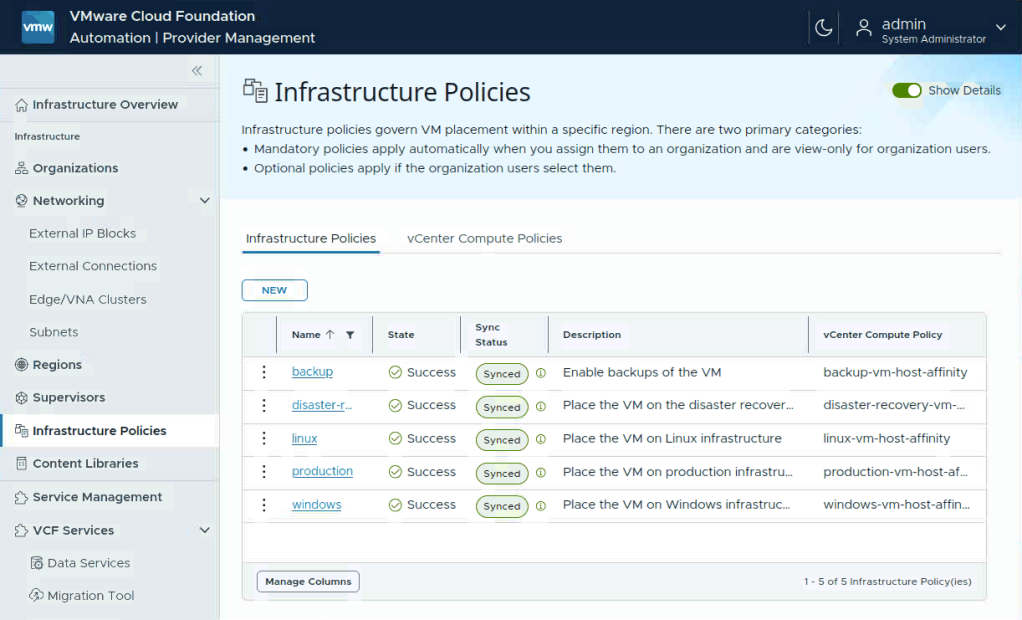
Now, let’s review how VCF Automation interacts with your underlying infrastructure. An Infrastructure Policy in VCF Automation acts as a bridge to your vCenter configurations. It is comprised of two core components:
- Matching Criteria: The logic that defines which workloads the policy applies to (e.g., all VMs with a Linux Guest OS).
- Compute Policy Reference: A direct link to an underlying VM-Host affinity compute policy residing in vCenter.
When you configure a policy in VCF Automation, you are essentially wrapping a vSphere compute policy in a layer of cloud-consumption logic. This ensures that when a user requests a VM in the cloud portal, VCF Automation passes the requirements down to vCenter, which then enforces the placement using host tags.
Provider Administrator
As a Provider Administrator, your primary goal is to set up the guardrails for the underlying infrastructure. In the Provider Management UI, you have extensive control over how Infrastructure Policies are enforced.
Optional vs. Mandatory Policies
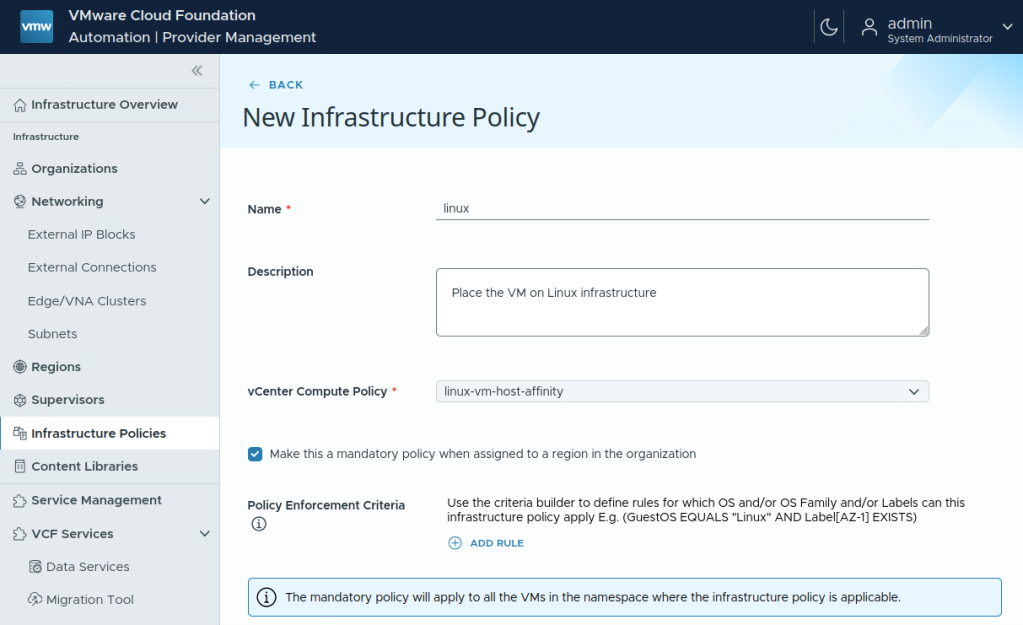
When creating a policy, you must decide how strictly it should be enforced across a region:
- Mandatory Policies: If you check “Make this a mandatory policy when assigned to a region,” the policy is always enforced when a new namespace is created within that region’s quota. If the requested zones do not have the required host tags to satisfy the underlying vCenter compute policy, namespace creation will outright fail. This is ideal for strict compliance or licensing rules.
- Optional Policies: If left unchecked, the policy is available but not enforced by default. Organization Administrators can choose to opt-in and apply the policy to specific namespaces as needed.
Using the Criteria Builder
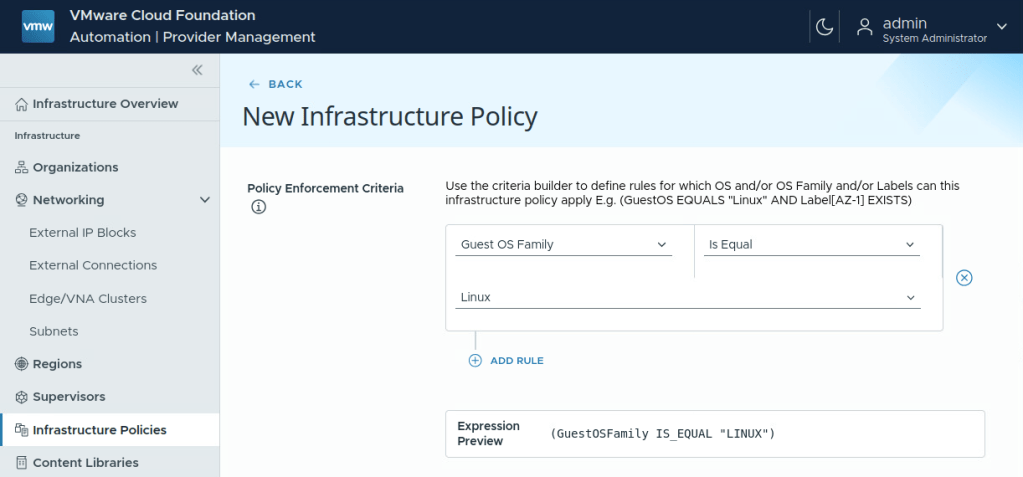
To ensure infrastructure policies only affect the intended workloads, the Provider Administrator uses the Criteria Builder. This tool allows you to add rules to determine which VMs the policy manages. You can define conditions by selecting specific VM attributes (such as Guest OS, Guest OS Family, or Custom Label) and pairing them with operators. For instance, you might build an expression like: (GuestOSFamily IS_EQUAL "Linux“). The criteria builder includes an expression preview feature so you can verify the intended rules before saving the policy.
Apply Policies to the Region Quota
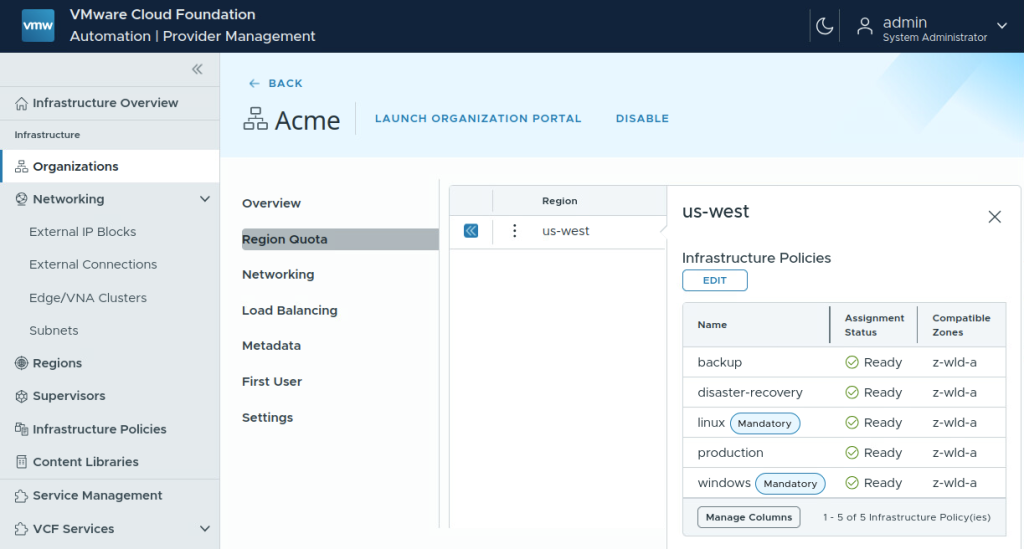
With the Infrastructure Policies created, the Provider Administrator can then apply the desired policies to each Organizations Region Quota. Once the policies are applied, the Organization Administrators can apply them to the desired Namespaces. One thing to note here is that mandatory policies can only be applied to Region Quotas without existing Namespaces.
Organization Administrator: Adding Infrastructure Policies to Namespaces
To expand on the Provider Administrator’s setup, let’s look at how Organization Administrators govern their specific application teams.
Org Admins are responsible for managing namespace resources to accommodate changing application demands. To assign these placement rules:
- Navigate to Manage & Govern > Namespaces and click the namespace you want to edit.
- Click the vertical ellipsis next to the namespace name and select Edit.
- Scroll to the Infrastructure Policies section.
- Here, you can add or remove the optional policies assigned to the region quota by the Provider Admin.
- Mandatory Policies are automatically included in all namespaces provisioned in the region and cannot be removed by the Organization Administrator.

Organization User: Consuming Infrastructure Policies in Deployments
Now let’s put this into the hands of the end users. Application teams and developers interact directly with Infrastructure Policies during the self-service provisioning process.
When a user logs in to provision a VM or application stack, they specify their workload requirements. Then magic happens in the background:
- Self-Service Provisioning: The user selects their desired image.
- Zone Selection: In the deployment wizard, the user can set the Zone to Automatic.
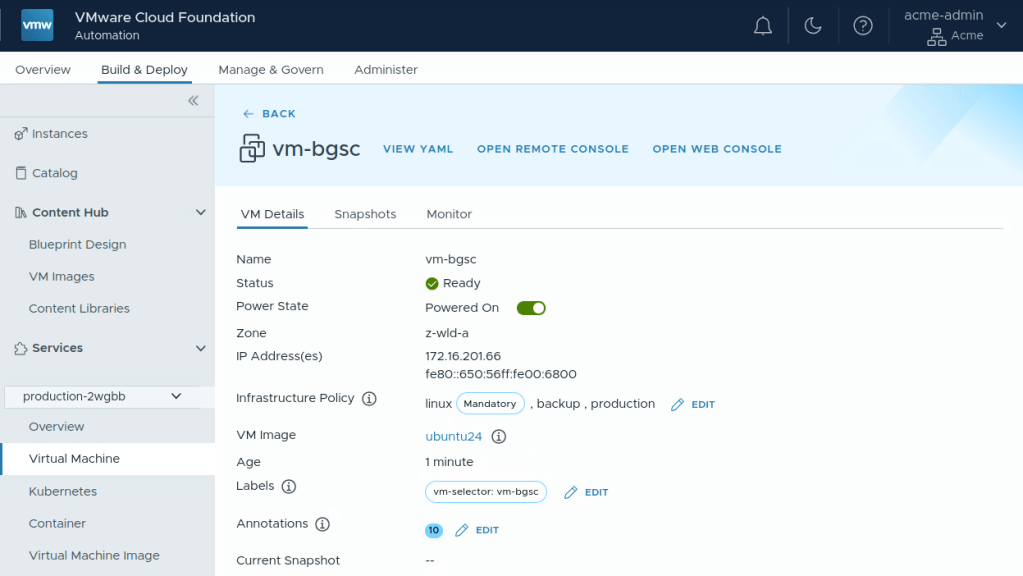
- Policy Evaluation: VCF Automation evaluates the VM’s attributes against the active infrastructure policies on the namespace. If the VM is a Linux machine and matches a mandatory placement policy, the system automatically selects a zone and cluster that satisfies the underlying vSphere compute policy.
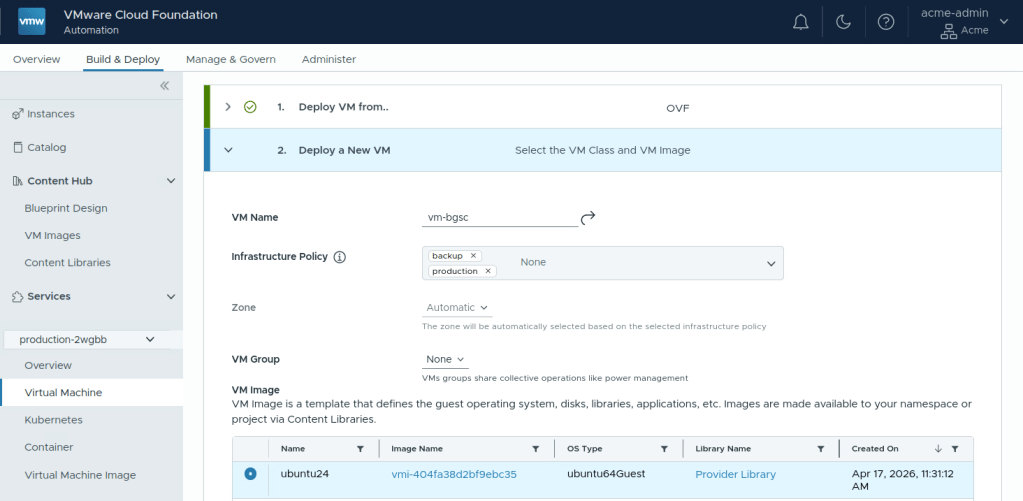
If users need to edit their deployment’s optional Infrastructure Policies (Day-2 operations), VCF Automation continuously evaluates the policies. If an update changes a VM’s attributes (e.g., changing an Infrastructure Policy assignment), the system will ensure the workload remains compliant with the placement rules, migrating it if necessary and supporting it with the underlying zone configuration.
Complete Example Workflow
Now let’s put all of this together in a complete operational example.
- Infrastructure / Operations Admin applies tags in vCenter and creates VM-Host affinity Compute Policies.
- Provider Admin creates Infrastructure Policies linked to the vSphere Compute Policies, and uses the Criteria Builder to create rules.
- Provider Admin assigns the policies to the Organizations Region Quotas.
- Organization Admin creates a new project namespace. Because the policy is mandatory, VCF Automation verifies that the selected zones have hosts capable of satisfying the rule.
- Organization User requests a new VM and applies the desired optional policies.
- VCF Automation intercepts the request, applies the policy, selects the compliant zone automatically, and instructs vCenter to place the VM on a compliant host.
By leveraging Infrastructure Policies in VCF 9.1, you can provide a seamless, public cloud like experience for your users while maintaining absolute control over your private cloud!
Try It Out in VMware Hands-on Labs
What’s New in VMware Cloud Foundation 9.1: Highlights (HOL-2701-01-VCF-L)
Module 3 for VCF Automation reviews optional Infrastructure policies along with many other great features for the 9.1 release.
Discover more from VMware Cloud Foundation (VCF) Blog
Subscribe to get the latest posts sent to your email.