
At VMware Explore 2025 in Las Vegas, a plethora of announcements were made as well as many deep dives into the new features and enhancements included in VMware Cloud Foundation (VCF) 9, including the popular NVMe Memory Tiering feature. Although this feature is available at the compute component of VCF (vSphere), we refer to it in the context of VCF given the deep integration with other components such as VCF Operations, which we will refer to in later blogs.
Memory Tiering is a new feature included with VMware Cloud Foundation and was one of the main topics of conversation for most of my sessions at VMware Explore 2025. I saw a lot of interest, and a lot of great questions came from our customers on adoption, use cases, etc. This is a multi-part blog series where I intend to help answer a lot of the common questions coming from our customers, partners, and internal staff. For a high level understanding of what Memory Tiering is, please refer to this blog.
PART 1: Prerequisites and Hardware Compatibility
Workload Assessment
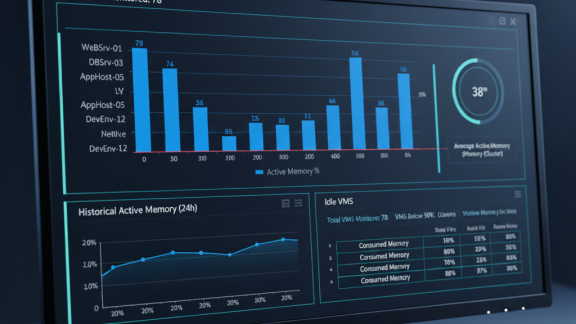
Before enabling Memory Tiering, a thorough assessment of your environment is crucial. Start by evaluating workloads in your datacenter and pay special attention to memory. One of the key measures we will look at is the active memory of the workload. For workloads to be an optimal candidate for Memory Tiering, we want the total active memory to be 50% or less of the DRAM capacity. Why 50% you ask? Well, the default configuration of Memory Tiering is to provide you with 100% more memory or 2x your memory. So, after enabling Memory Tiering, half of the memory will be coming from DRAM (Tier 0) and the other half comes from NVMe (Tier 1). Now, we are looking at no more than 50% active memory so that we know the active memory will fit in the amount of DRAM provided by the host, as this is the fastest device providing memory resources, and we want the fastest possible response to the VM requests to read/write memory pages. In essence, a pre-requisite to ensure memory performance stays consistent for its active state.
One key aspect to understand is that we explore memory activeness for the applications and not the host itself, as in Memory Tiering VM memory pages are demoted to an NVMe device when cold/dormant, but not vmkernel pages from the host.
How do I know my active memory consumption?
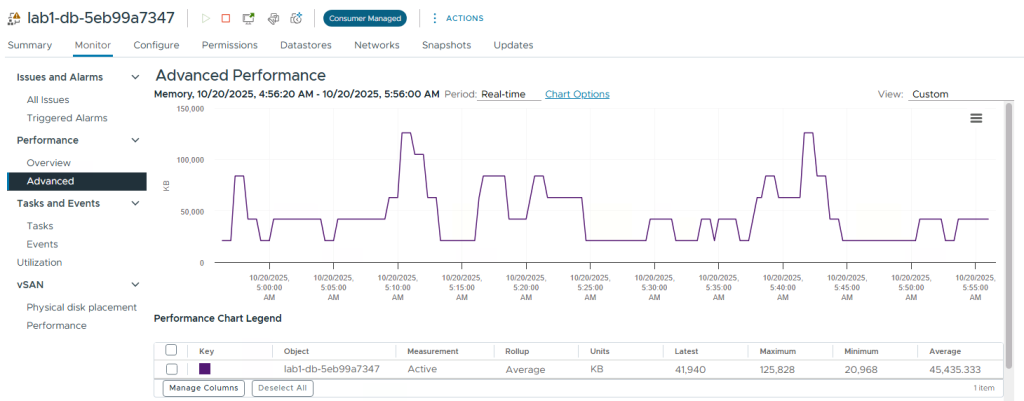
For Memory Tiering VM memory pages are demoted to an NVMe device when cold/dormant, but not vmkernel pages from the host. So, we want to look at our workload memory activeness percentage. You can do this from the vCenter UI by clicking on a VM > Monitor > Performance > Advanced. Then change the view to memory and Active memory should be one of the metrics shown. If not, click on Chart Options and select Active for measurement. Active will only show if the period is set to Real-Time since this is a level 1 stat. The active memory is measured in KB.
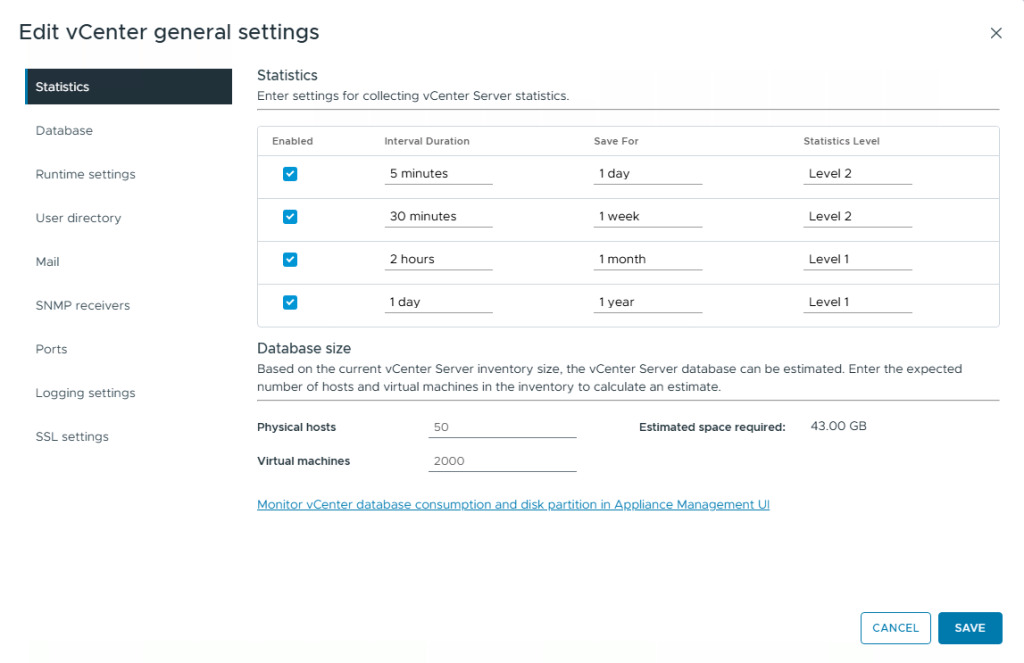
If you would like to collect active memory for a longer period, you can click on the vCenter server > Click Configure > Edit > Statistics. You can change the Statistics level from Level 1 to Level 2 for various intervals. DO THIS AT YOUR OWN RISK as the space consumed for the database will substantially increase, in my case it went from an estimated space of 16GB to 43GB.
You could also use other tools such as VCF Operations or RVTools to get information on the active memory for your workloads. RVTools also collects memory activeness in real-time, so make sure to account for spikes and include your busy periods for your workloads.
Note limitations:
For VCF 9.0, Memory Tiering isn’t suited for latency-sensitive VMs:
- High-performance VMs
- Security VMs like SEV/SGX/TDX
- Fault Tolerance VMs
- Monster VMs (1TB+ memory).
For mixed environments, dedicate hosts or disable at the VM level. This may change in the near future, so keep an eye out for upcoming enhancements and wider workload compatibility.
Software Pre-requisites
Software-wise, Memory Tiering requires the new vSphere version in VCF/VVF 9.0. Both vCenter and ESX hosts should be at version 9.0 or later. This ensures production readiness with enhancements in resiliency, security (including VM/host-level encryption), and vMotion awareness. Configuration can occur at the host or cluster level using vCenter UI, ESXCLI commands, PowerCLI, or Desired State Configuration for automated, rolling reboots.
In VVF and VCF 9.0, we will need to create a partition on the NVMe device for Memory Tiering to consume. Currently, this task is done via ESXCLI commands or PowerCLI (yes, you can script it), so access to a terminal as well as SSH is needed. We will later discuss the step for both interfaces and will even provide a script to help with the partition creation for multiple servers.
NVMe Compatibility
Hardware is the backbone of Memory Tiering’s performance. NVMe devices serve as one of the memory tiers, so compatibility is non-negotiable. VMware recommends drives with:
- Endurance: Class D or higher (≥7300 TBW) for durability under repeated writes.
- Performance: Class F (100,000-349,999 writes/sec) or G (350,000+ writes/sec) to handle tiering efficiently.
Some OEMs don’t list their drives in the BOM with these classes but instead will be listed as read intensive or mixed drives. In this case we recommend using Enterprise Mixed Drives with at least 3 DWPD (Drive Writes Per Day). If you are not familiar with this term, DWPD measures a solid-state drive’s (SSD) endurance by indicating how many times its full capacity can be written daily over its warranty period (typically 3-5 years) without failure. For example, a 1TB SSD with 1 DWPD can handle 1TB of writes per day for the warranty duration. Higher DWPD values indicate greater durability, critical for applications like VMware Memory Tiering where frequent writes occur.
You can also search the Broadcom Compatibility Guide to determine drives with the recommended classes and how they are named on the OEM. This step is HIGHLY recommended. Since we will possibly read/write large amounts of pages to NVMe, we want those devices to be high performance and highly durable. Memory Tiering will inherently reduce your Total Cost of Ownership, but selecting a cheap device for this purpose is NOT where you want to cut costs.
Note: We are leveraging the vSAN BCG for drive selection but this does not mean that you need to run vSAN in order to run Memory Tiering. Whether you have vSAN or not (preferably you do), you can always use the vSAN BCG to determine what NVMe devices are supported for Memory Tiering.
OEM-Specific Guidelines for NVMe Tiering
When configuring Memory Tiering, drive classification varies by OEM. Below are specific guidelines for Dell, HPE, and Lenovo to help you select the correct hardware.
1. Dell Servers
When selecting NVMe devices in the Dell configurator, ensure you choose a Mixed-Use Enterprise NVMe drive.
- Example: “1.6TB Enterprise NVMe Mixed Use AG Drive U.2 with carrier”
- Requirement: Look for mixed read/write endurance classes with ≥3 DWPD (Drive Writes Per Day) to ensure optimal performance and longevity.
Note: This may require selecting a different pair of NVMe drives for memory tiering than those used for vSAN in a ReadyNode configuration.
Validating Compatibility You can validate compatibility through the Broadcom Compatibility Guide under “vSAN SSD” using the following filters:
- Supported Release: ESX 9
- Partner: Dell
- Device Type: NVMe
- Endurance Class: D
- Performance Class: F or G
- DWPD: 3
> Click here for Dell NVMe vSAN Compatibility
2. HPE Servers
To find compatible drives, visit the HPE SSD Recommendation Tool.
- SSD Workload: On the left pane drop-down, select only “Mixed Use.”
- Interface Type: Select “NVMe Mainstream Performance” and “NVMe High Performance.” Disable all other options.
- Check Specs: From the resulting list, click the datasheet (Excel/PDF) for any drive you are interested in. Verify that the Endurance DWPD is at least 3.
Link: HPE SSD Recommendation Tool
> Click here for HPE NVMe vSAN Compatibility
3. Lenovo Servers
For Lenovo configurations, you must select Mixed Use NVMe drives with an endurance of 3 DWPD.
- Configuration: When configuring a purchase, select the NVMe backplane and choose a set of Enterprise-class (or Advanced Data-Center class) drives.
- Validation: You can verify approved drives using the VMware Compatibility Guide for Lenovo-branded hardware here: > Click here for Lenovo NVMe vSAN Compatibility
Recommended Lenovo Drives The following are examples of compliant drives:
- ThinkSystem CD8P Mixed Use NVMe PCIe 5.0
- ThinkSystem PM1745 Mixed Use NVMe PCIe 5.0
- ThinkSystem P5620 Mixed Use NVMe
- ThinkSystem 7450 MAX Mixed Use NVMe
- ThinkSystem Vendor Agnostic Mixed Use NVMe
- ThinkSystem PS1030 Mixed Use NVMe PCIe 5.0
- ThinkSystem Solidigm P5620 Mixed Use NVMe PCIe 4.0
- ThinkSystem Intel P5600 Mainstream NVMe PCIe 4.0
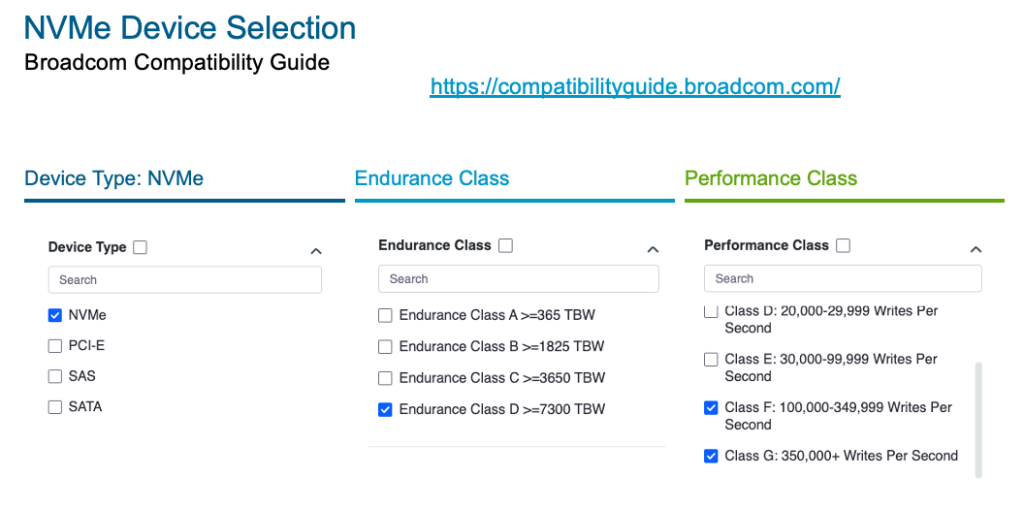
As far as Form Factors, we support a large variety. You can choose a 2.5” device if you have room, pluggable E3.S devices, or even a M.2 device if all your 2.5” slots are full. Your best approach is to go to the Broadcom Compatibility Guide and after selecting your Endurance (Class D), and Performance (Class F or G) then select Form Factor and even DWPD. There are a lot of options to help you choose the best drive for your environment and feel confident that you have the correct hardware for this feature.
In the next part of this blog series, we will discuss designing Memory Tiering for security, redundancy, and scalability. Stay tuned!
Blog series:
PART 1: Prerequisites and Hardware Compatibility
PART 2: Designing for Security, Redundancy, and Scalability
PART 4: vSAN Compatibility and Storage Considerations
PART 6: End-to-End Configuration
Additional information on Memory Tiering
Discover more from VMware Cloud Foundation (VCF) Blog
Subscribe to get the latest posts sent to your email.